Getting Started
Learn how to create an account and start tracking your options trades with Option Tracker.
Welcome to Option Tracker! This guide will help you get started with tracking your options trading journey.
Creating Your Account
Getting started is easy. Visit our signup page and create your account in seconds.
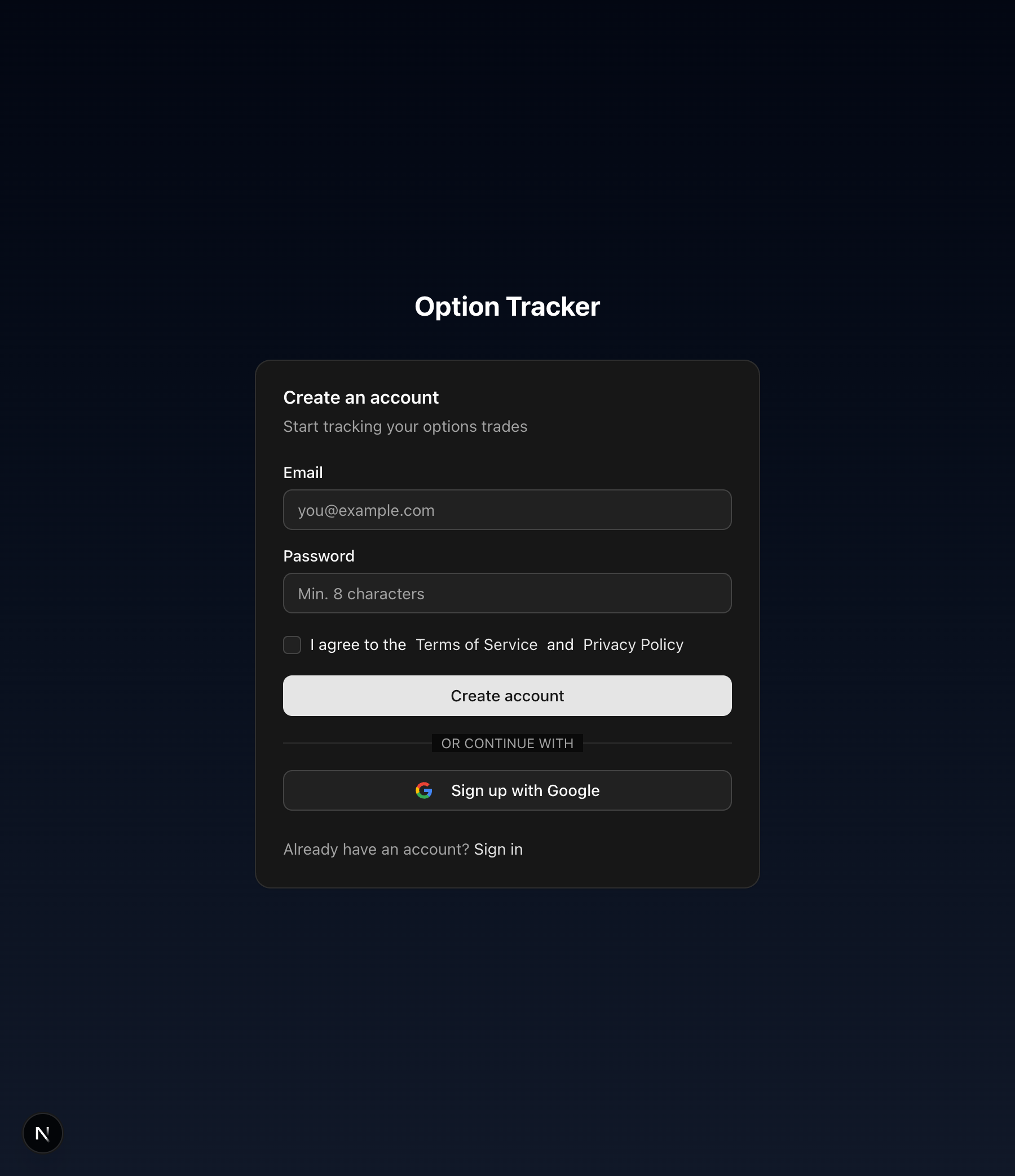
Sign Up Options
You have two ways to create an account:
- Email & Password - Enter your email address and create a secure password
- Google Sign-In - Click "Sign in with Google" for one-click registration
Terms of Service
Before creating your account, you'll need to accept our Terms of Service and Privacy Policy. Check the checkbox to acknowledge you've read and agree to our terms.
Logging In
Once your account is created, you can log in anytime at the login page.
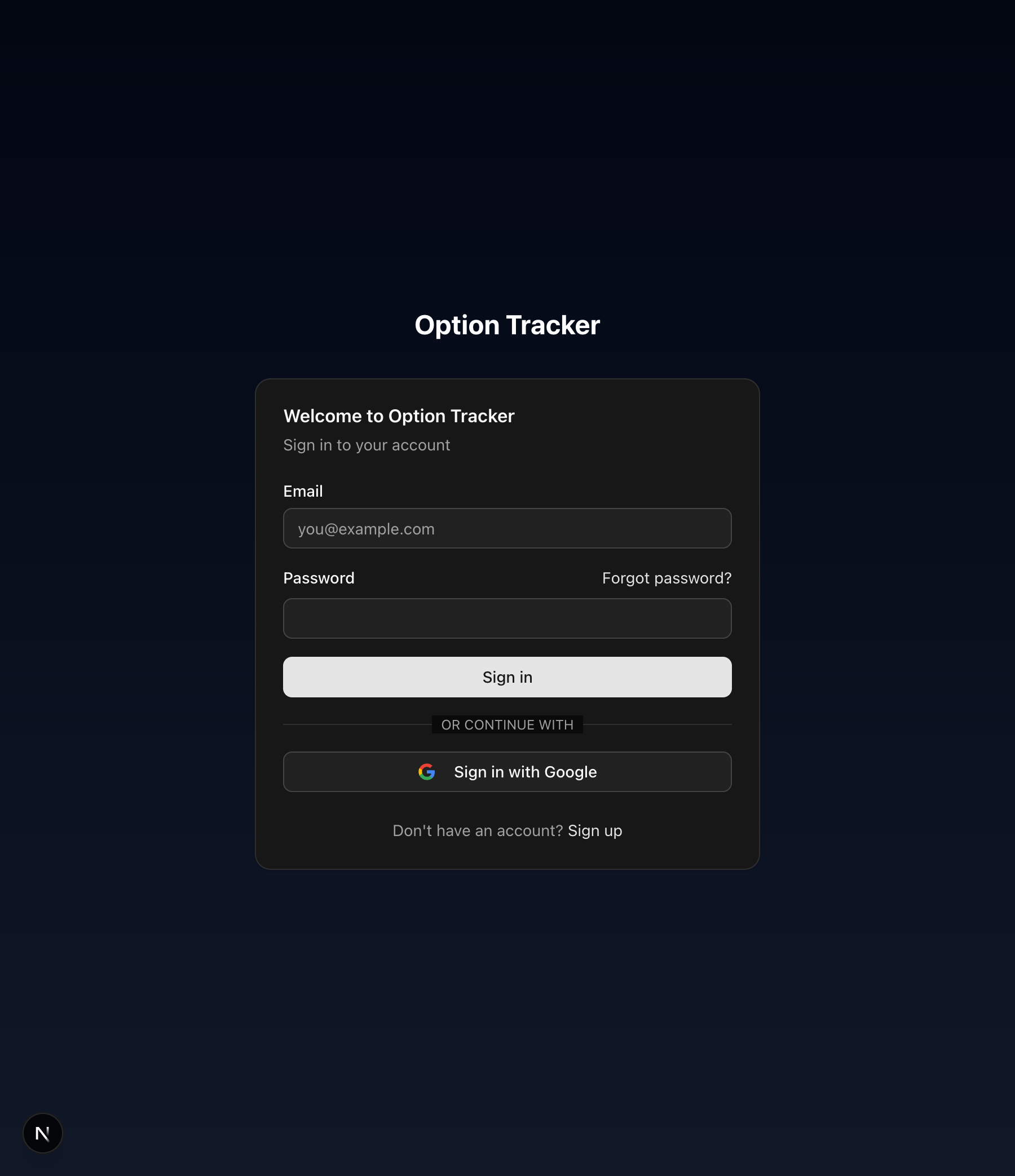
Enter your email and password, or use Google Sign-In if that's how you registered.
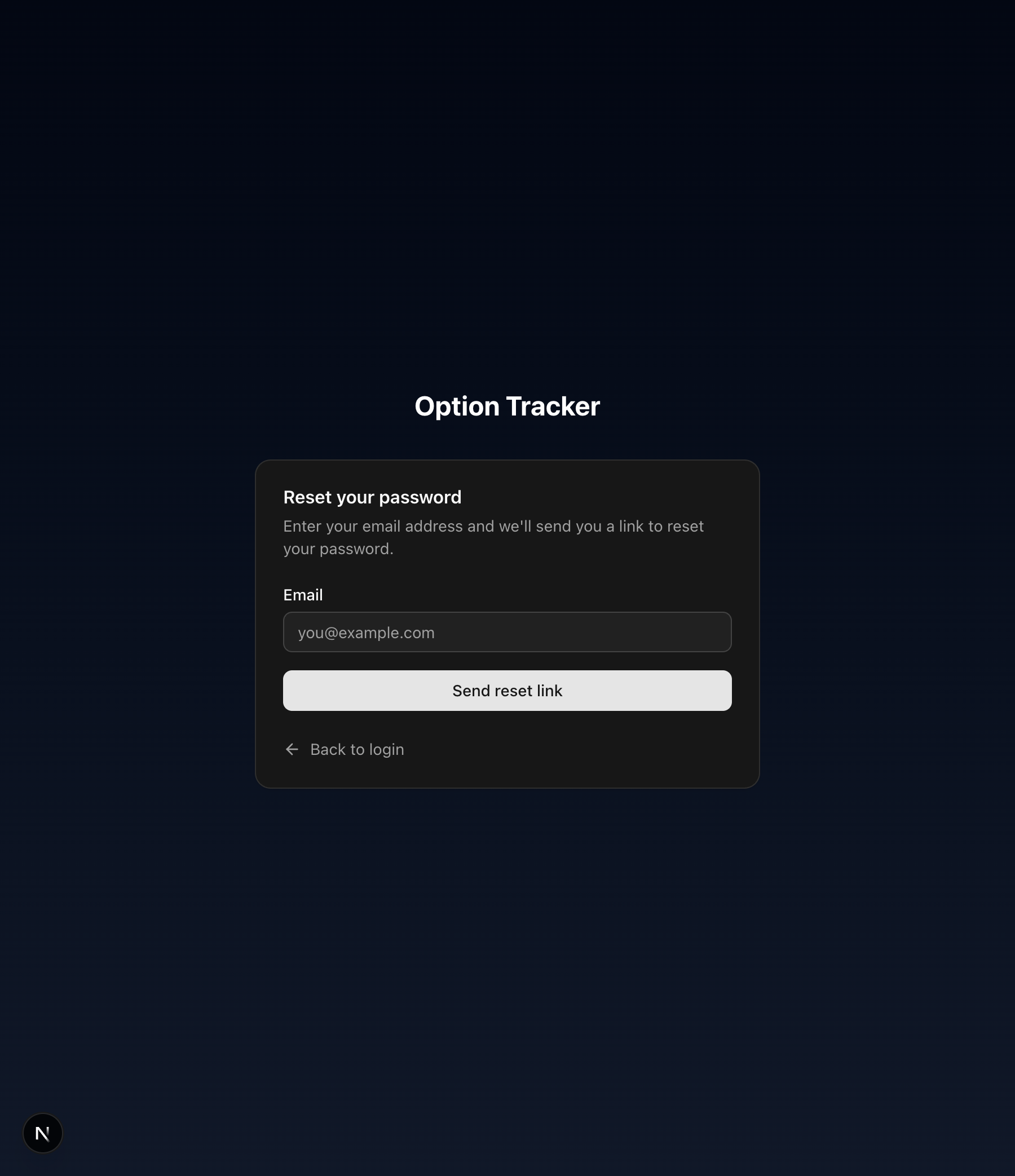
Forgot Your Password?
If you've forgotten your password, click "Forgot password?" on the login page to receive a password reset link via email.
Your First Look at the Dashboard
After logging in, you'll be taken to your dashboard - the central hub for all your trading activity.
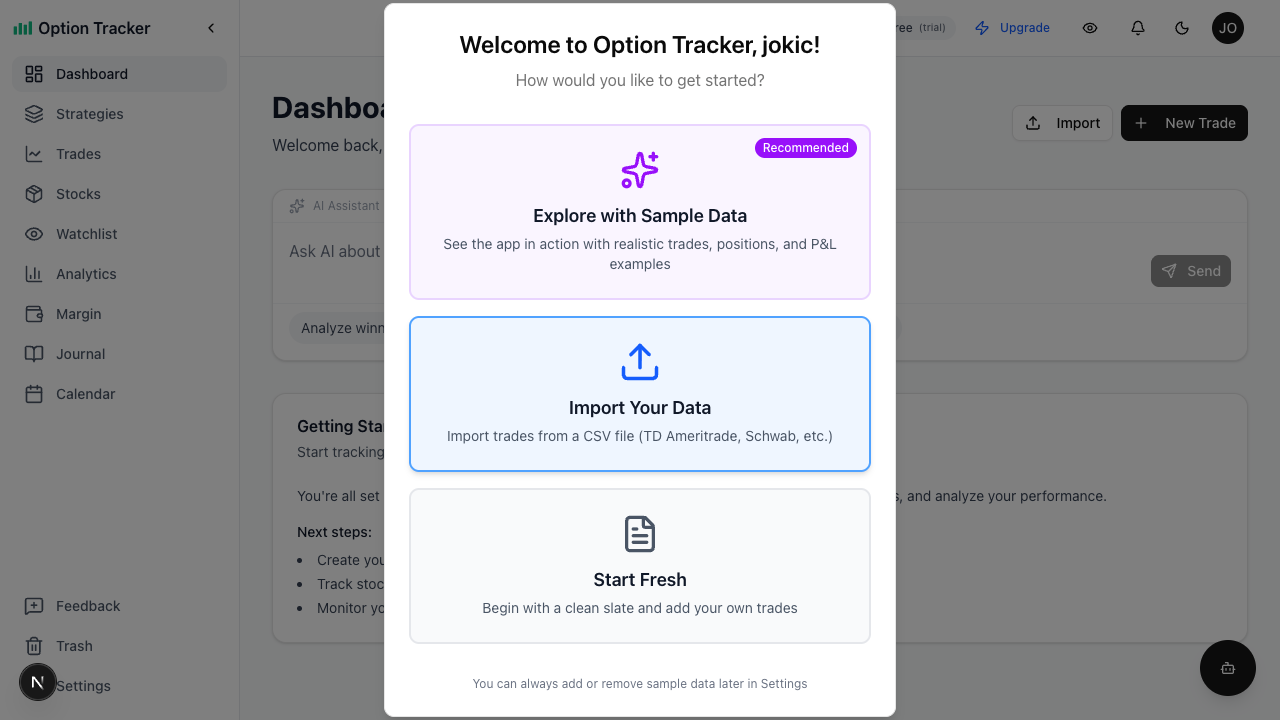
The dashboard shows:
- Total Realized P&L - Your actual profits and losses from closed positions
- Total Unrealized P&L - Potential profits or losses from open positions
- Open Positions - Number of active trades and positions
- Win Rate - Your success rate on closed trades
- P&L Chart - Visual representation of your performance over time
- Recent Positions - Quick access to your most recent trades
Demo Data
New accounts are automatically seeded with sample trading data so you can explore all features immediately. This includes:
- Example option trades (calls and puts)
- Stock positions from assignments
- Covered calls on existing positions
- Historical trade data for analytics
You can delete this sample data from Settings when you're ready to start fresh with your own trades.
Quick Tip: Command Palette
Press ⌘K (Mac) or Ctrl+K (Windows) to open the command palette. This lets you quickly:
- Search for any ticker
- Navigate to any page
- Add tickers to your watchlist
- Create new trades
Look for the Search ⌘K button in the header.
Next Steps
Now that you're set up, here's what to explore next:
- Managing Trades - Learn how to log and track your option trades
- Stock Positions - Understand how to manage assigned stock
- Covered Calls - Generate income from your stock holdings
- Analytics - Analyze your trading performance
- Keyboard Shortcuts - Speed up your workflow
Ready to log your first trade? Head to the Managing Trades guide!