Keyboard Shortcuts
Master Option Tracker with keyboard shortcuts and the command palette. Navigate faster, enter trades quickly, and access any feature without touching your mouse.
Option Tracker includes a powerful command palette and keyboard shortcuts to help you navigate and take action quickly.
Command Palette
The command palette is a quick-access search that lets you navigate, search tickers, find your trades and positions, and perform actions without touching your mouse.
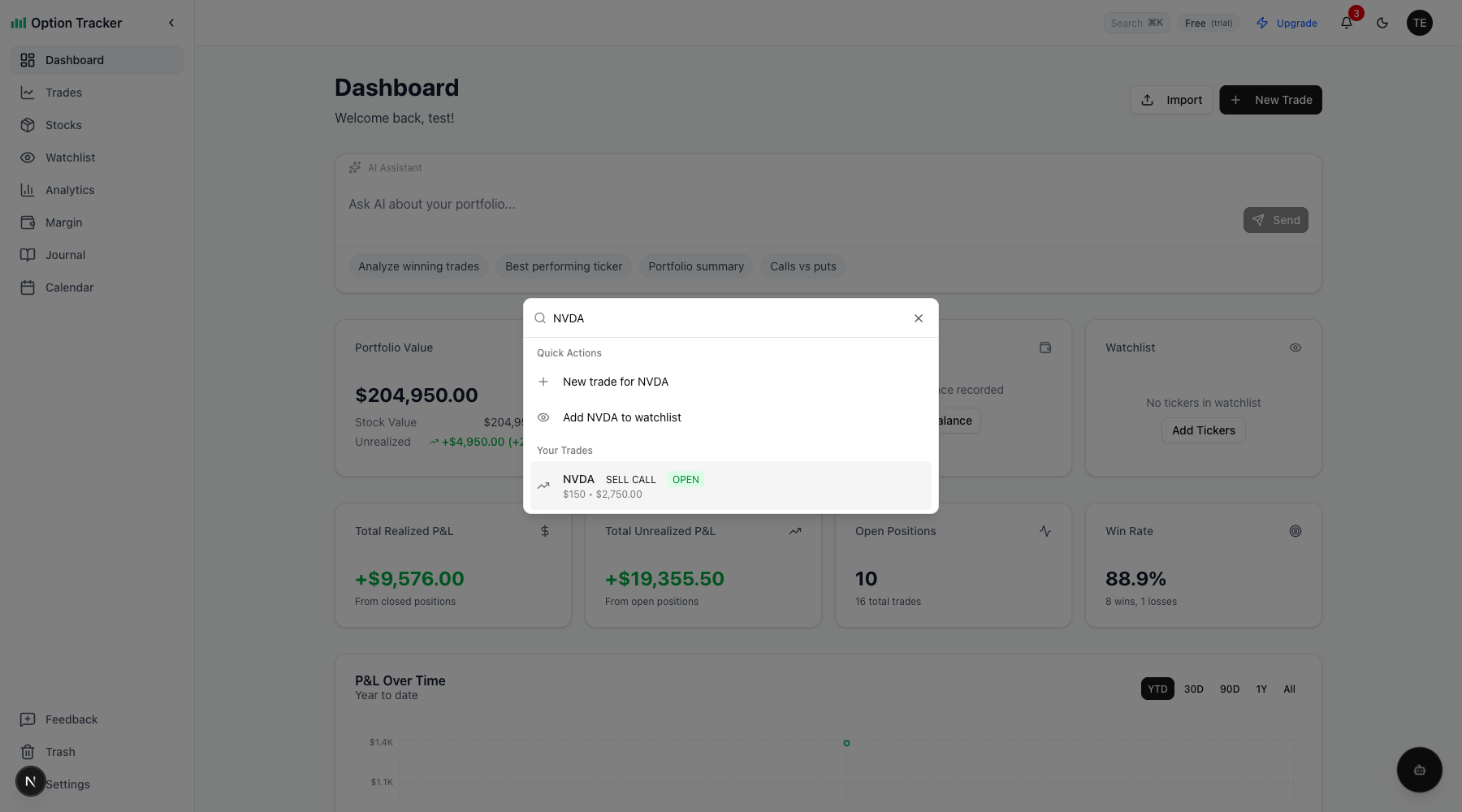
Opening the Command Palette
Press ⌘K (Mac) or Ctrl+K (Windows/Linux) from anywhere in the dashboard.
You can also click the small Search ⌘K button in the header.
What You Can Do
Search Your Trades:
- Type any ticker symbol to find your open trades
- See trade details: type (CALL/PUT), action (BUY/SELL), status, strike price, and premium
- Click a result to jump directly to that trade
Search Your Positions:
- Find stock positions by ticker
- See position status, share count, and cost basis
- Navigate directly to the position
Search Tickers:
- Type any ticker symbol (e.g., "AAPL", "TSLA")
- See real-time price and company name
- Quickly add to watchlist or create a new trade
Navigate Pages:
- Type page names like "Dashboard", "Trades", "Analytics"
- Jump directly to any section
Quick Actions:
- "New trade for [TICKER]" - Create a trade for the searched ticker
- "Add [TICKER] to watchlist" - Add a ticker to your watchlist
Search Results Categories
When you search, results are organized into clear categories:
- Quick Actions - Create trades or add to watchlist
- Your Trades - Matching open option trades
- Your Positions - Matching stock positions
- Notes - Trades or positions with matching notes
- Navigation - Page shortcuts
Tips for Power Users
- Fuzzy Search - You don't need to type exact matches. "tsla" finds Tesla, "anal" finds Analytics
- Recent Items - Your recently accessed items appear first
- Keyboard Navigation - Use arrow keys to navigate results, Enter to select
- Direct Navigation - Select a trade or position to jump directly to it
Keyboard Shortcuts Reference
Command Palette
| Shortcut | Action | |----------|--------| | ⌘K / Ctrl+K | Open command palette | | Escape | Close command palette or dialogs | | Arrow Up/Down | Navigate search results | | Enter | Select highlighted result |
Navigation (G + letter)
Press G followed by a letter to quickly navigate to different pages:
| Shortcut | Page | |----------|------| | G D | Dashboard | | G T | Trades | | G S | Stocks | | G E | Strategies | | G W | Watchlist | | G A | Analytics | | G M | Margin | | G J | Journal | | G C | Calendar | | G , | Settings |
Forms
| Shortcut | Action | |----------|--------| | ⌘Enter / Ctrl+Enter | Submit forms |
Mobile Access
On mobile devices, tap the search icon in the header to access similar search functionality.