Build & analyze
Try the adjustment on a copy, apply it only when you mean to
You hold a position and you want to know what a change would do to it — buy a put under the short, roll it out a week, close half. Explore answers that on a scratch copy of the trade: your real position stays exactly as it is, drawn as a ghost under the new payoff, while a panel says what the change costs at today’s marks and what it does to your collateral, your max loss, your breakevens and your Greeks.
Ways in
- Open the trade and press Explore — it sits in the position’s header, ahead of Roll and Edit position.
- From the trades list: the flask pill on an open row. When the trade already carries variants the pill says how many — 2 what-ifs — so you can see at a glance which positions you have been thinking about.
- On a phone, tap the row and the action sheet offers Explore what-ifs (2) under View / edit trade.

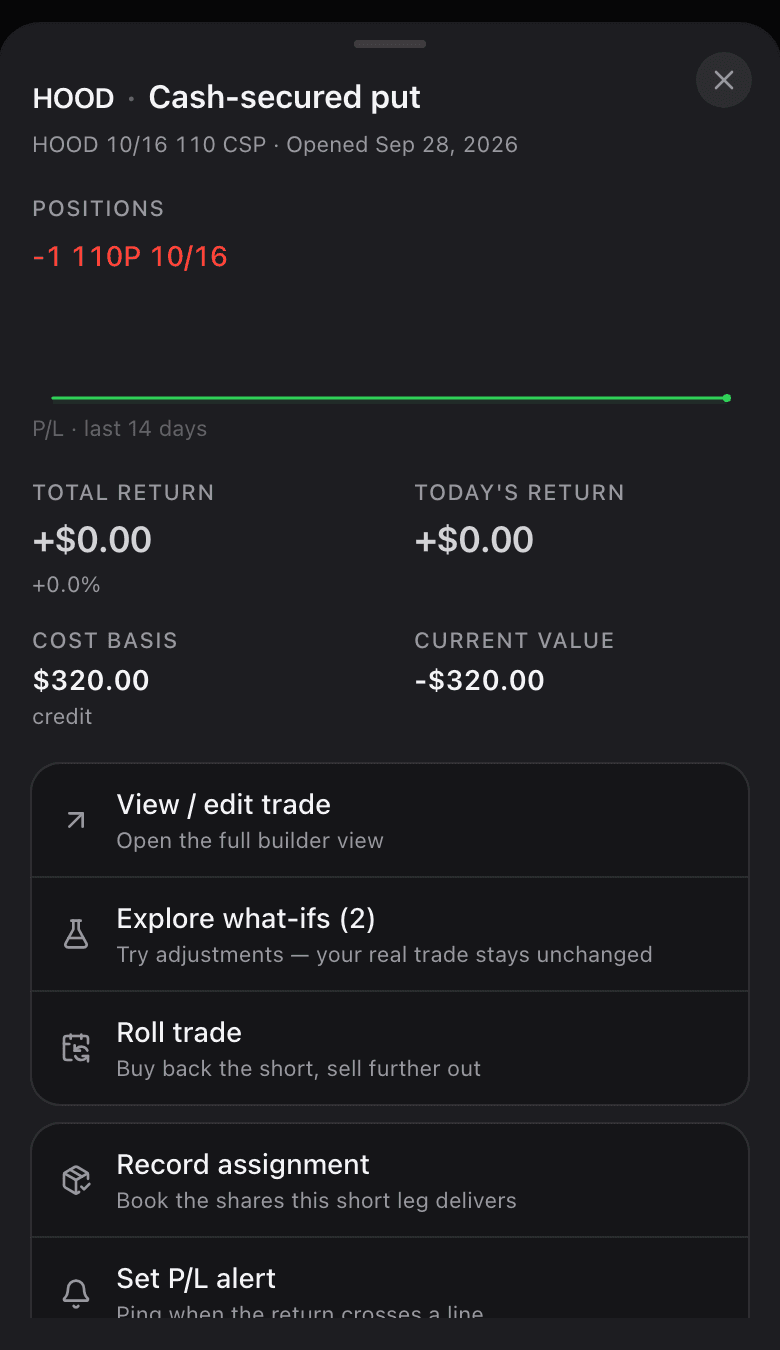
There is a fourth way in that you will find by accident: try to drag a strike or add a leg on a saved position and, instead of refusing, the builder takes you into Explore with a note saying so. A saved trade is read-only by design — this is the door that read-only opens onto.
Explore is offered only while the trade still has a live leg. A position whose every leg has expired has no ghost curve, no before → after and nothing Apply could write, so the button, the pill and the sheet row all disappear together.
Five variants, named after what they change
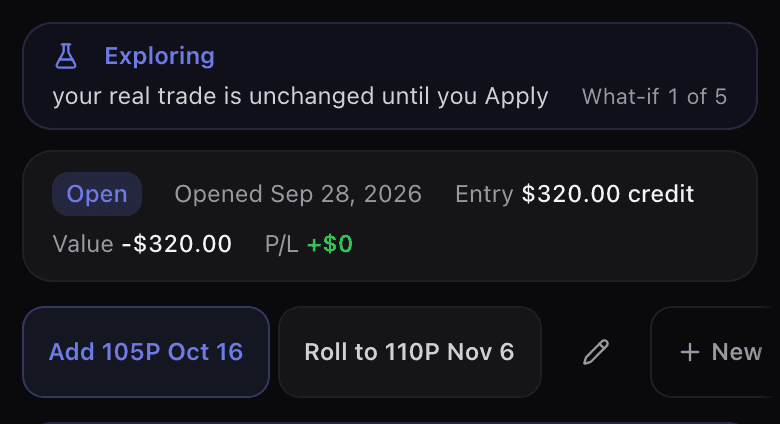
Each trade holds up to five what-ifs, as tabs above the panel. A new one is named from the change itself — Add 105P Oct 16, Roll to 110P Nov 6, Close 130P Oct 16 — and the pencil beside the tabs renames the open one. With the keyboard the tabs are a single Tab stop: the arrow keys (and Home and End) switch what-ifs. They save themselves as you work (the banner says Saved as what-if), so switching apps mid-thought loses nothing. Reopen one days later and its quotes are stale, so it re-quotes on open rather than showing you last week’s marks as if they were today’s.

What the panel tells you
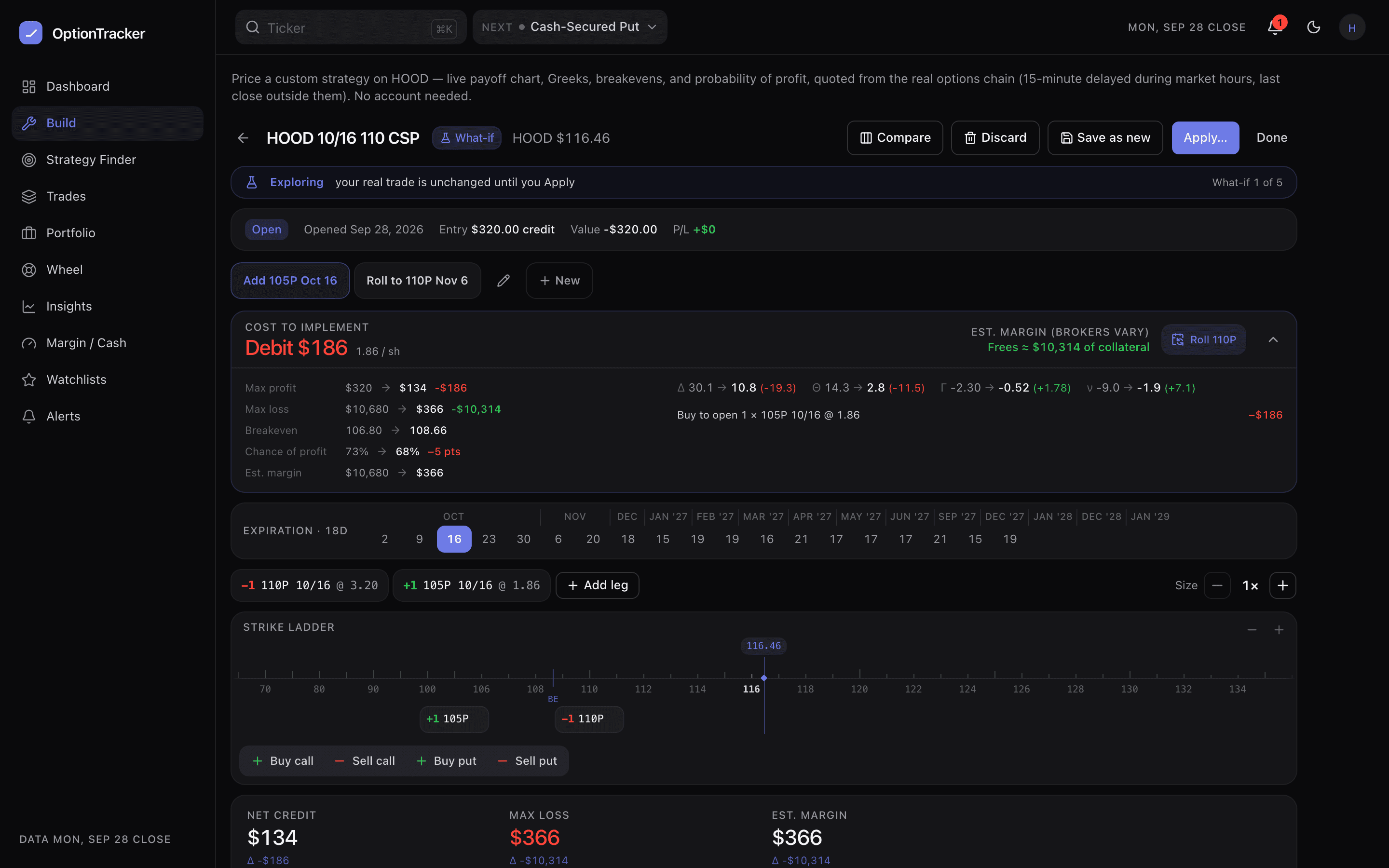
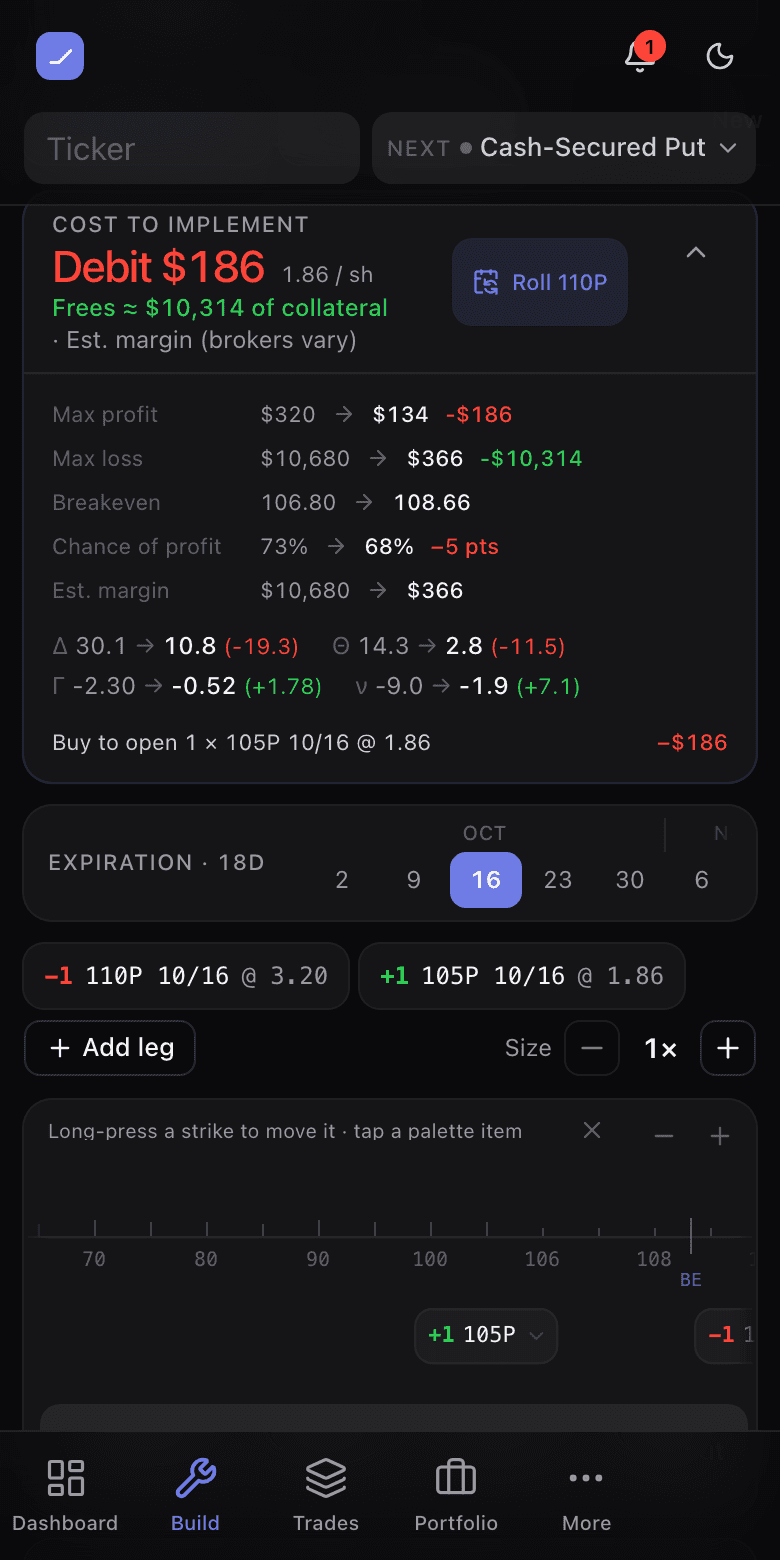
The delta panel is the point of the screen: it compares this variant with the position you actually hold.
| Field | What it says |
|---|---|
| Cost to implement | What the change costs — or pays — at today’s real marks, as a debit or credit, with the per-share figure beside it. Unpriceable legs are named and left out rather than counted at zero. |
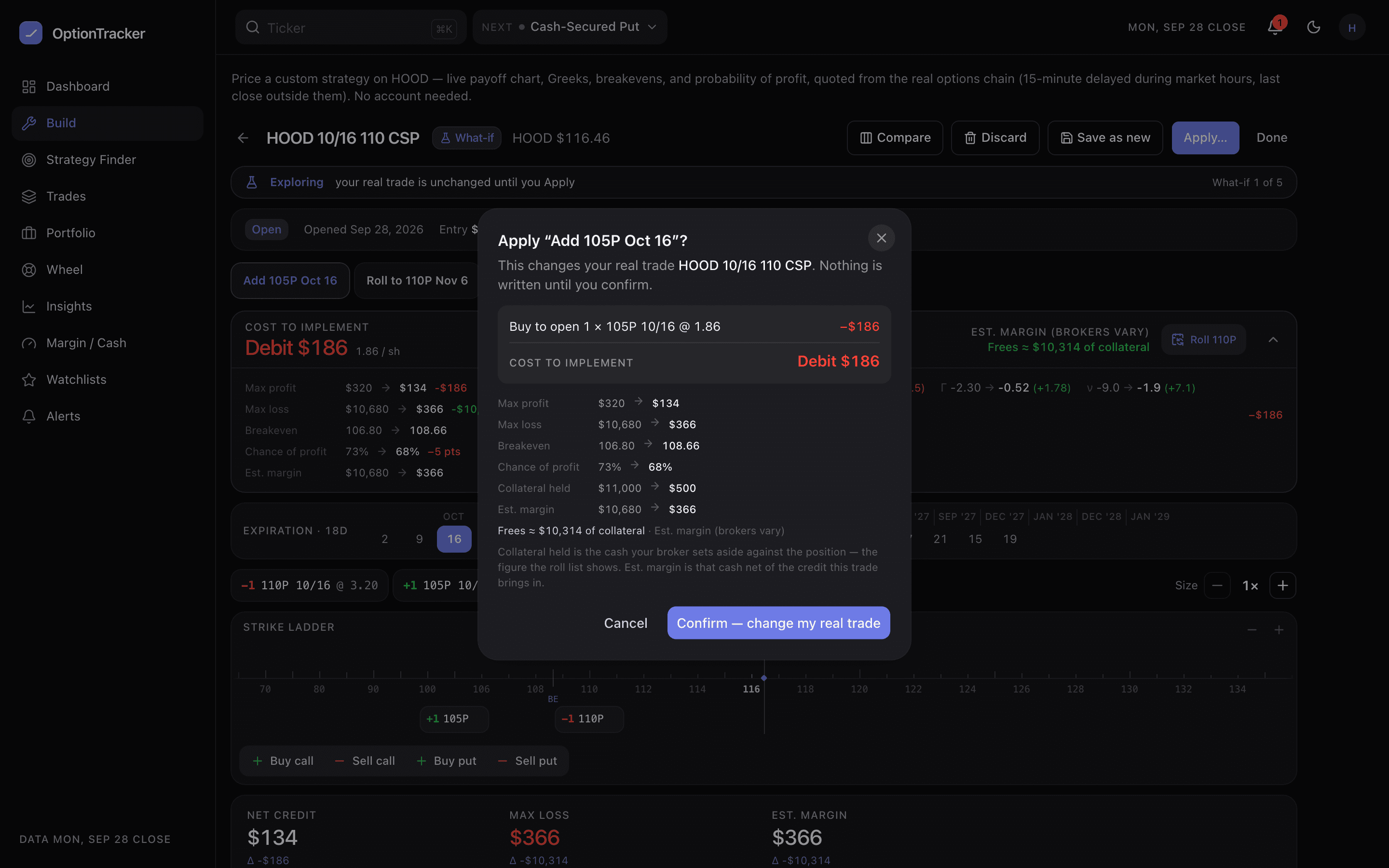
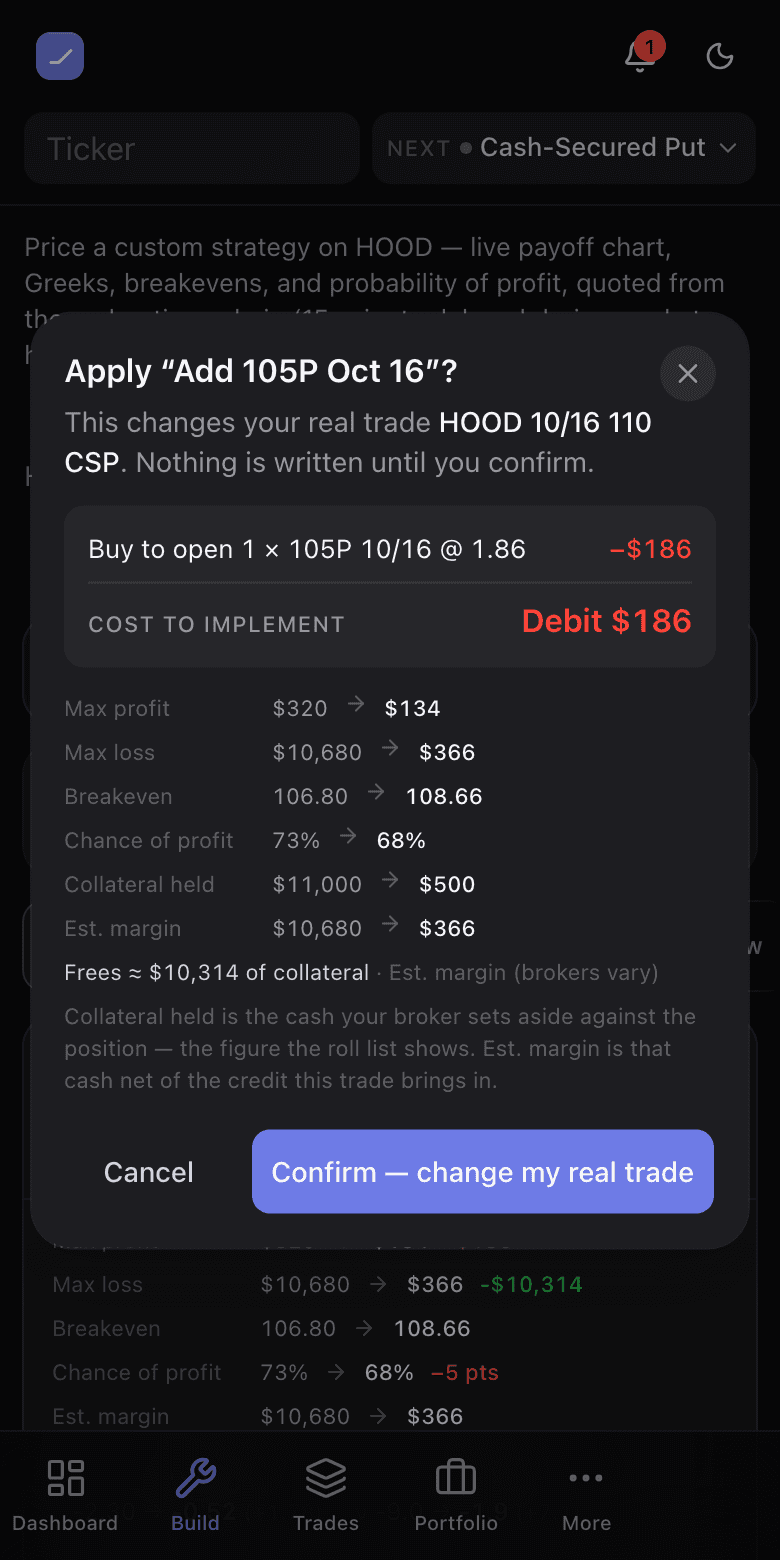
| Est. margin | The collateral change, in words: “Frees ≈ $10,314 of collateral” or “Needs ≈ $203 more collateral”, with the before → after pair below. An estimate — brokers vary. |
| Max profit / Max loss | Before → after, with the change in the figure as printed: a max loss that shrinks from $10,680 to $366 reads −$10,314, in green because the risk went down. Once the resulting structure holds two expiries these read “Not estimable” — see the note below. |
| Breakevens · Chance of profit | Before → after, in the same units the summary bar uses. A chance-of-profit change is the difference between the two percentages as printed, so 60% → 60% always reads Δ 0 pts. |
| Greeks Δ | Delta, theta, gamma and vega, each before → after with the change. |
| The transactions | Every leg the change would trade, written the way a broker reads it back — “Buy to open 1 × 10⁵P 10/16 @ 1.86” — with its own dollar amount. |
Compare them side by side
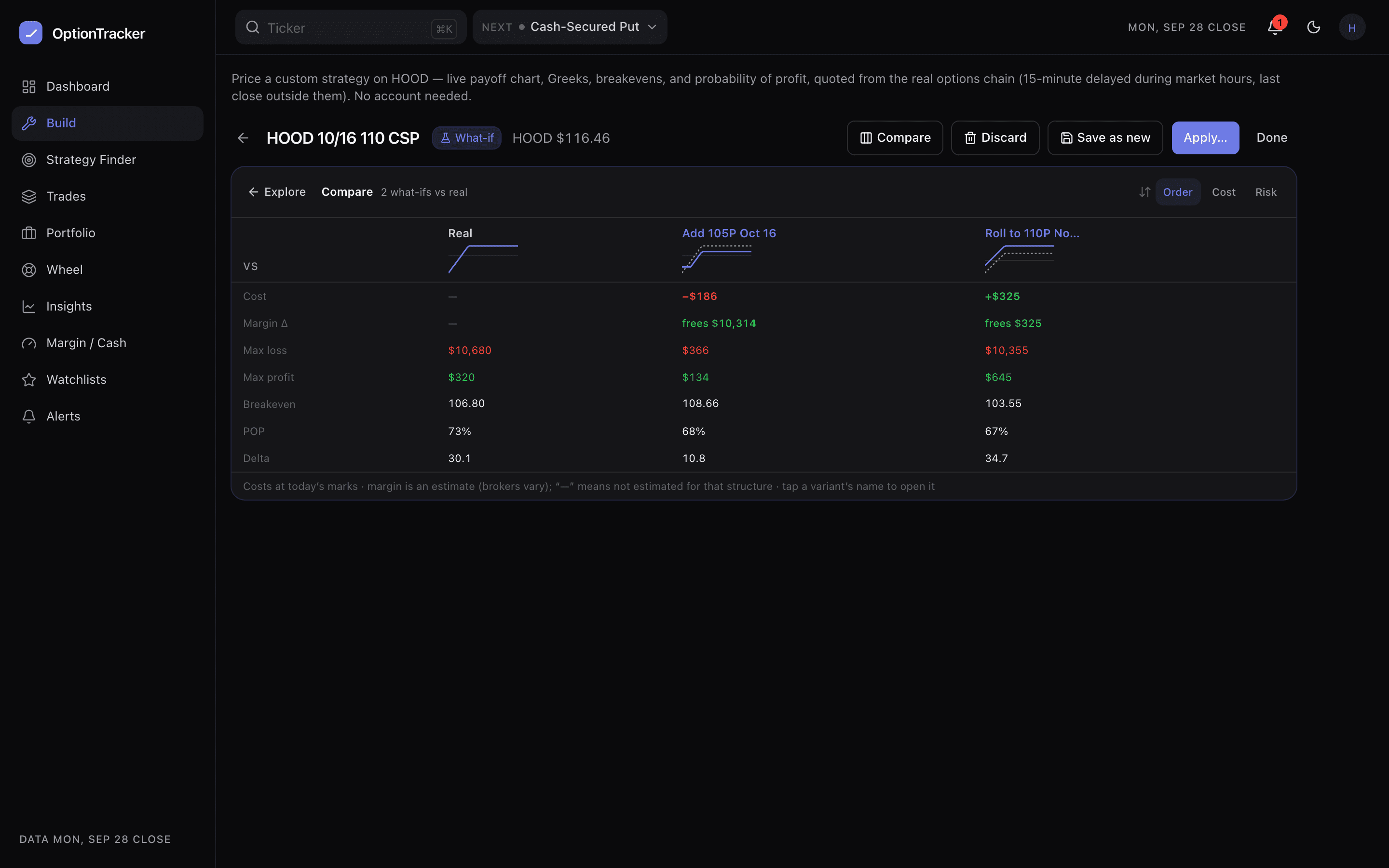
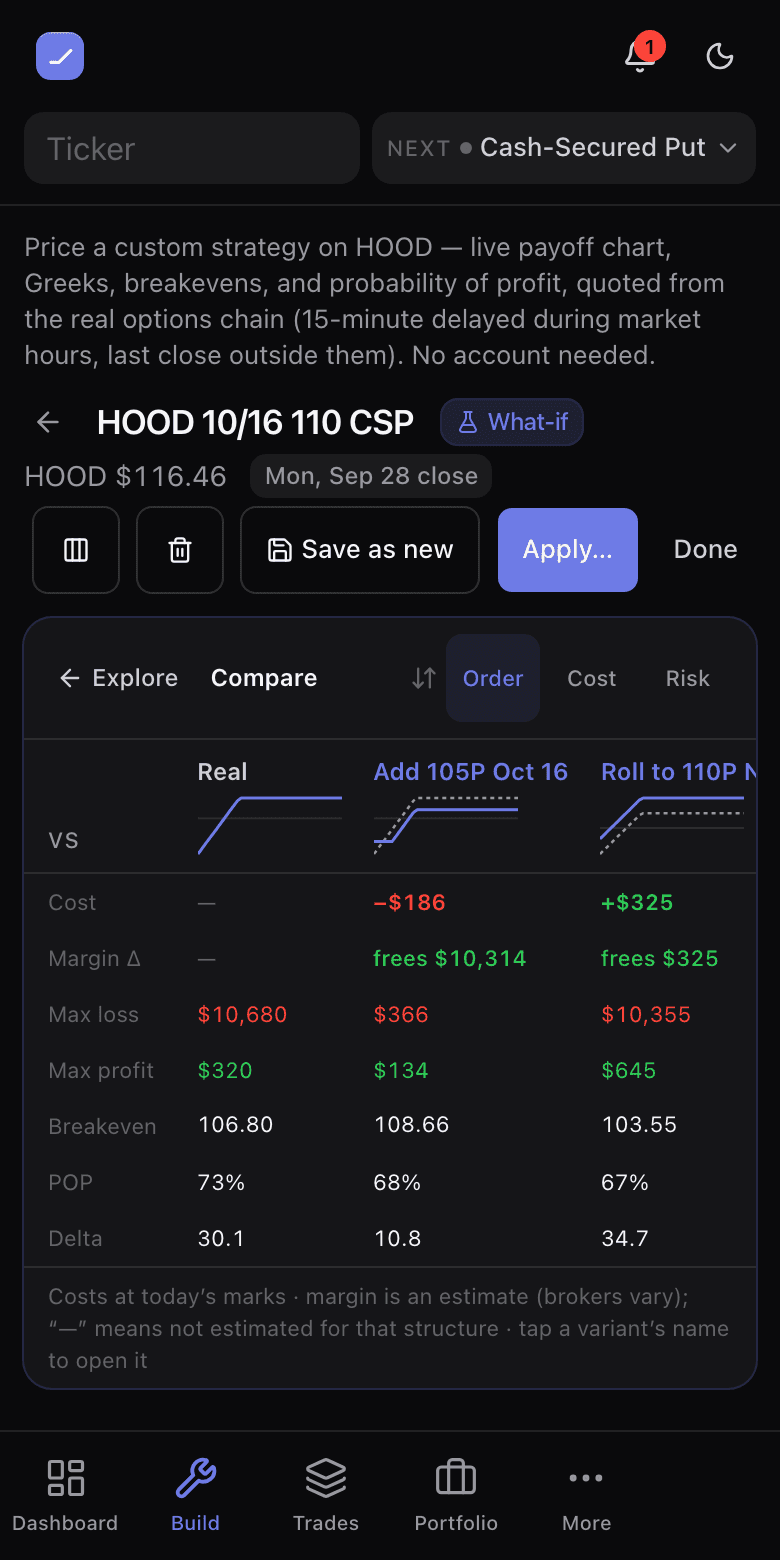
Compare puts the real position and every variant in one table, a column each, with cost, margin Δ, max loss, max profit, breakeven, chance of profit and delta as the rows — and sorts by order, cost or risk. Tap a variant’s name to open it. A “—“ is never a zero — it is the table declining to state a number it does not have: the real column has no cost or margin change to show against itself, and POP and delta go unstated when a leg’s volatility cannot be recovered — not from a stored value, not from today’s chain, not solved from your own fill. Open that variant and the panel names the contract responsible.
Ranked roll candidates
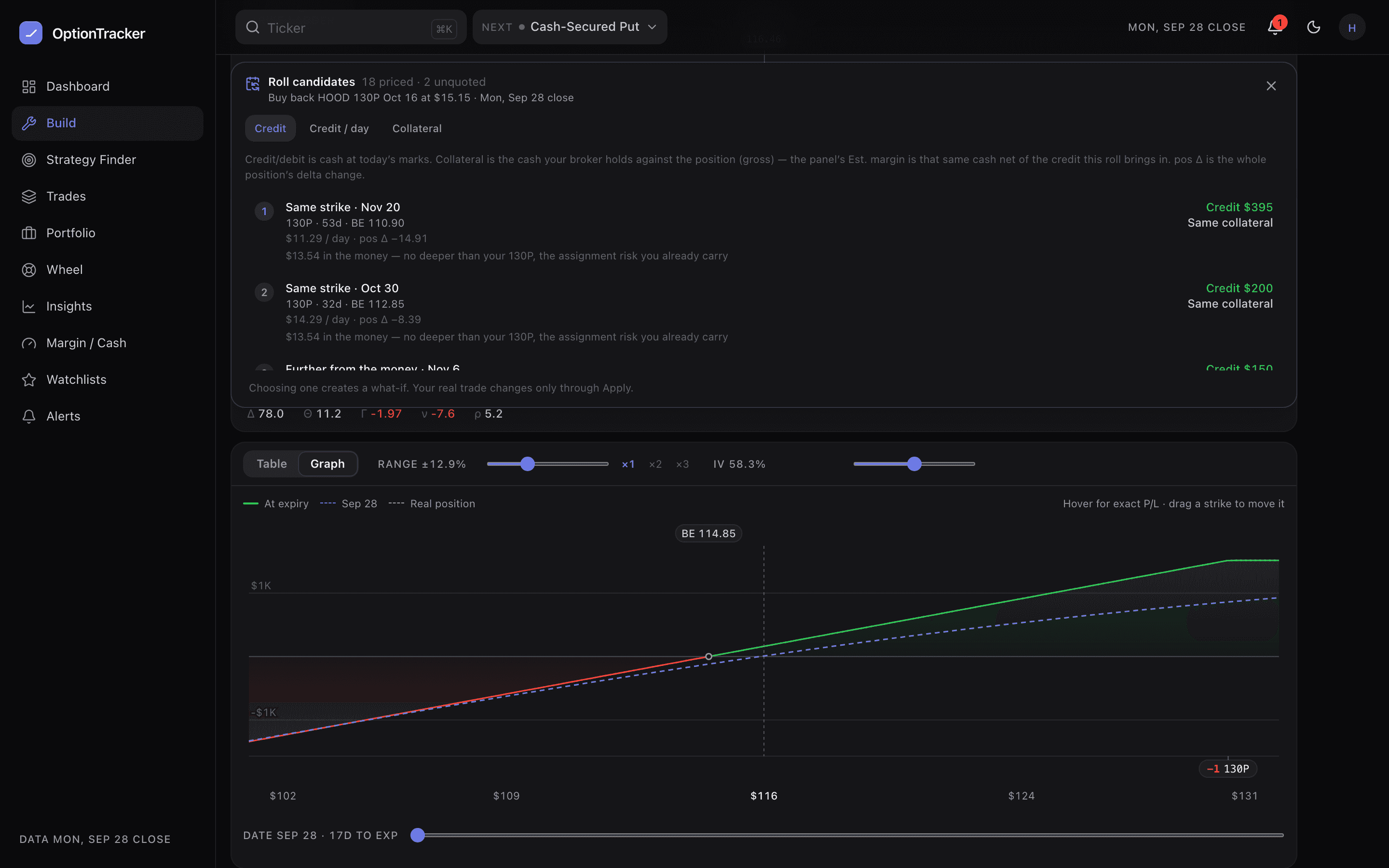
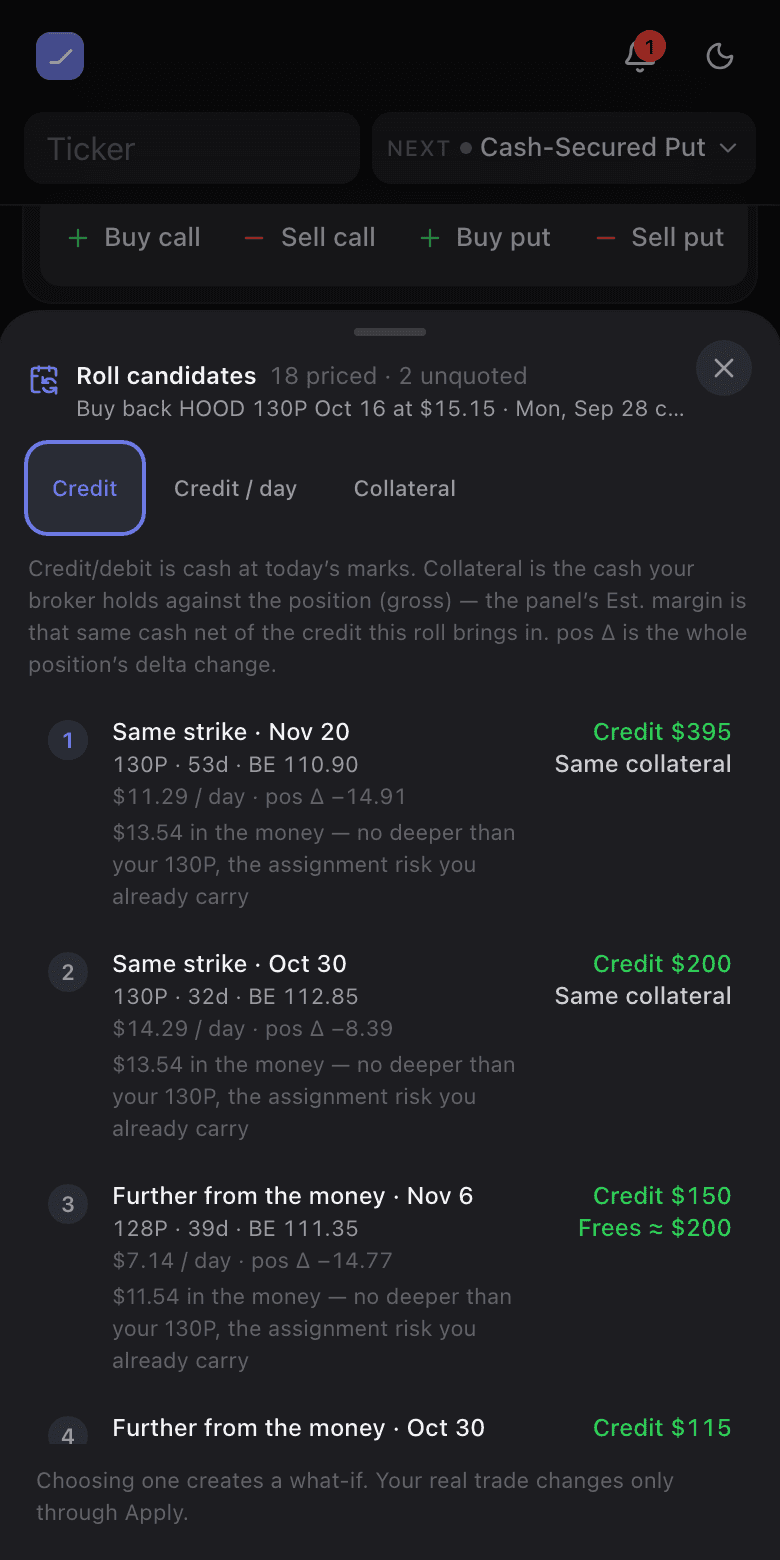
On a short leg you hold, Explore will generate the rolls for you rather than making you build each one by hand. Open it from that leg’s menu, from the one-tap Roll 110P button on the delta panel when the position holds exactly one short, or from Compare ranked candidates in the older roll preview. We price the strike you hold and two either side at at most four expiries past the one you hold — each is a real chain request — aimed a week, two, three and four weeks further out, and topped up with the next listed dates when the chain is too sparse to hit them. Then we rank them.
- Each row says the shape first — Same strike · Nov 20, Further from the money · Nov 6 — then the contract, days to expiry and the new breakeven, then credit per day and the change in the whole position’s delta.
- Two money figures, never one. The credit or debit is cash at today’s marks; the collateral figure is the gross cash your broker holds against the position, which is why a same-strike roll honestly reads Same collateral even though it pays you. The panel’s Est. margin is that same cash net of the credit — the legend under the sort toggles says which is which.
- Sort by credit, credit per day or collateral. Per day is per day the roll adds — a $420 credit for 35 more days is $12.00 a day — not per day to the new expiry, so it stays comparable across candidates that expire at different times.
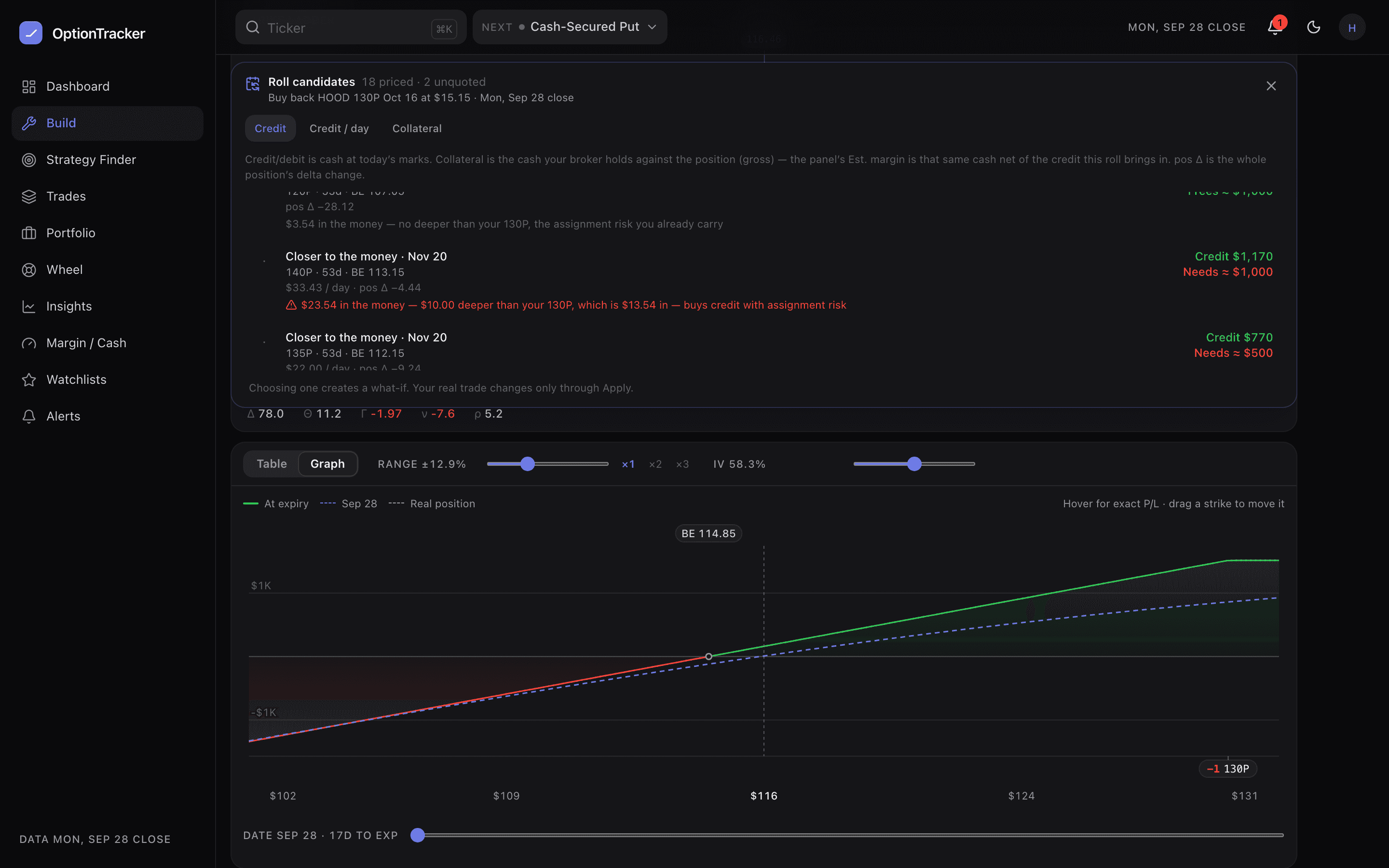
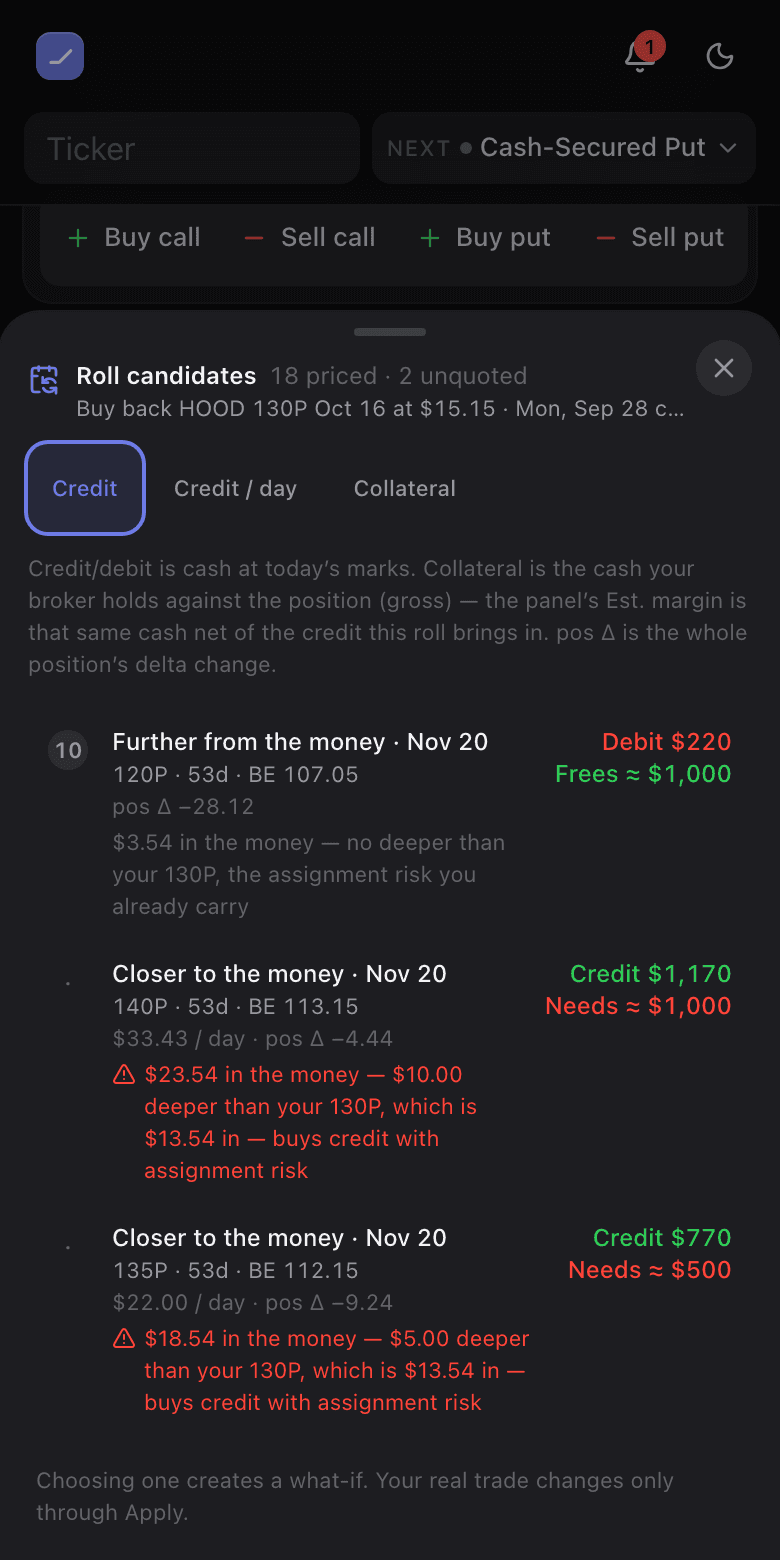
- A roll deeper in the money than the one you hold is flagged and ranked last. Ranking is credit-first, and the fattest credit on any chain belongs to the strike nearest the money — so a candidate that is further in than your own short is shown with the arithmetic spelled out ($23.54 in the money — $10.00 deeper than your 130P, which is $13.54 in — buys credit with assignment risk) and left out of the numbering: it carries a · instead of a rank and sits below every qualified row, so it can never be rank 1.
- A roll that strands your cover says so on the rows that would. Roll the short leg of a vertical past its long and the long stops being cover: the defined-risk spread becomes a naked short with an orphaned long, and the collateral goes from the width to the whole strike.
- A contract with no live mark is never priced at $0. It is listed, disabled, and labelled — an absence is not a price.
One basis from the list to the confirm. A rolled or partly banked position is measured against its campaign basis: what you originally took in, plus every roll since, plus this one. The roll preview and Explore both use it. When the position is the rolled short on its own, a single cash-secured put or covered call, the ranked list uses it too, so a candidate’s breakeven is the one the preview then shows. On any other shape a candidate’s breakeven is per contract, from that leg’s own fill. The summary bar says how much of that is history (incl. $110 banked on this trade), and the roll banner states the basis in words. Until the buyback has a price, the banner says its figures cover the new legs alone. If the new contract has no price yet, its breakeven and chance of profit read “—”, withheld rather than guessed.
Max loss moves the way it prints. The change printed beside Max loss (or Worst case) — under the summary bar’s tile and on the panel’s Max loss row alike — is the change in the figure you can see. A max loss that grows from $350 to $840 reads +$490, and one that shrinks from $10,680 to $366 reads −$10,314: never a signed accounting difference that would make a bigger risk read as an improvement. The colour says what it does to you — red when the risk grows, green when it shrinks. When one side can lose money and the other cannot, the summary bar names the real side instead of subtracting across the two, and the panel, which already shows both, prints no difference at all.
Three ways out
- Discard deletes the variant, and offers Undo for a few seconds in case that was the wrong tab.
- Save as new writes it as an ordinary saved trade of its own, standing on its own legs at today’s marks, with a note recording which trade it was forked from. Your original is untouched.
- Apply is the only thing in the whole screen that changes the real position — and it goes through a confirm first.
On a phone the header runs out of room, so Compare and Discard shrink to their icons — the columns glyph and the bin — while Save as new, Apply and Done keep their words.
That confirm shows the exact trades it would record, what they cost, the stranded-cover warning in words if the change creates one, and both collateral figures before → after alongside max profit, max loss, breakeven and chance of profit. The button says what it does: Confirm — change my real trade. Applied to a position linked to a wheel or covered-call cycle, the roll is written to the cycle as a close and an open, so the campaign’s premium, cost basis and open leg all stay right.