Stay informed
The tickers you actually trade, with the dates that move them
Screenshots from the live app, dark theme
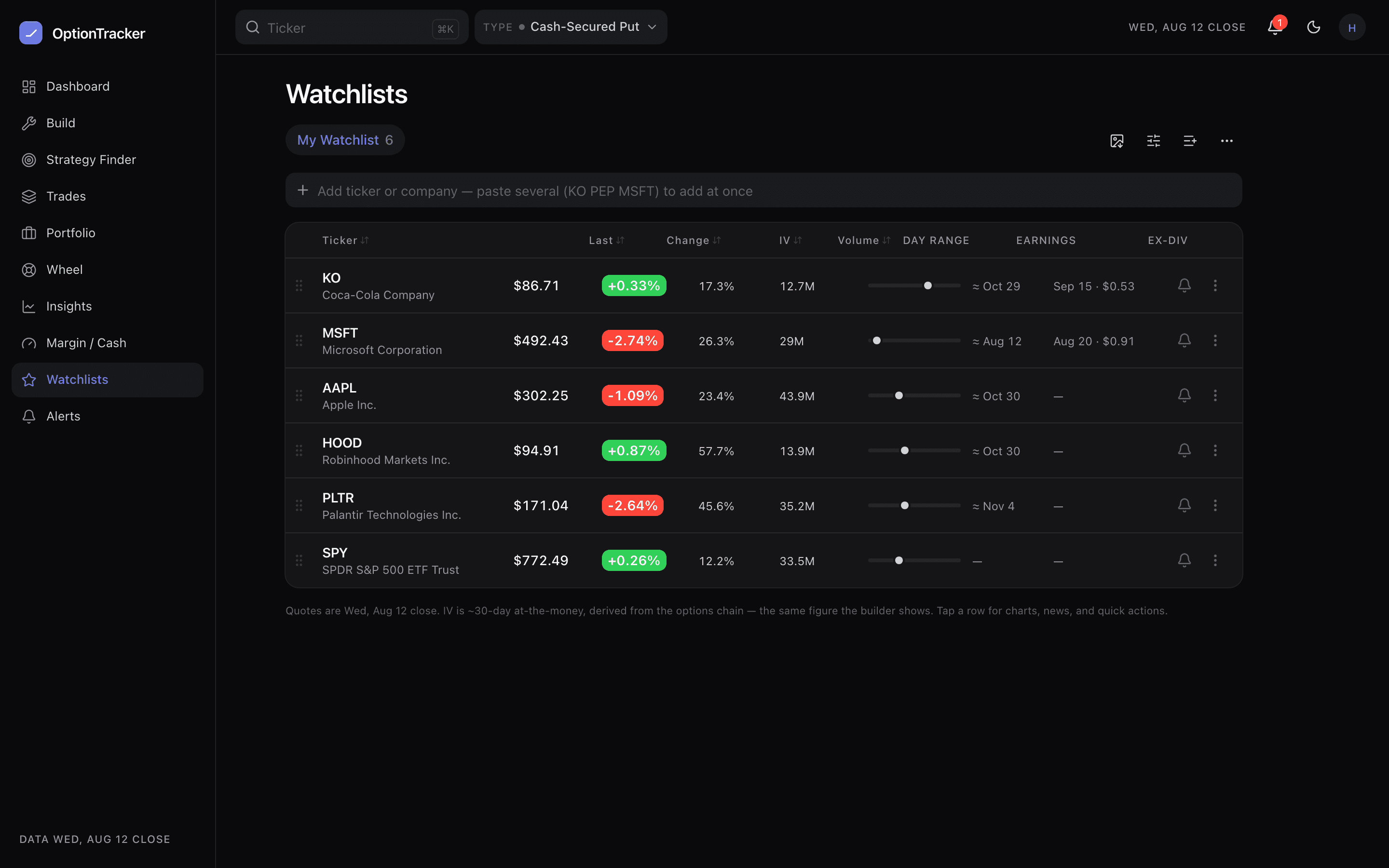
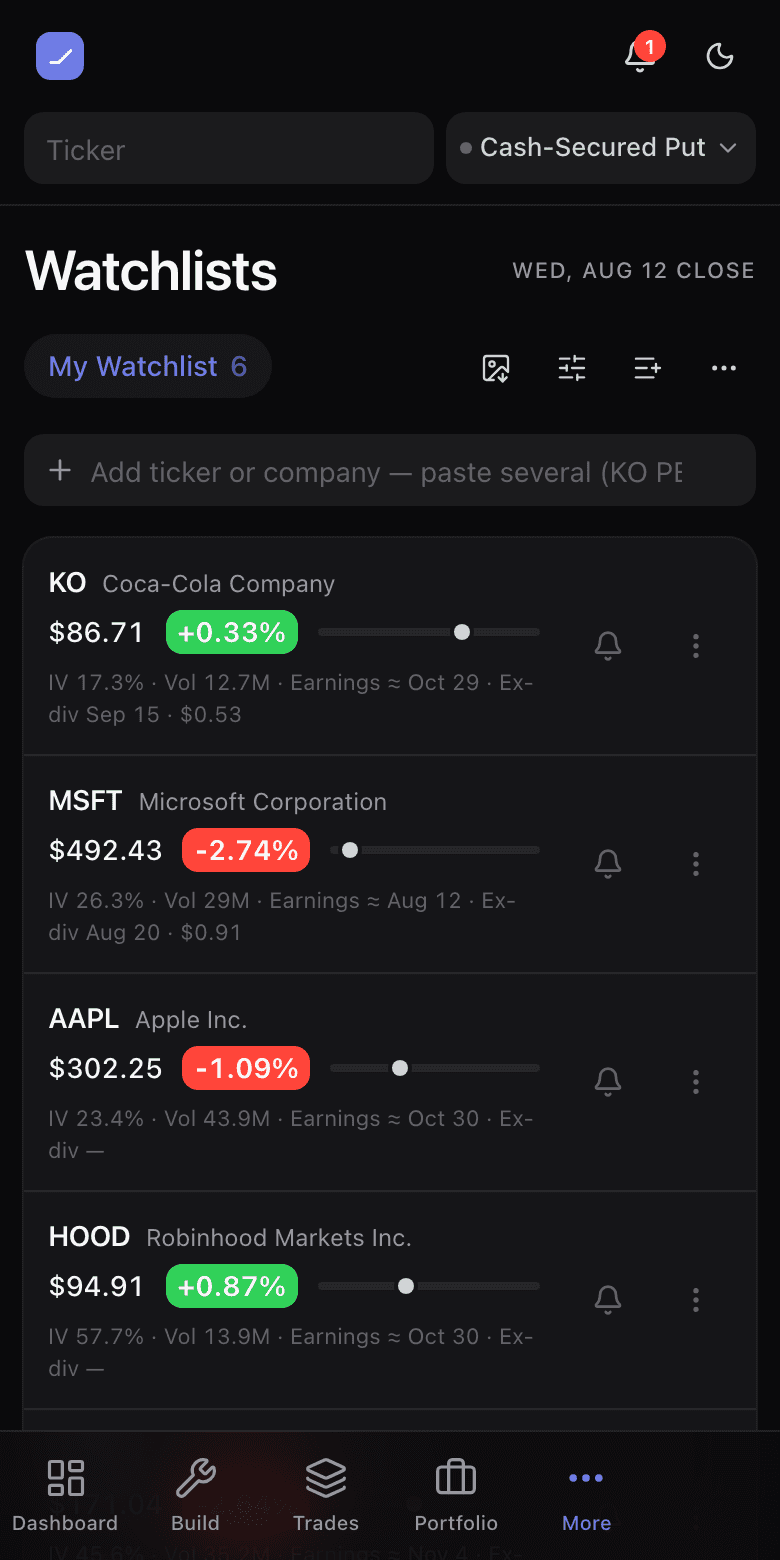
A watchlist here is a working surface, not a quote board: each row carries the price, the day’s range, and the two dates that move a premium seller’s positions — earnings and ex-dividend — so the glance before you sell a put includes the thing that would have surprised you.
Adding tickers, in bulk
- Type and Enter — the add field searches as you type and adds on Enter, staying focused so a six-symbol session is six keystroke bursts, not six round trips.
- Paste a handful — “KO PLTR HOOD MSFT AMD” (spaces, commas, or lines) adds them all at once.
- Scan a screenshot — any image of a ticker list becomes candidates: recognized symbols pre-checked, uncertain ones flagged. See Importing.
The ticker drawer
Tap a row and the drawer opens with a three-month sparkline, charts, recent news from multiple sources, and the key reference dates — plus a one-tap Build that lands in the builder on that ticker with your default trade type. Watchlist members also rank high in the ticker picker everywhere else in the app.