Bring data in
Bring the whole book in — a file, or a screenshot
Nothing kills a switch like re-typing a book. There are four ways to bring data in, and they share one rule: nothing is written until you confirm a preview. Every import is re-priced by our engine, diffed against the source’s own numbers, and fingerprinted so importing the same thing twice is safe.
1 · The file import — your trade history
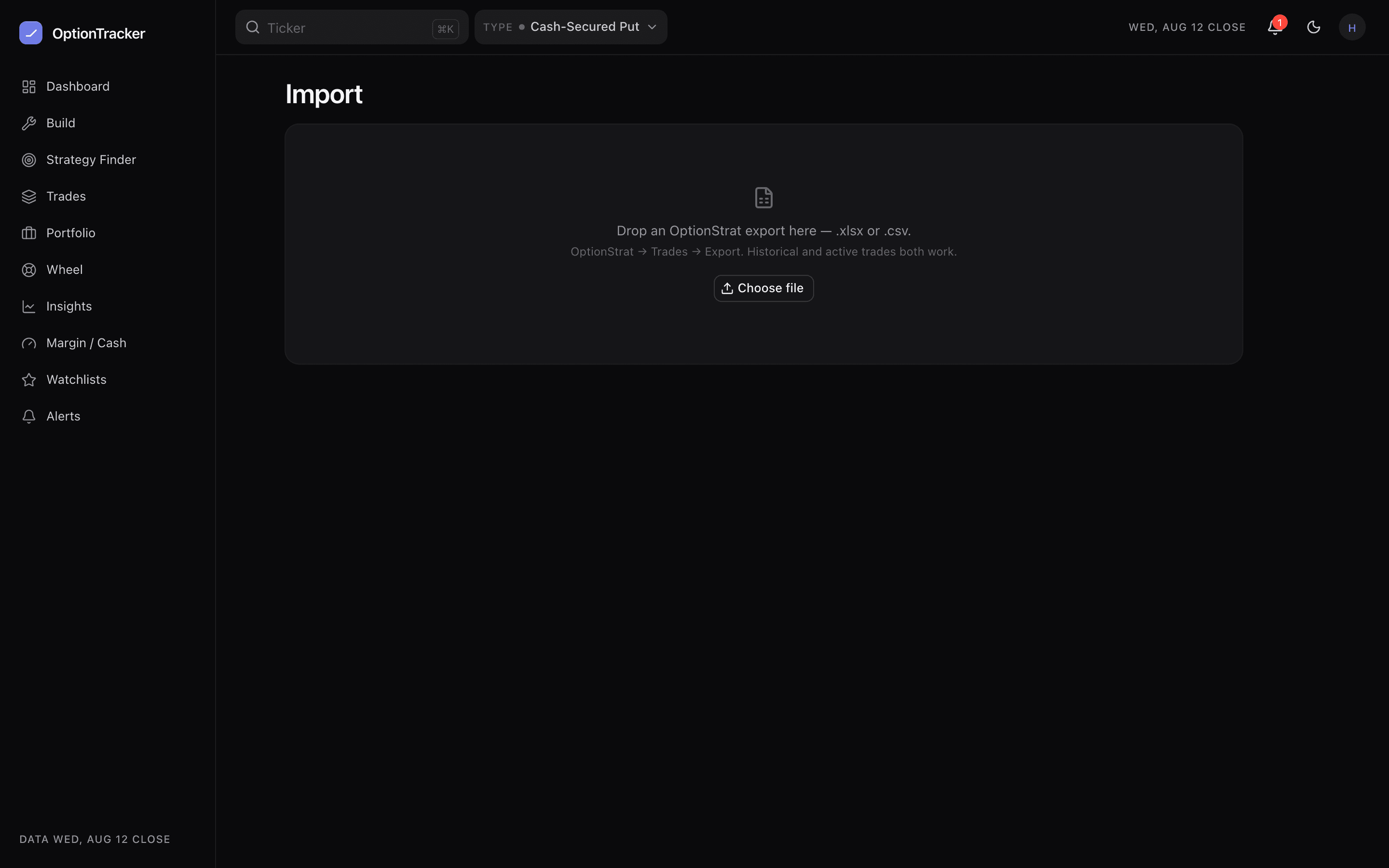
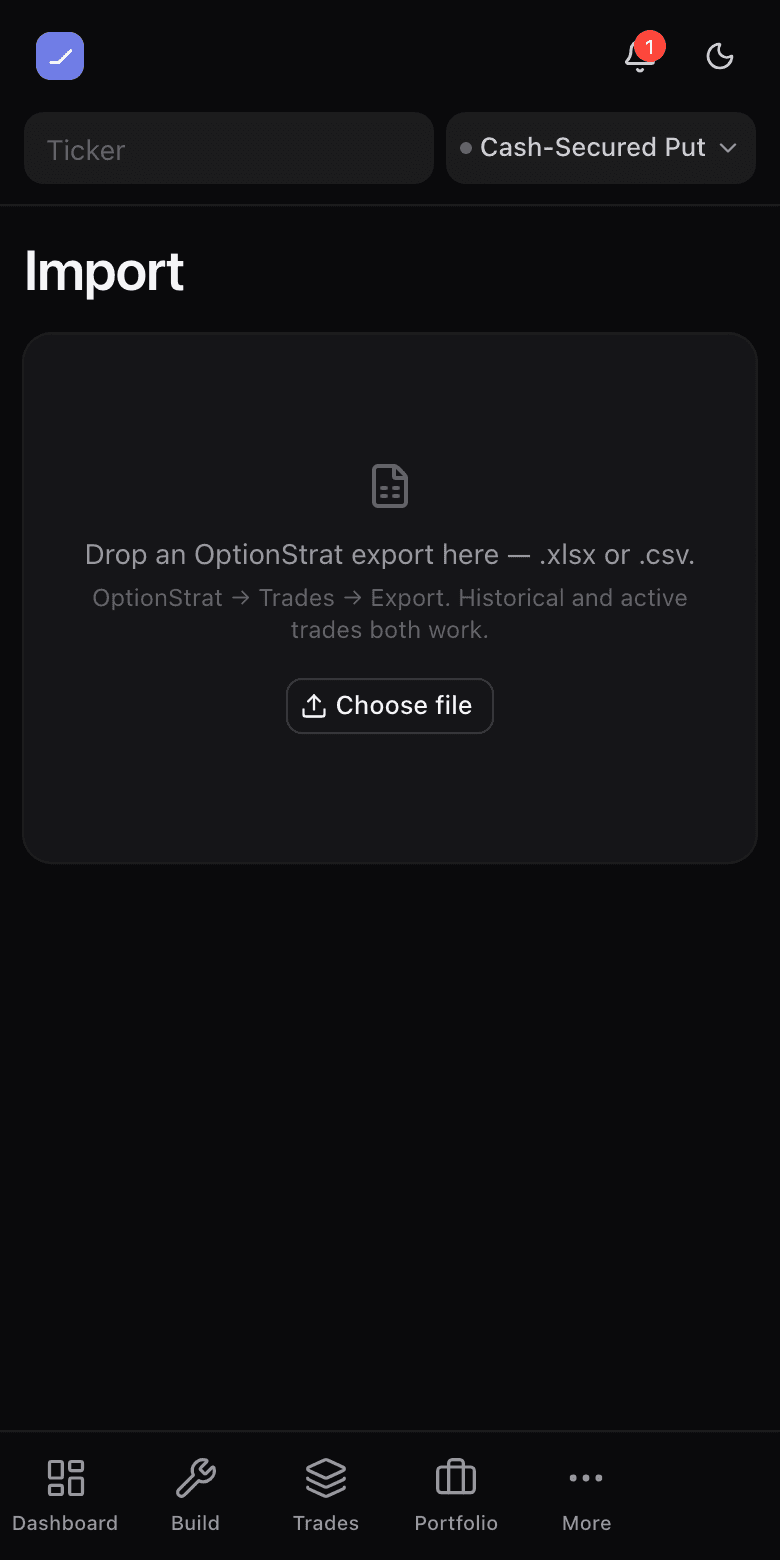
Import accepts an OptionStrat trade-history export (.xlsx or .csv) — that specific format, named because it is the one the parser actually reads. Free for everyone. The preview shows every trade with our engine’s recompute next to the file’s own P/L, discrepancies highlighted; you select what lands.
- Wheel detection: a CSP → assigned shares → covered calls pattern on one ticker is offered as a linked cycle plus stock lots — your campaign arrives as a campaign, not as scattered rows.
- $0.01 normalization: force-closed rows at a penny are flagged with one-tap normalization to $0.00, because a worthless expiry is worth zero.
- Duplicate-safe: re-importing the same export is fingerprinted out row by row.
2 · The positions screenshot
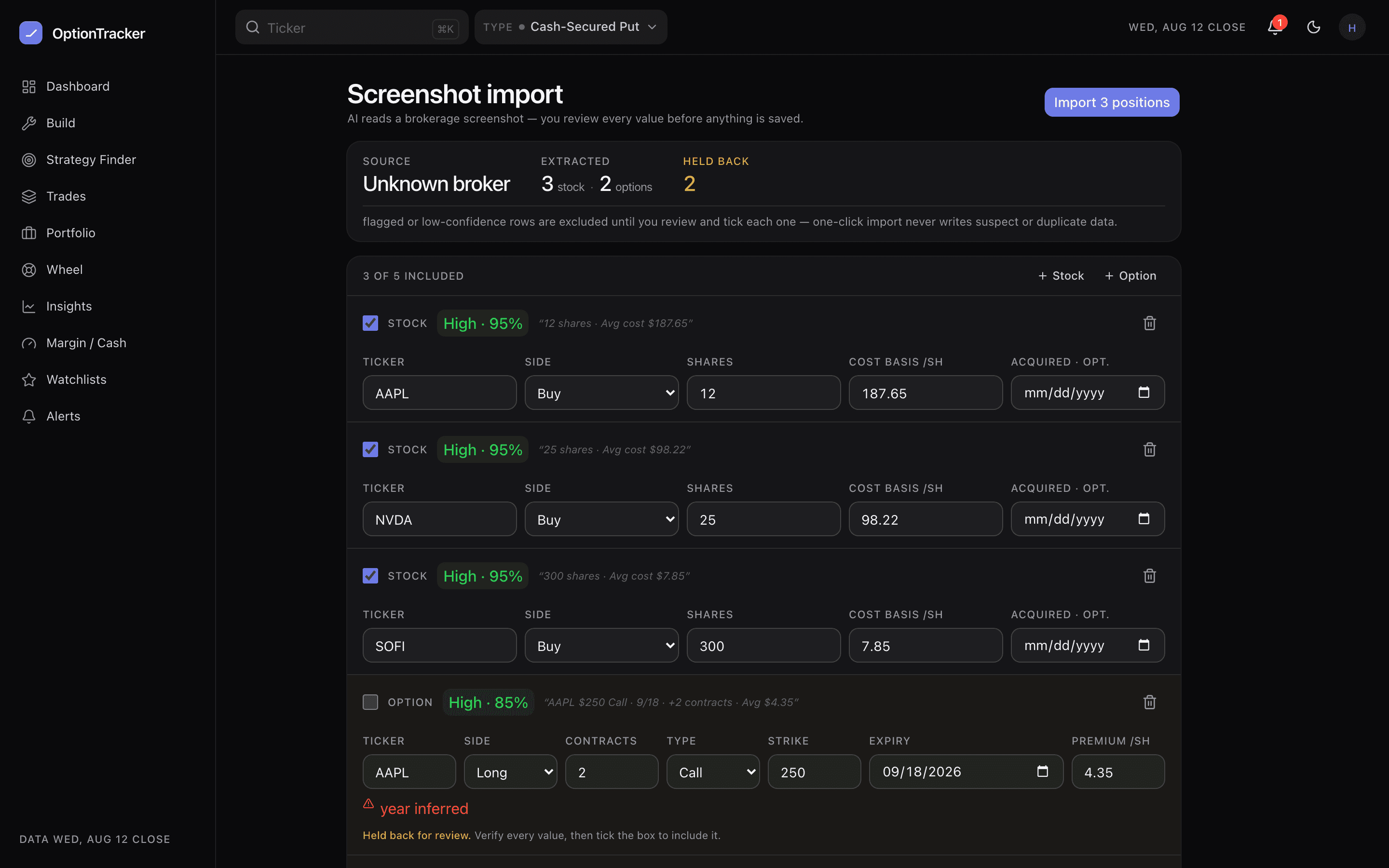
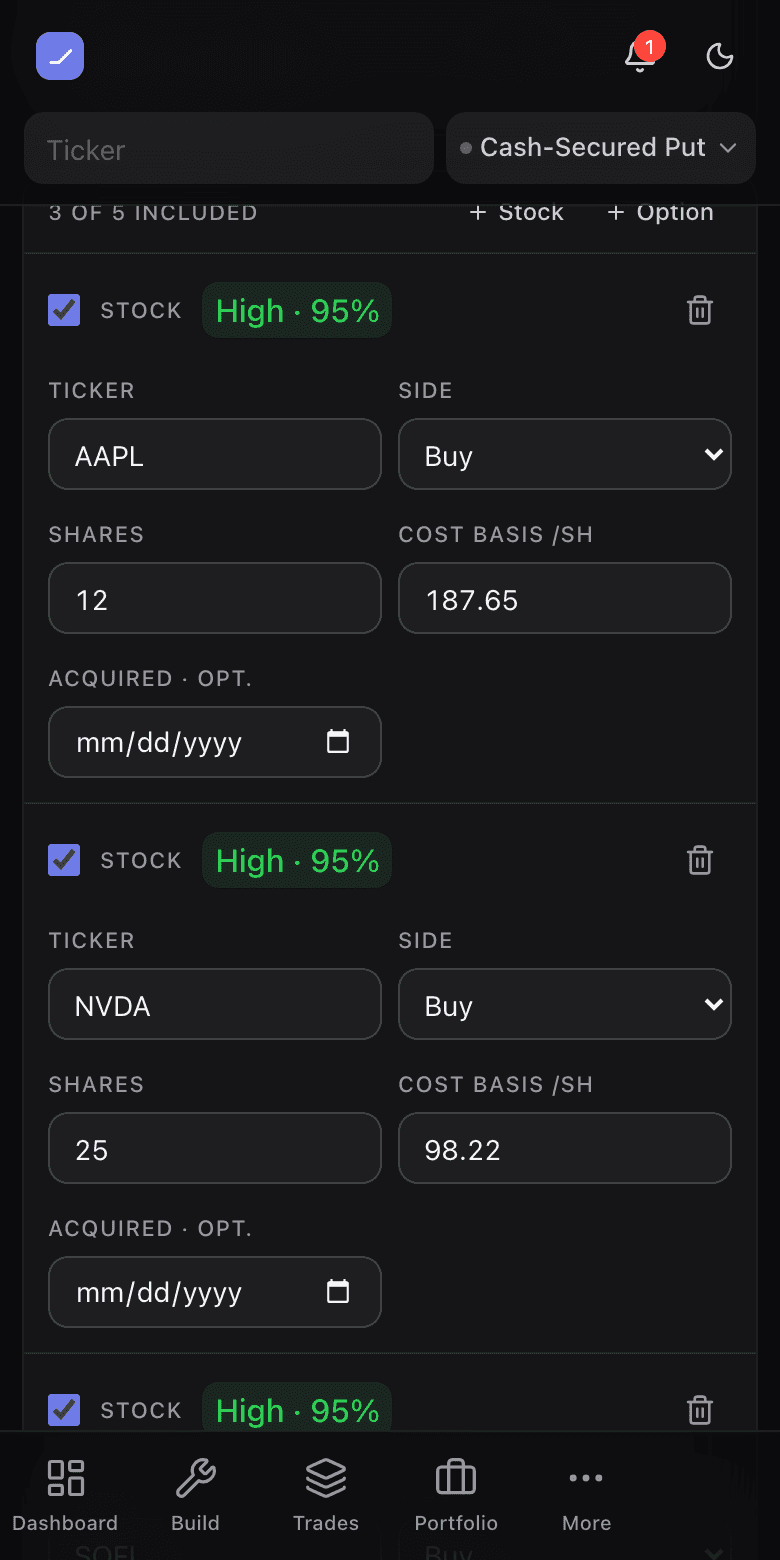
Snap or upload your brokerage positions screen — thinkorswim, Schwab, Robinhood, Fidelity, most anything — and the AI parses it into trades and share positions, each row carrying a confidence flag in the preview. Low-confidence values are for checking, not trusting. The AI parse is a Pro capability (the file import above stays free).
3 · The watchlist screenshot
On Watchlists, scan a screenshot of any ticker list — a broker’s watchlist, a screener, a spreadsheet column. Recognized symbols come pre-checked; anything uncertain is flagged for review. It reads public symbols, not your book, so it is free with an account.
4 · The balances screenshot
On Margin / Cash, a screenshot of your broker’s balances screen becomes a margin/cash reading — loan, equity, buying power where visible. The extractor refuses to guess: an unreadable line arrives empty rather than invented, and you confirm the reading before it is logged.