Watchlist
Build your watchlist with real-time stock prices, IV levels, RSI indicators, and personal notes. Spot opportunities and track tickers before entering new positions.
The Watchlist feature lets you track stocks you're interested in trading, monitor their prices, and keep notes about potential entry points or strategies.
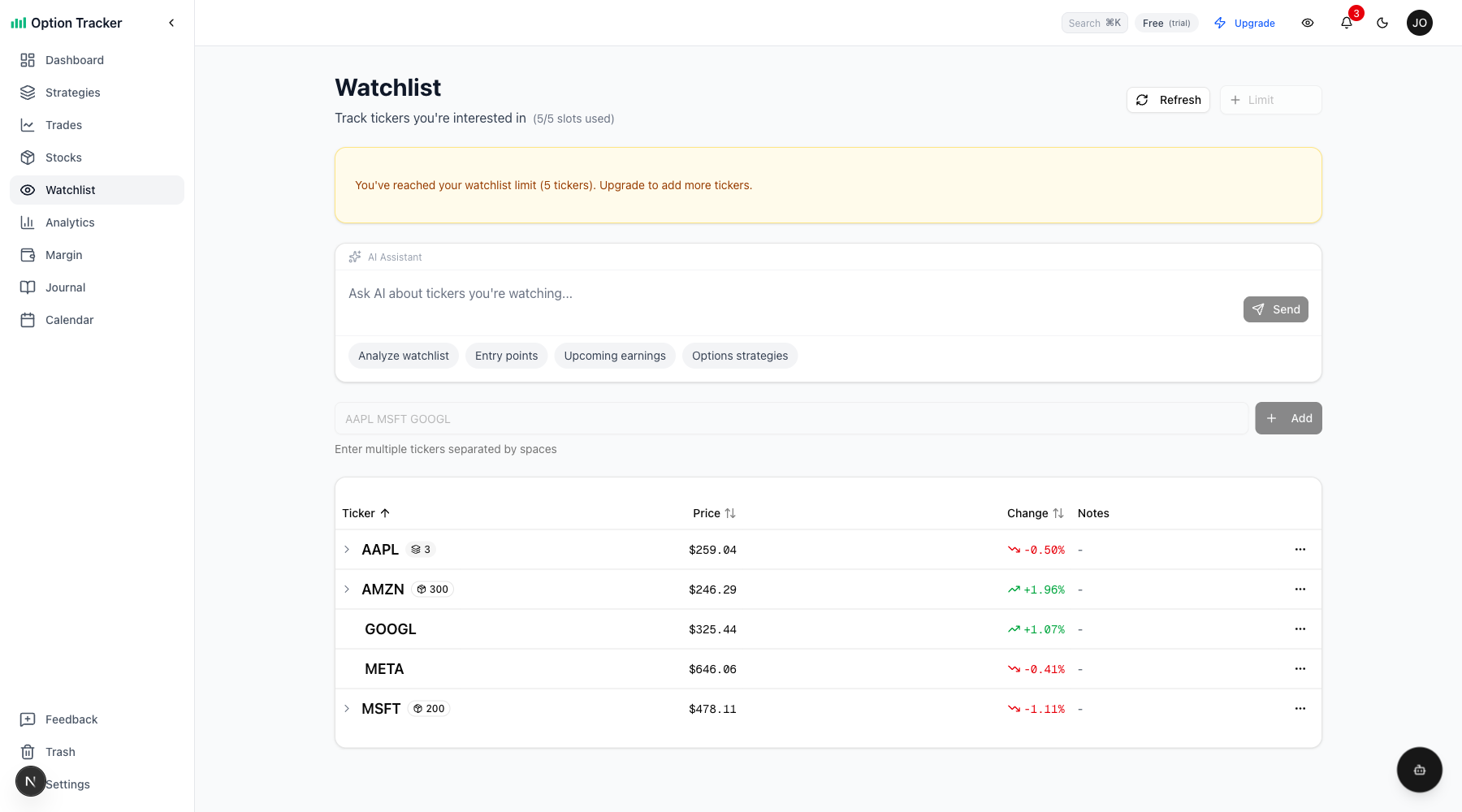
Accessing Your Watchlist
Navigate to Watchlist from the main navigation to access your watchlist page.
Adding Tickers
Bulk Add (Recommended)
The fastest way to add multiple tickers at once:
- Use the bulk input field above your watchlist
- Type multiple ticker symbols separated by spaces (e.g., "AAPL MSFT GOOGL NVDA")
- Press Enter or click Add
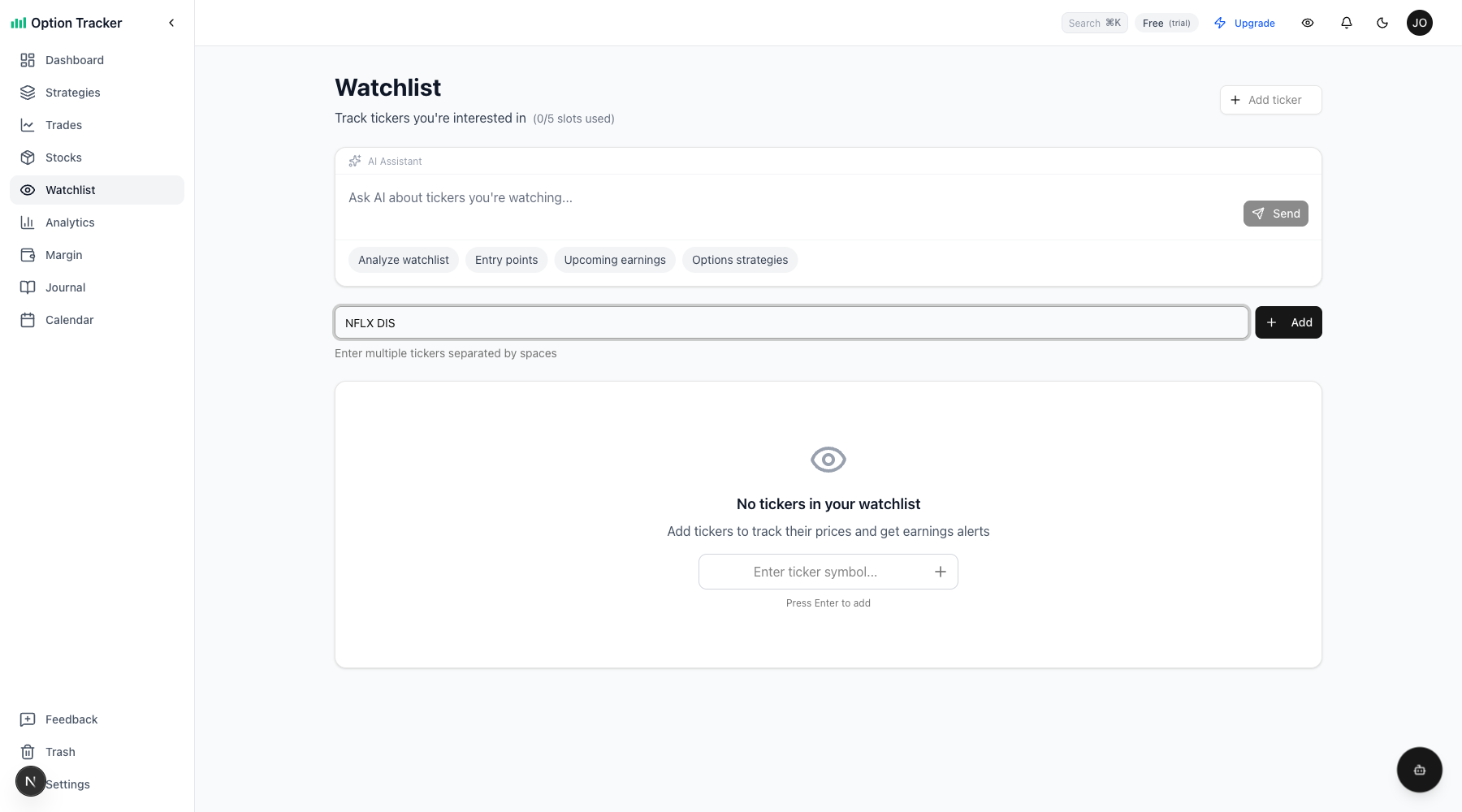
The system will:
- Validate each ticker against real market data
- Skip duplicates already in your watchlist (with a notification)
- Add all valid tickers automatically
If any tickers are invalid, a confirmation dialog appears showing which tickers passed or failed validation, letting you choose which valid ones to add.
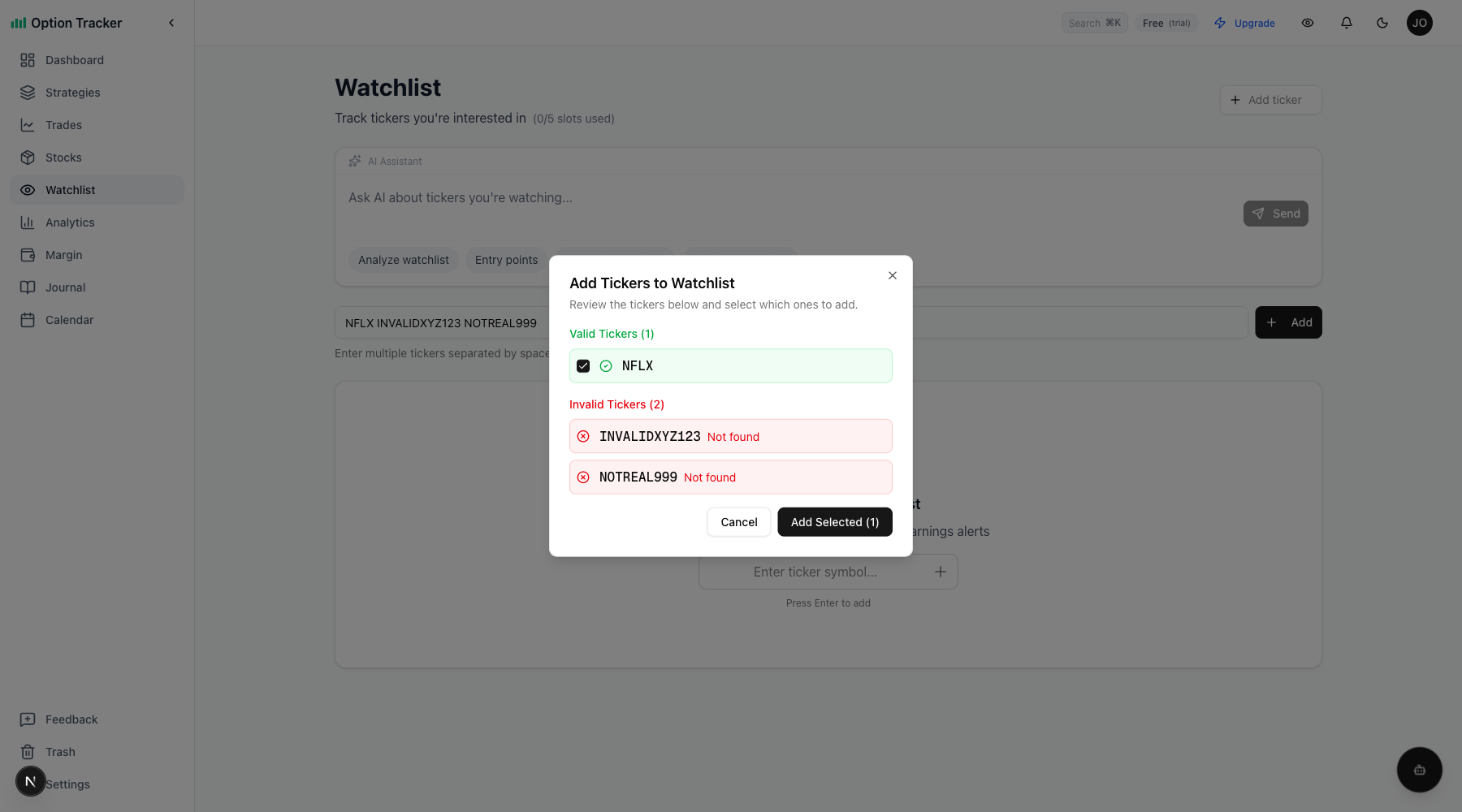
Using the Add Ticker Button
For adding a single ticker with notes:
- Click the "Add Ticker" button in the top right
- Search for a ticker symbol (e.g., "AAPL")
- Select from the autocomplete results
- Optionally add notes (e.g., "Watching for pullback to $240")
- Click "Add to Watchlist"
Using the Command Palette
You can quickly add tickers using the command palette:
- Press Cmd+K (Mac) or Ctrl+K (Windows)
- Type the ticker symbol
- Select "Add [TICKER] to watchlist"
Watchlist Limits
Your watchlist capacity depends on your subscription tier:
| Plan | Watchlist Slots | |------|-----------------| | Paper Trader (Free) | 5 tickers | | Active Trader | 20 tickers | | Power Trader | Unlimited |
The current usage is shown below the page title (e.g., "3/5 slots used").
Viewing Price Information
Each ticker in your watchlist displays:
- Ticker Symbol - The stock symbol
- Position Indicators - Badges showing open option contracts and shares held
- Current Price - Latest market price
- Change % - Percentage change from previous close
- Notes - Your personal notes about the ticker
Price Colors
- Green - Price is up from previous close
- Red - Price is down from previous close
Refreshing Prices
Click the "Refresh" button to fetch the latest prices. Prices are fetched from Finnhub in real-time.
Sorting
Click on any column header to sort your watchlist:
- Ticker - Sort alphabetically (A-Z or Z-A)
- Price - Sort by current price (high to low or low to high)
- Change - Sort by percentage change (biggest gains or losses first)
See Your Active Positions
One of the most powerful features of the watchlist is seeing your active trades and stock positions alongside price data. If you have open option trades or stock positions for any watched ticker, they appear right in the watchlist.
Position Indicators
Tickers with open positions display badges next to the ticker symbol:
- Options badge (layers icon + number) - Shows total open option contracts
- Shares badge (package icon + number) - Shows total shares held
This gives you a quick view of:
- Which tickers you're actively trading
- How many contracts or shares you hold
- Which watchlist items are just being monitored vs. actively traded
Expanding Position Details
Click on any row with position indicators to expand and view detailed position information:
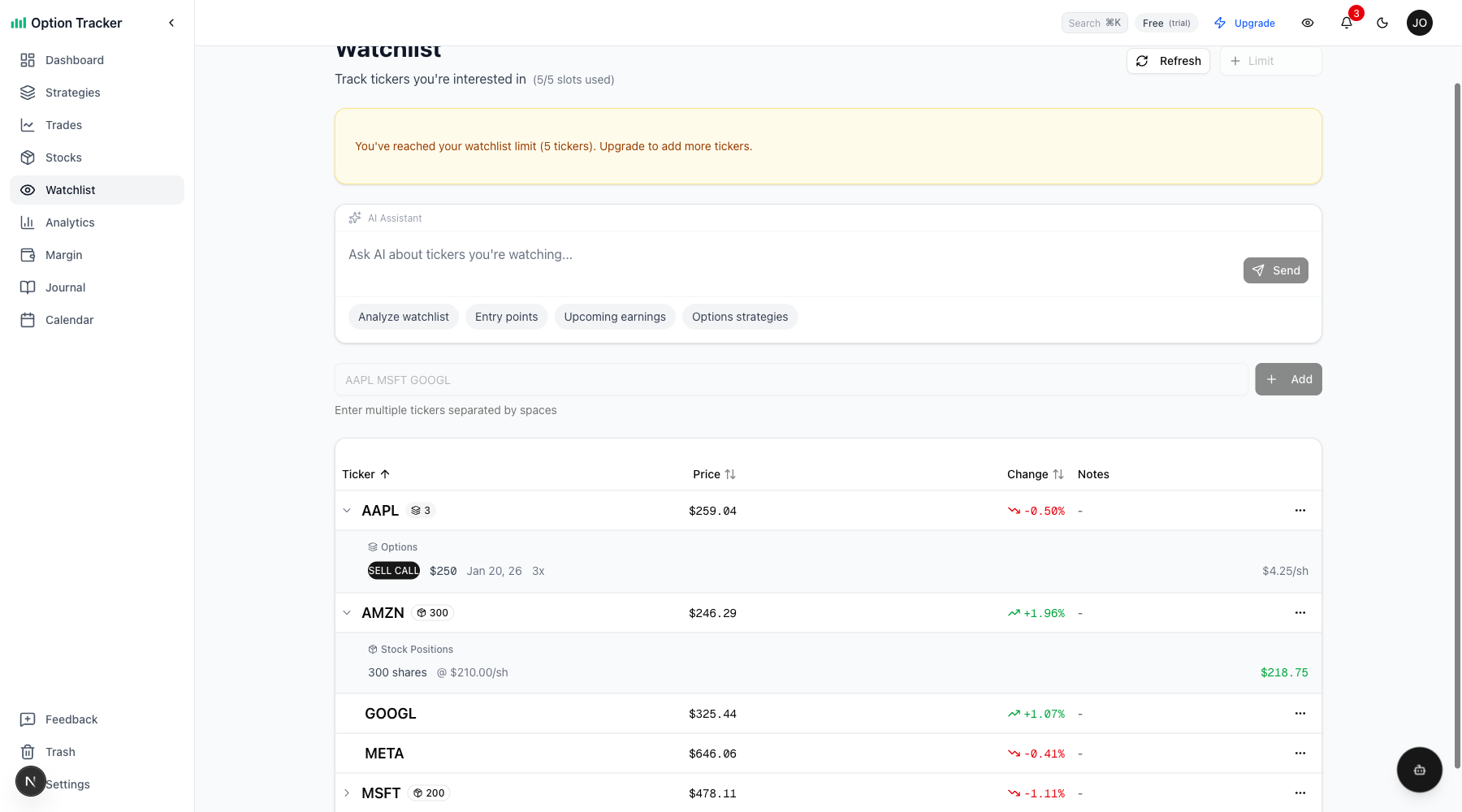
The expanded view shows:
Options:
- Trade type (SELL CALL, BUY PUT, etc.)
- Strike price
- Expiration date
- Number of contracts
- Premium per share
Stock Positions:
- Number of shares
- Cost basis per share
- Current price (color-coded: green if profitable, red if at a loss)
Navigating to Positions
Click on any position in the expanded view to navigate directly to that trade or stock position. This makes it easy to:
- Check on trade details
- Close or roll positions
- View full P&L information
All without leaving the watchlist page.
Managing Notes
Keep track of your thoughts about each ticker:
Adding Notes
- Click the menu icon (three dots) next to a ticker
- Select "Edit Notes"
- Enter your notes
- Click "Save"
Note Ideas
- Target entry price
- Reasons for interest
- Upcoming catalysts
- Strategy ideas (e.g., "Sell puts at $150")
Removing Tickers
Removing a Single Ticker
- Click the menu icon (three dots) next to the ticker
- Select "Remove from Watchlist"
- An undo toast appears briefly if you want to reverse the action
Undo Removal
When you remove a ticker, a toast notification appears at the bottom of the screen with an "Undo" button. Click it within a few seconds to restore the ticker.
Using the AI Assistant
The watchlist page includes AI-powered suggestions:
Suggested Queries
- "Analyze watchlist" - Get an overview of your watched tickers
- "Entry points" - Ask about good entry prices
- "Upcoming earnings" - Check earnings dates for watched stocks
- "Options strategies" - Get strategy ideas for watchlist tickers
Custom Questions
Ask specific questions like:
- "What's a good strike price for AAPL puts?"
- "Compare MSFT and GOOGL for covered calls"
- "Which watchlist stocks have earnings this week?"
Watchlist and Calendar Integration
Tickers in your watchlist are automatically included in the Calendar view for earnings tracking:
- Add a ticker to your watchlist
- Navigate to Analytics > Calendar
- Earnings dates for watched tickers appear as events
This helps you prepare for earnings announcements on stocks you're considering trading.
Tips for Using Your Watchlist
Building a Strong Watchlist
- Focus on tickers you understand
- Include stocks at various price points
- Mix sectors for diversification ideas
- Remove tickers you're no longer interested in
Using Notes Effectively
Good notes include:
- Specific price levels to watch
- Reasons for interest (fundamentals, technicals)
- Expiration dates to target
- Risk considerations
Reviewing Regularly
- Daily: Check price movements on watched tickers
- Weekly: Update notes based on new information
- Monthly: Clean up tickers you've lost interest in
From Watchlist to Trade
When you're ready to trade a watched ticker:
- Go to the Trades page
- Click "New Trade"
- Search for the ticker
- Enter your trade details
Or use the command palette:
- Press Cmd+K / Ctrl+K
- Type the ticker
- Select "New trade for [TICKER]"
Empty State
If your watchlist is empty, you'll see a helpful prompt:
"No tickers in your watchlist. Add tickers to track their prices and get earnings alerts."
Click "Add Your First Ticker" to get started.
Next Steps
- Explore the Calendar to track earnings and expirations
- Learn about Managing Trades when you're ready to trade
- Review Analytics to analyze your performance