Calendar
View all your option expirations and earnings events in a visual calendar. Plan trades around key dates and never miss an expiration or assignment deadline.
The Calendar view provides a visual timeline of important events including option expirations from your trades and earnings dates for stocks in your watchlist.
Accessing the Calendar
Navigate to Analytics > Calendar from the main navigation. The Calendar is a sub-tab under the Analytics section.
Calendar Views
Choose from three different views to suit your needs:
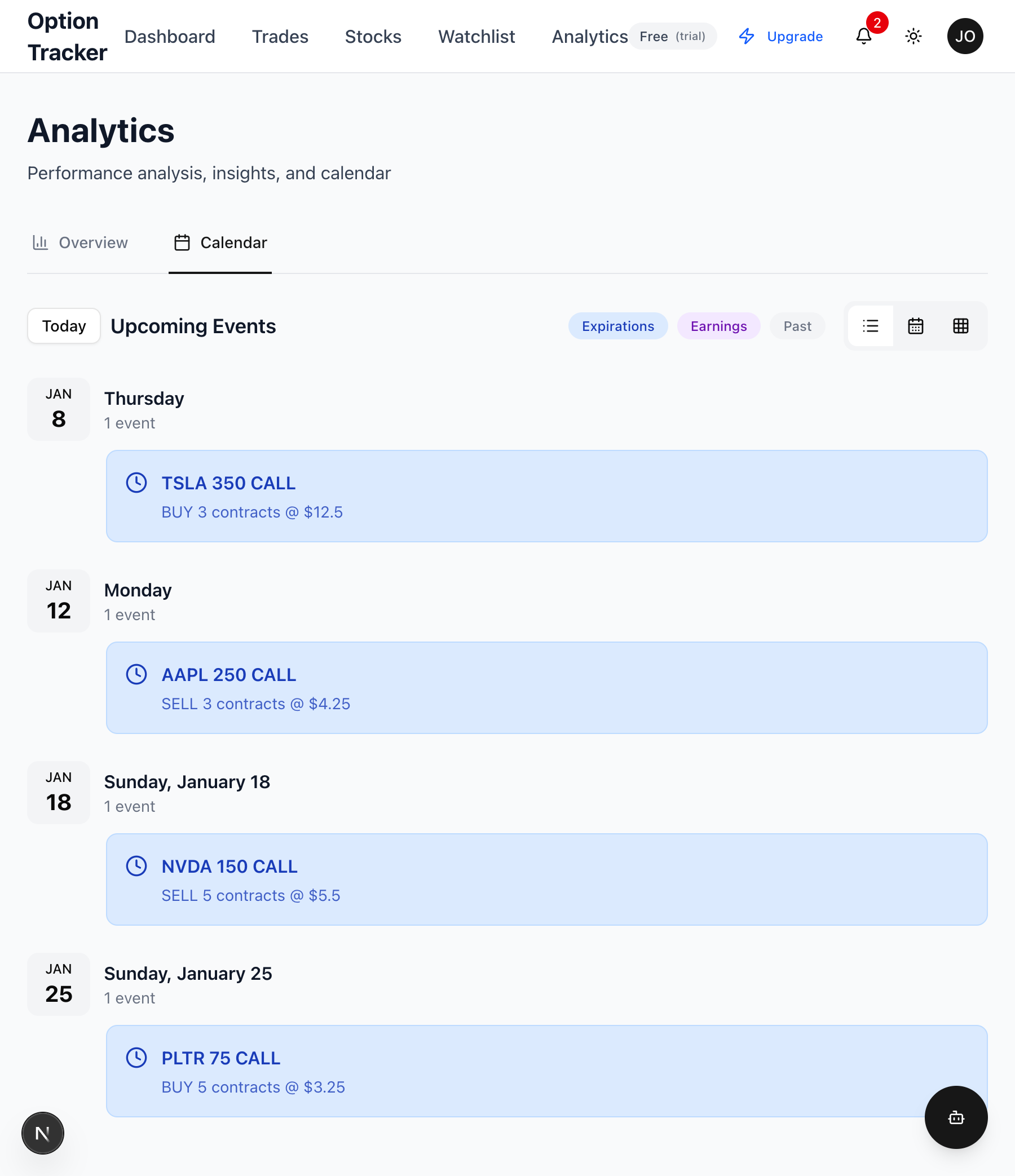
Agenda View (Default)
A chronological list of upcoming events:
- Events are grouped by date
- Shows full event details at a glance
- Automatically scrolls to today's events
- Best for seeing what's coming up
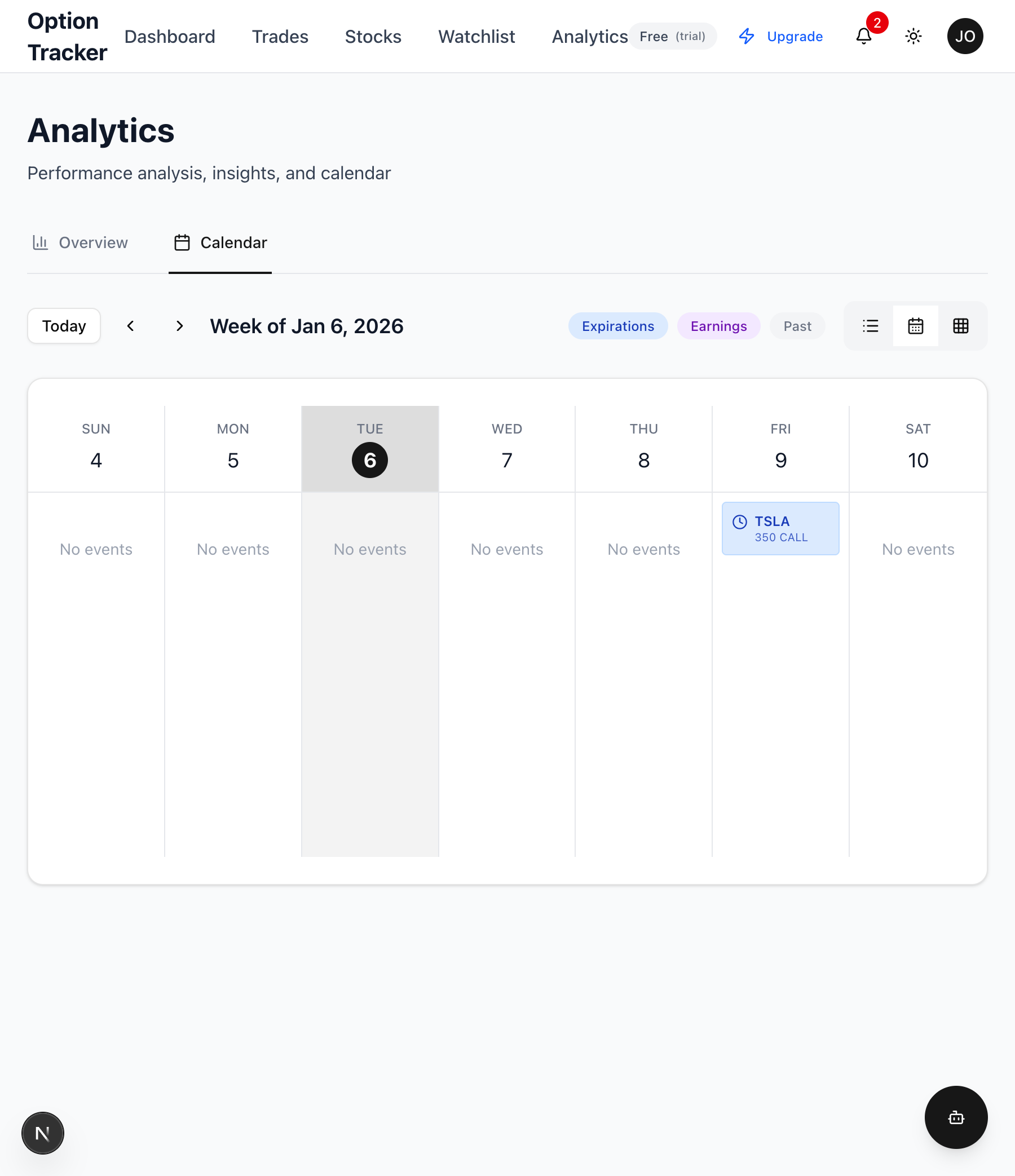
Weekly View
A 7-day grid showing events across the week:
- Each column represents a day
- Multiple events visible per day
- Navigation arrows to move between weeks
- Good for weekly planning
Monthly View
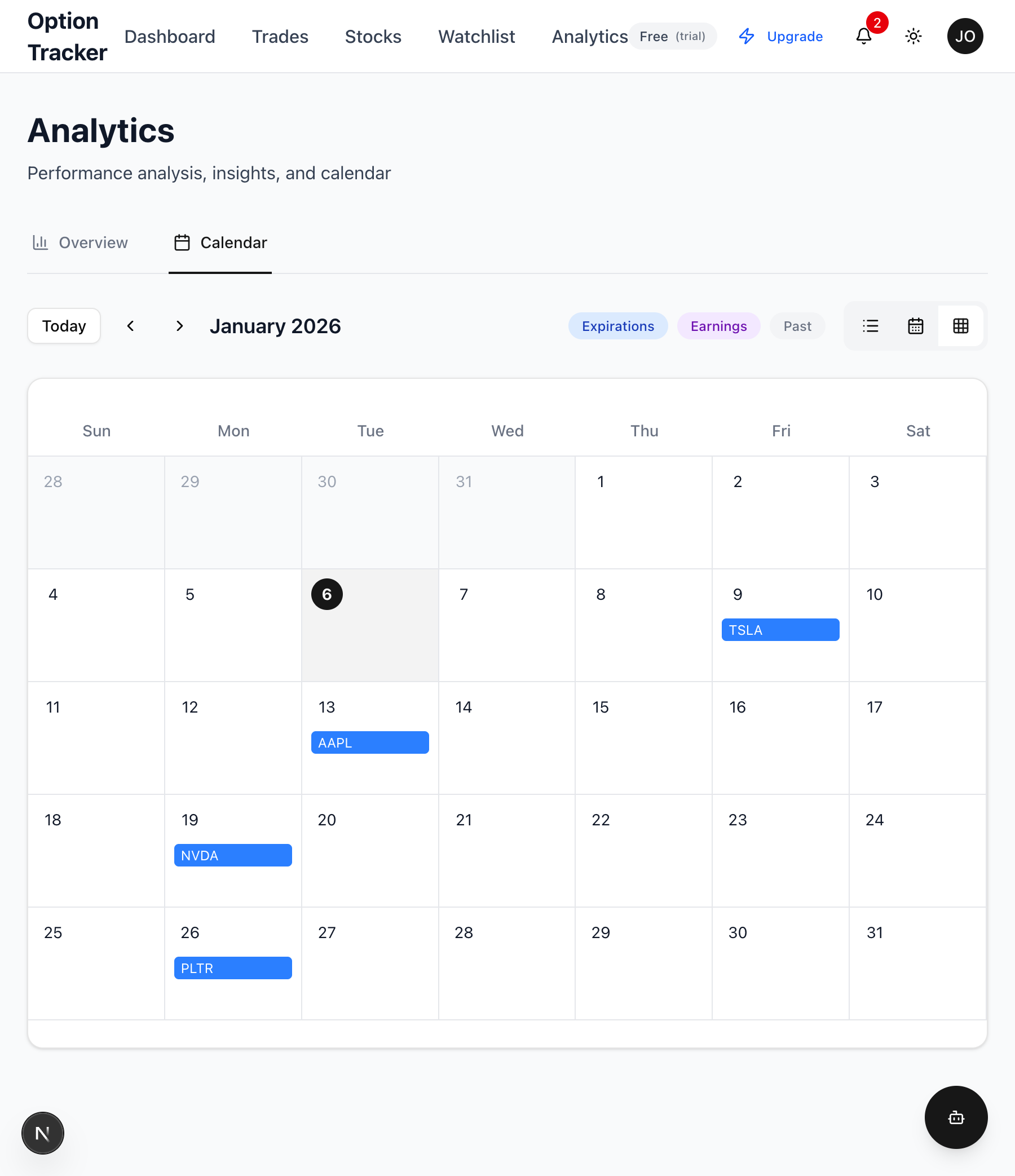
A traditional calendar grid:
- Full month overview
- Events shown as colored badges
- "+N" indicator when more than 3 events on a day
- Best for long-term planning
Switching Views
Use the view toggle buttons in the toolbar:
- List icon - Agenda view
- Calendar icon - Weekly view
- Grid icon - Monthly view
Your view preference is saved and remembered for your next visit.
Event Types
Option Expirations (Blue)
These events come from your open trades:
- Shows: Ticker, strike price, option type
- Details: Number of contracts, premium collected/paid
- Click to view: Full trade details with link to Trades page
Earnings Reports (Purple)
These events come from your watchlist tickers:
- Shows: Ticker name
- Timing indicator: BMO (Before Market Open), AMC (After Market Close)
- Details: Estimated EPS if available
Filtering Events
Use the filter toggles in the toolbar to show/hide event types:
Expirations Filter
Toggle to show or hide option expiration events. When enabled (highlighted), all expirations from open trades are displayed.
Earnings Filter
Toggle to show or hide earnings events. When enabled, earnings dates for watchlist tickers appear on the calendar.
Past Events Filter
By default, past events are hidden. Toggle "Past" to see historical events:
- Useful for reviewing what happened
- Shows context around current date
- Events up to 90 days in the past
Navigation
Today Button
Click "Today" to jump to the current date. This works in all views:
- Agenda: Scrolls to today's events
- Weekly: Shows the current week
- Monthly: Shows the current month
Week/Month Navigation
In Weekly and Monthly views:
- Use the left arrow to go back
- Use the right arrow to go forward
- The current period is shown in the toolbar
Event Details
Click on any event to see full details in a modal:
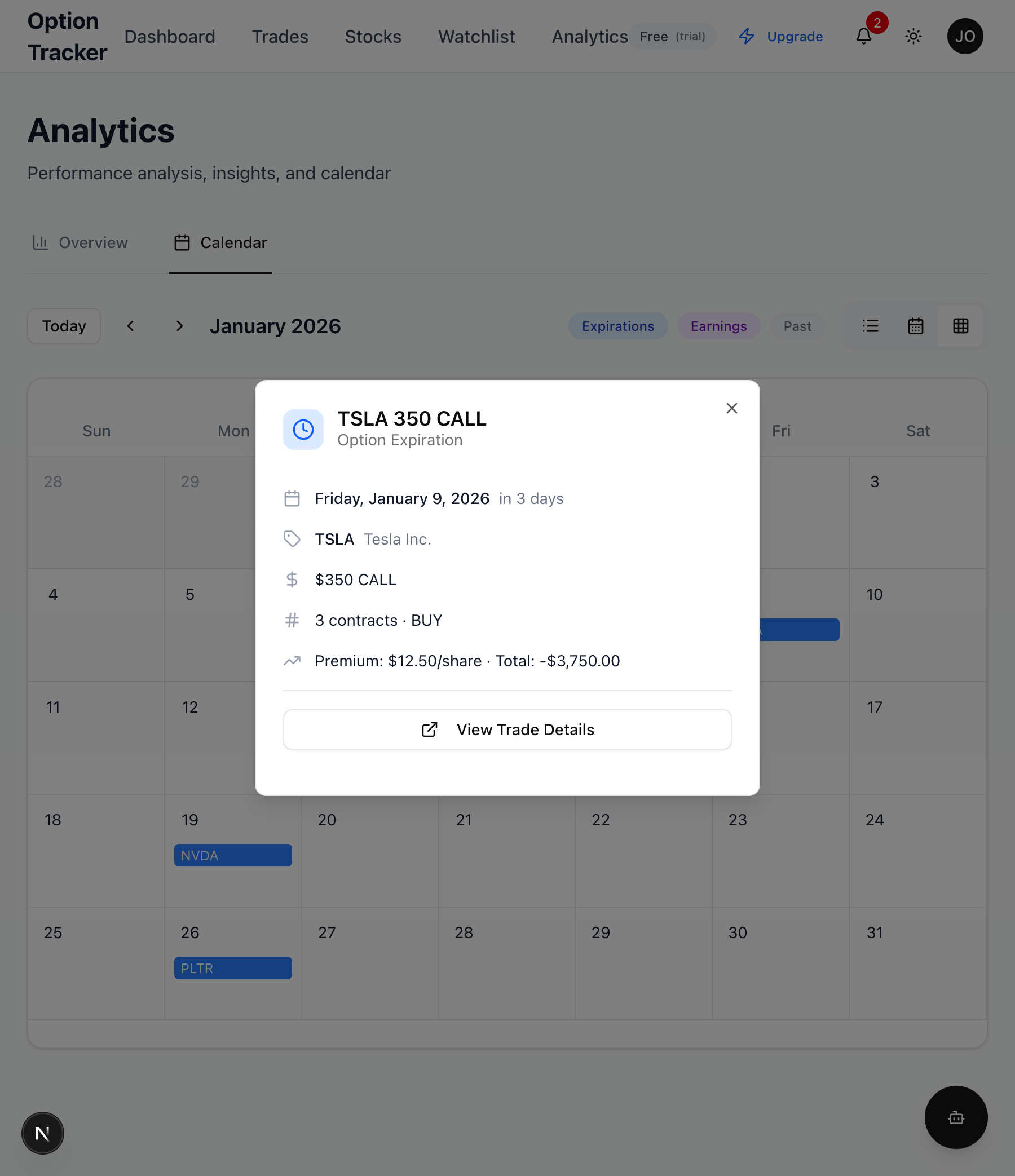
Expiration Event Details
- Date and countdown: "Tuesday, January 14, 2026 - in 7 days"
- Ticker and company: "AAPL - Apple Inc."
- Strike and type: "$250 CALL"
- Position size: "3 contracts · SELL"
- Premium info: "$4.25/share · Total: $1,275.00"
- Action button: "View Trade Details" links to the Trades page
Earnings Event Details
- Date and countdown: When earnings are scheduled
- Ticker and company: Company name
- Report time: BMO, AMC, or DMH (During Market Hours)
- Estimated EPS: If available from data provider
- Action button: "View in Watchlist" links to Watchlist page
Using the Calendar Effectively
Weekly Planning
- Switch to Weekly View
- Review all events for the upcoming week
- Note any overlapping expirations and earnings
- Plan your trading actions
Monthly Overview
- Switch to Monthly View
- See all expirations at a glance
- Identify busy expiration weeks
- Plan position sizing accordingly
Pre-Earnings Preparation
- Check for earnings events on your calendar
- Review your positions in stocks with upcoming earnings
- Decide whether to:
- Close positions before earnings
- Adjust strike prices
- Let positions ride through earnings
Expiration Week Checklist
- Review positions expiring this week
- Check if options are ITM (in-the-money)
- Decide on each position:
- Let expire worthless (OTM)
- Close position early
- Roll to next expiration
- Accept assignment
Calendar and Other Features
Watchlist Integration
Add tickers to your Watchlist to see their earnings dates on the calendar:
- Go to Watchlist
- Add tickers you want to track
- Calendar automatically shows earnings events
Trades Integration
All open trades with expiration dates appear on the calendar:
- Create a trade on the Trades page
- The expiration automatically appears on your calendar
- Click the event to view trade details
Troubleshooting
No Events Showing
If your calendar appears empty:
- Check filters: Make sure "Expirations" and "Earnings" are enabled
- Check open trades: Expirations only show for OPEN trades
- Check watchlist: Add tickers to see earnings events
- Check date range: Past events are hidden by default
Earnings Not Appearing
Earnings data comes from Finnhub:
- Some tickers may not have earnings data
- API rate limits may delay data fetching
- A yellow warning appears if earnings couldn't be loaded
Missing Expirations
Only open trades show on the calendar:
- Closed, expired, or assigned trades don't appear
- Check the Trades page to verify trade status
Preferences
Your calendar preferences are saved automatically:
- View mode: Agenda, Weekly, or Monthly
- Filters: Which event types are shown
- Selected date: Where you were in the calendar
These persist between sessions using your browser's local storage.
Next Steps
- Set up your Watchlist to track earnings
- Review Managing Trades to understand expirations
- Check Analytics for performance insights