Settings
Customize Option Tracker to fit your trading style. Configure accounts, notification preferences, display options, email summaries, and connect your brokerage data.
The Settings page lets you customize Option Tracker to match your preferences and manage your account.
Accessing Settings
Navigate to Settings from your user menu or directly at /dashboard/settings.
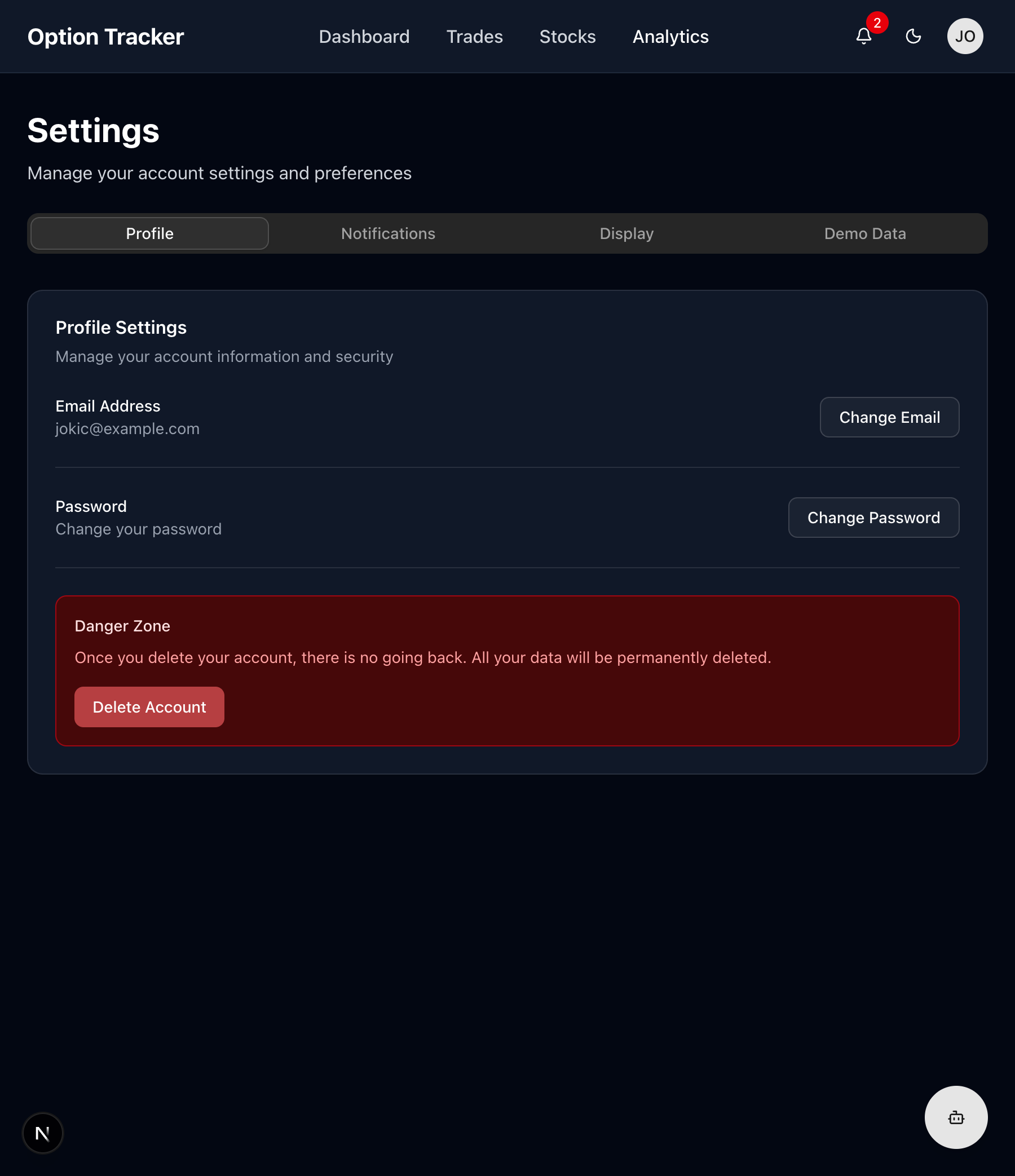
Account Settings
Profile Information
Update your basic account details:
- Email Address - Your login email (read-only if using Google Sign-In)
- Display Name - How you appear in the app
- Avatar - Your profile picture
Password
For email/password accounts:
- Click "Change Password"
- Enter your current password
- Enter and confirm new password
- Click "Update Password"
Note: Google Sign-In users manage passwords through Google.
Delete Account
To permanently delete your account:
- Scroll to "Danger Zone"
- Click "Delete Account"
- Confirm by typing your email
- All data will be permanently deleted
Display Preferences
Theme
Choose your preferred color scheme:
- Light - Bright, daytime-friendly
- Dark - Easy on eyes, great for night trading
- System - Automatically matches your device settings
Currency Format
Select how monetary values are displayed:
- USD ($) - US Dollar format
- EUR - Euro format
- GBP (£) - British Pound format
- Custom - Set your own symbol
Date Format
Choose your preferred date display:
- MM/DD/YYYY - US format (12/31/2025)
- DD/MM/YYYY - European format (31/12/2025)
- YYYY-MM-DD - ISO format (2025-12-31)
Number Precision
Control decimal places for:
- Prices - Show cents or round to dollars
- Percentages - 1 or 2 decimal places
- P&L - Full precision or rounded
Notification Settings
Email Notifications
Choose which emails you receive:
- Trade Alerts - Expiration reminders, assignment alerts
- Weekly Summary - Performance recap
- Price Alerts - When positions hit targets
- Product Updates - New features and improvements
In-App Notifications
Configure notification bell alerts:
- Expiring Options - Days before expiration warning
- Assignment Alerts - When options are assigned
- Price Movements - Significant position changes
- AI Insights - Automated portfolio observations
Notification Timing
Set when you receive alerts:
- Expiration Warning - 7 days, 3 days, 1 day before
- Quiet Hours - No notifications during set times
- Digest Mode - Batch notifications instead of real-time
Default View Settings
Dashboard Default
Choose what loads when you open the app:
- Dashboard - Overview page (default)
- Trades - Jump straight to trade list
- Stocks - View stock positions first
- Analytics - Start with performance data
Default Filters
Set persistent filters:
- Trade Status - Always show Open, Closed, or All
- Date Range - Default timeframe for views
- Sort Order - Newest or oldest first
Activity Log
Track all your account activity in one place. The Activity Log shows a chronological record of your trades, positions, and account changes.
Viewing Activity
- Navigate to Settings
- Click the "Activity" tab
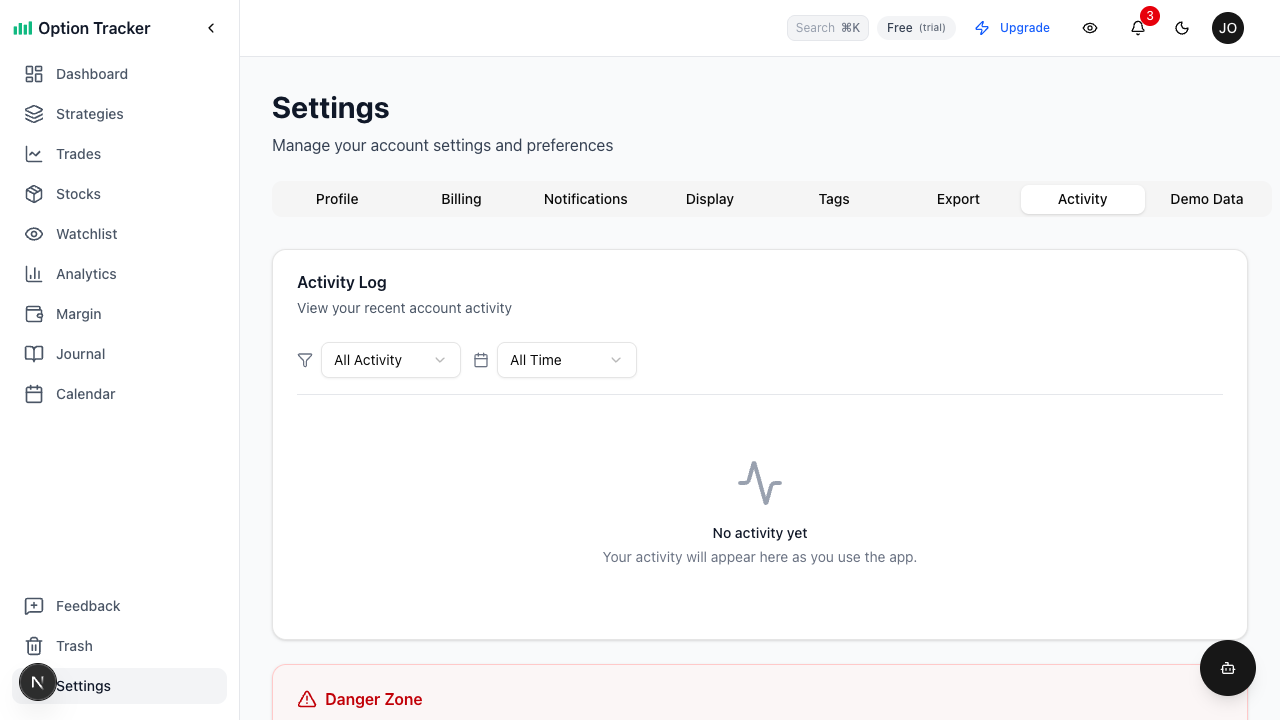
Activity Types
The log tracks:
- Trades - Created, updated, closed, and deleted trades
- Positions - Stock position changes
- Watchlist - Tickers added or removed
- Account - Data resets, demo data imports/clears
- Auth - Login and logout events
Filtering Activity
Use the filter dropdowns to narrow results:
- Activity Type - Filter by trades, positions, watchlist, account, or auth
- Date Range - Today, last 7 days, last 30 days, or all time
Filters are saved in the URL for easy bookmarking.
Pagination
Activity is paginated (20 items per page). Use the Previous and Next buttons to navigate through your history.
Danger Zone
The Danger Zone contains destructive actions that cannot be undone.
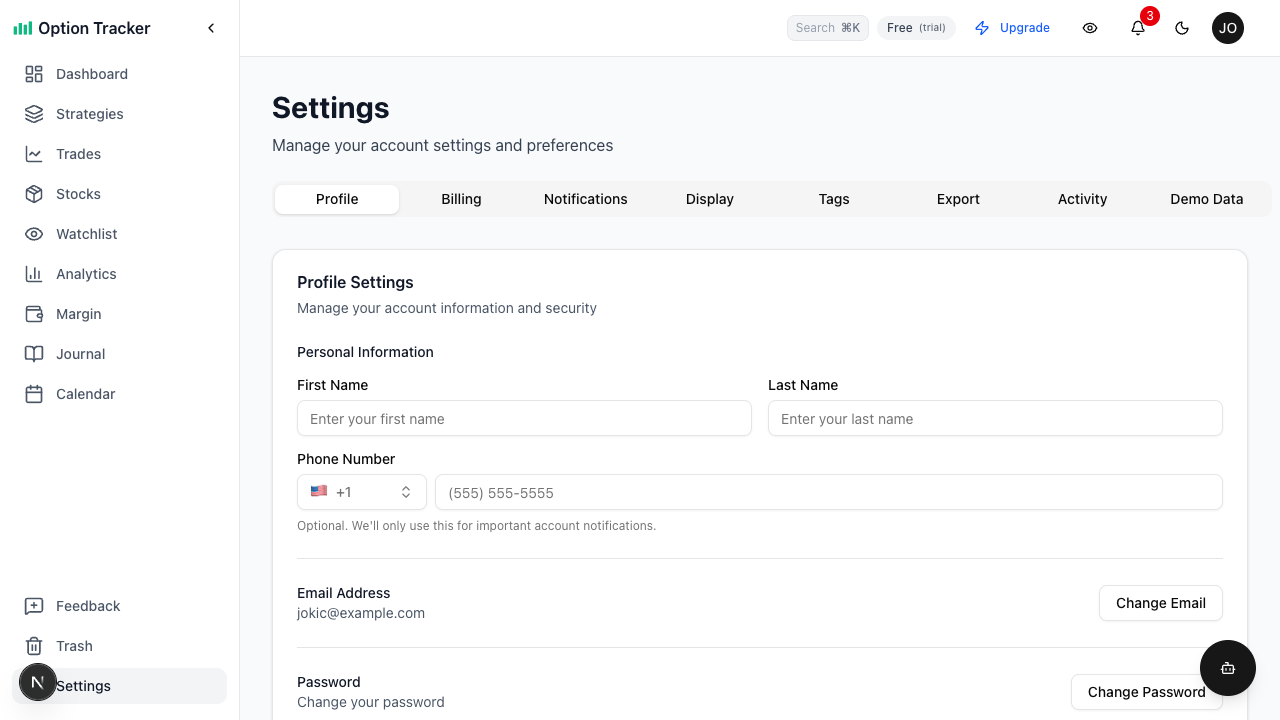
Reset All Data
Permanently delete all your data and start fresh:
- Scroll to the Danger Zone section
- Click "Reset All Data"
- Review what will be deleted
- Type "RESET" to confirm
- Click "Reset All Data" to proceed
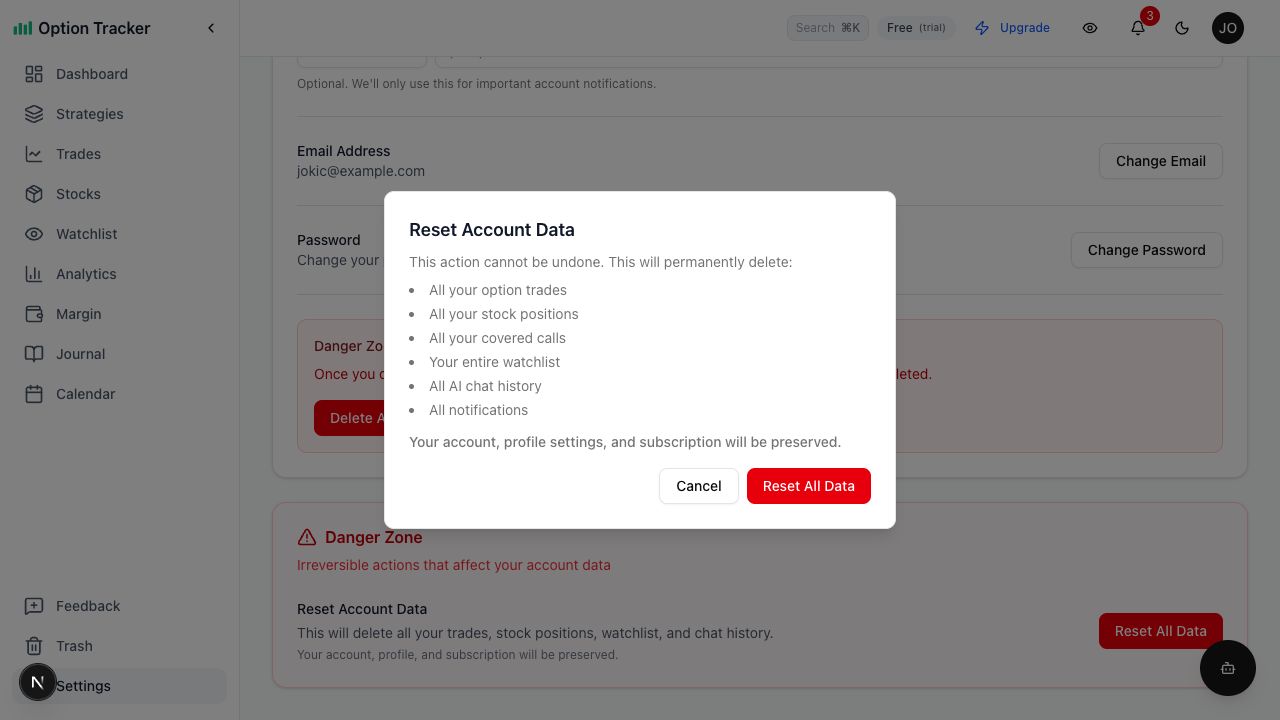
This deletes:
- All option trades
- All stock positions
- All covered calls
- All notifications
- Your watchlist
- Activity logs
Warning: This action is permanent and cannot be undone.
Data Management
Demo Data
New accounts include sample trading data:
- Click "Clear Demo Data" to remove it
- Start fresh with your own trades
- Demo data removal is logged in your Activity Log
Export Data
Download your complete trading history:
- Click "Export All Data"
- Select format (CSV or JSON)
- Receive download link via email
Use for:
- Personal backups
- Tax preparation
- Migration to other tools
Import Data
Bulk import trades from other sources:
- Click "Import Trades"
- Upload CSV file
- Map columns to fields
- Review and confirm
Supported formats:
- CSV with headers
- Specific broker exports (coming soon)
Connected Accounts
Google Account
If using Google Sign-In:
- View connected Google account
- Disconnect to switch to email/password
Broker Connections (Coming Soon)
Future feature:
- Connect brokerage accounts
- Auto-import trades
- Real-time position sync
Subscription & Billing
Current Plan
View your subscription status:
- Free - Basic features
- Pro - Advanced analytics, unlimited trades
- Enterprise - Team features, API access
Upgrade
Click "Upgrade Plan" to access:
- More features
- Priority support
- Advanced analytics
Billing History
View past invoices and payment history.
Security Settings
Two-Factor Authentication
Add an extra layer of security:
- Click "Enable 2FA"
- Scan QR code with authenticator app
- Enter verification code
- Save backup codes
Active Sessions
View and manage logged-in devices:
- See all active sessions
- Log out from other devices
- Review login history
API Access (Pro Feature)
Generate API keys for:
- Custom integrations
- Automated trade logging
- Third-party tools
Tips for Settings
-
Set your timezone - Ensures accurate expiration tracking
-
Enable notifications - Never miss an expiring option
-
Choose dark mode - Easier for extended screen time
-
Regular exports - Keep backups of your data
-
Review security - Enable 2FA for account protection
Getting Help
From Settings, you can also access:
- Help Center - Documentation and FAQs
- Contact Support - Report issues or ask questions
- Feature Requests - Suggest improvements
- Keyboard Shortcuts - Quick navigation reference
Need More Help?
- Visit our Documentation for detailed guides
- Read the Blog for tips and strategies
- Contact support at support@optiontracker.app