Navigation
Navigate Option Tracker efficiently using the sidebar, mobile menu, keyboard shortcuts, and command palette. Find any feature or page in seconds from anywhere in the app.
Option Tracker features an intuitive navigation system designed to help you move quickly between sections while keeping your workspace uncluttered.
Sidebar Navigation
The sidebar provides quick access to all main sections of the application.
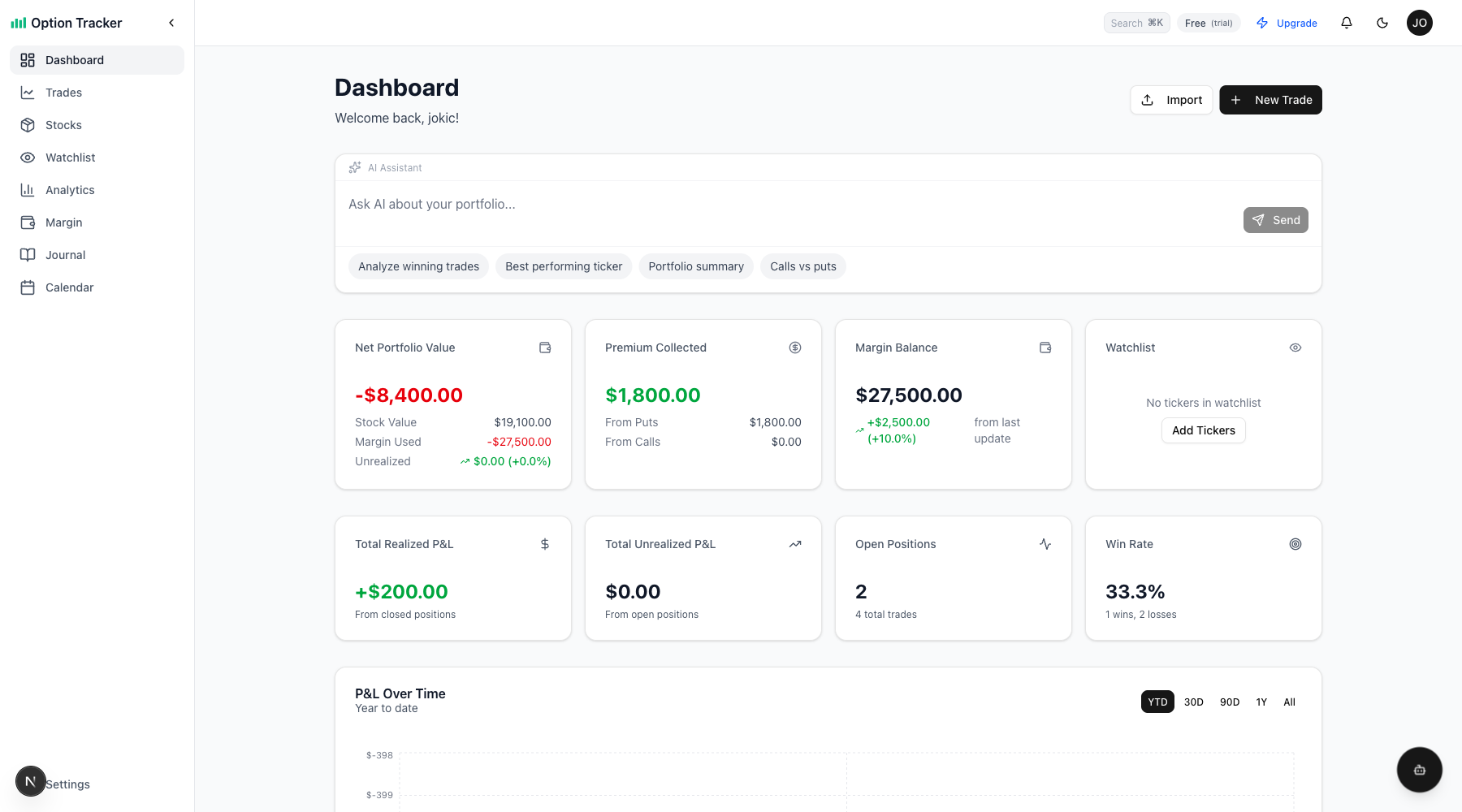
Main Navigation Items
- Dashboard - Your trading command center with portfolio overview
- Trades - Full list of all option trades
- Stocks - Stock positions from assigned options
- Watchlist - Track tickers you're interested in
- Analytics - Performance metrics and analysis
- Margin - Track margin usage and available buying power
- Journal - Trading journal entries and notes
- Calendar - Expiration calendar with earnings dates
Settings
Access your account settings, preferences, and subscription management at the bottom of the sidebar.
Collapsible Sidebar
Click the collapse button (chevron icon) at the top of the sidebar to minimize it to icon-only mode. This gives you more screen space for the main content area.
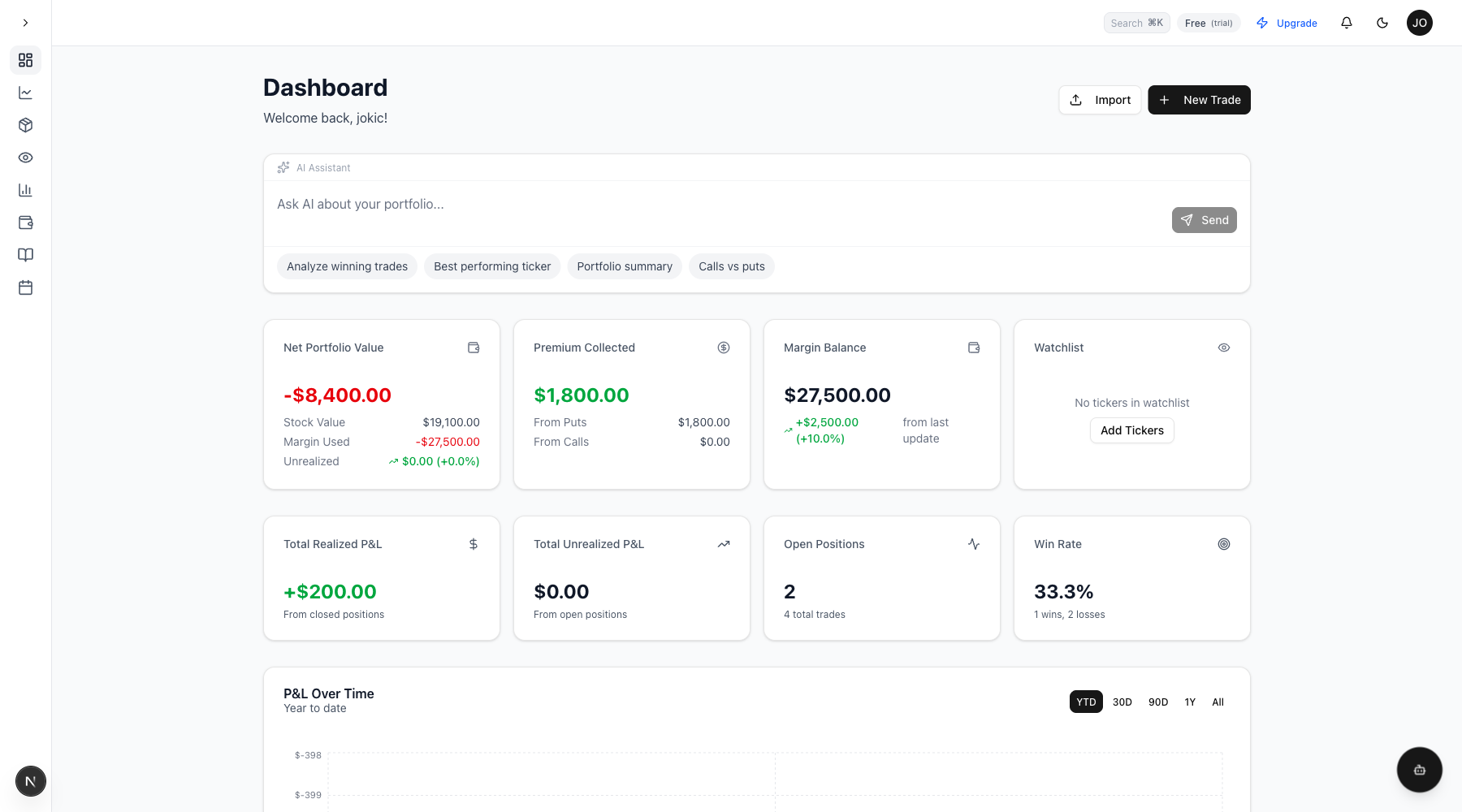
When collapsed:
- Only icons are visible
- Hover over icons to see tooltips with the page name
- Click the expand button to restore the full sidebar
Your sidebar preference (expanded or collapsed) is saved automatically and persists across sessions.
Top Header
The slim top header contains utility items that you need quick access to:
- Search (⌘K) - Open the command palette to quickly search and navigate
- Plan Badge - Shows your current subscription tier
- Notifications - View alerts and updates
- Theme Toggle - Switch between light and dark mode
- User Menu - Access account settings and sign out
Mobile Navigation
On mobile devices, the sidebar is replaced with a slide-out drawer menu.
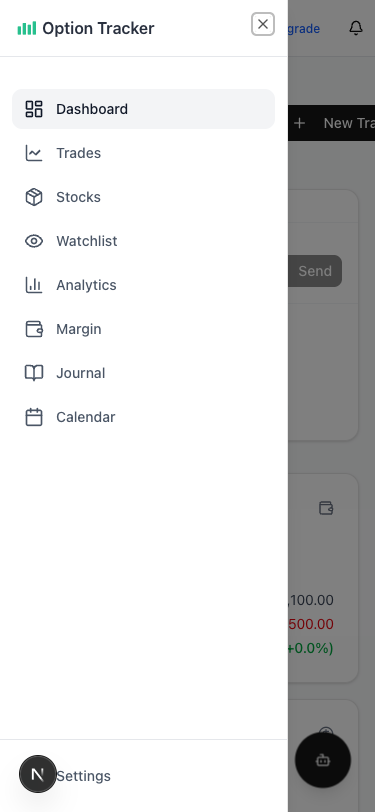
To open the mobile menu:
- Tap the hamburger icon (☰) in the top-left corner
- The navigation drawer slides in from the left
- Tap any item to navigate to that section
- The drawer closes automatically after navigation
Keyboard Shortcuts
For power users, Option Tracker supports keyboard navigation:
| Shortcut | Action |
|----------|--------|
| ⌘K or Ctrl+K | Open command palette |
| G then D | Go to Dashboard |
| G then T | Go to Trades |
| G then S | Go to Stocks |
| G then W | Go to Watchlist |
| G then A | Go to Analytics |
See Keyboard Shortcuts for the complete list.
Logo Navigation
Click the Option Tracker logo in the sidebar to return to the marketing homepage. This is useful when you want to:
- View product information
- Check pricing
- Access the blog
- Share the product with others
Tips
- Collapse for focus - Minimize the sidebar when you need more screen real estate
- Use keyboard shortcuts - Press
⌘Kto quickly jump to any page - Check notifications - The bell icon shows alerts for expiring positions
- Quick theme switch - Toggle dark mode from the header without going to settings