Multi-leg Strategies
Track vertical spreads, strangles, straddles, and calendar spreads with combined P&L and max profit/loss calculations.
Multi-leg strategies combine two or more option trades into a single tracked position. This gives you a unified view of your spreads and complex positions with combined P&L calculations, max profit/loss tracking, and smart warnings when legging out.
Supported Strategy Types
Option Tracker automatically detects and supports these strategy types:
Vertical Spreads
Two options with the same ticker, same expiration, same type (calls or puts), but different strikes.
- Bull call spread: Buy lower strike call, sell higher strike call
- Bear put spread: Buy higher strike put, sell lower strike put
- Credit/debit spreads
Strangles
Two options with the same ticker, same expiration, but different types (one call, one put) with different strikes.
- Typically buying or selling both out-of-the-money options
Straddles
Two options with the same ticker, same expiration, same strike, but different types (one call, one put).
- Betting on volatility regardless of direction
Calendar Spreads
Two options with the same ticker, same strike, same type, but different expirations.
- Also known as time spreads or horizontal spreads
Custom Strategies
Any combination that doesn't fit the patterns above. Great for iron condors, butterflies, or other complex positions.
Creating a Strategy
Method 1: Group Existing Trades
The easiest way to create a strategy is to group trades you've already entered:
- Go to the Trades page
- Select 2 or more option trades using the checkboxes
- Click the "Group as Strategy" button that appears
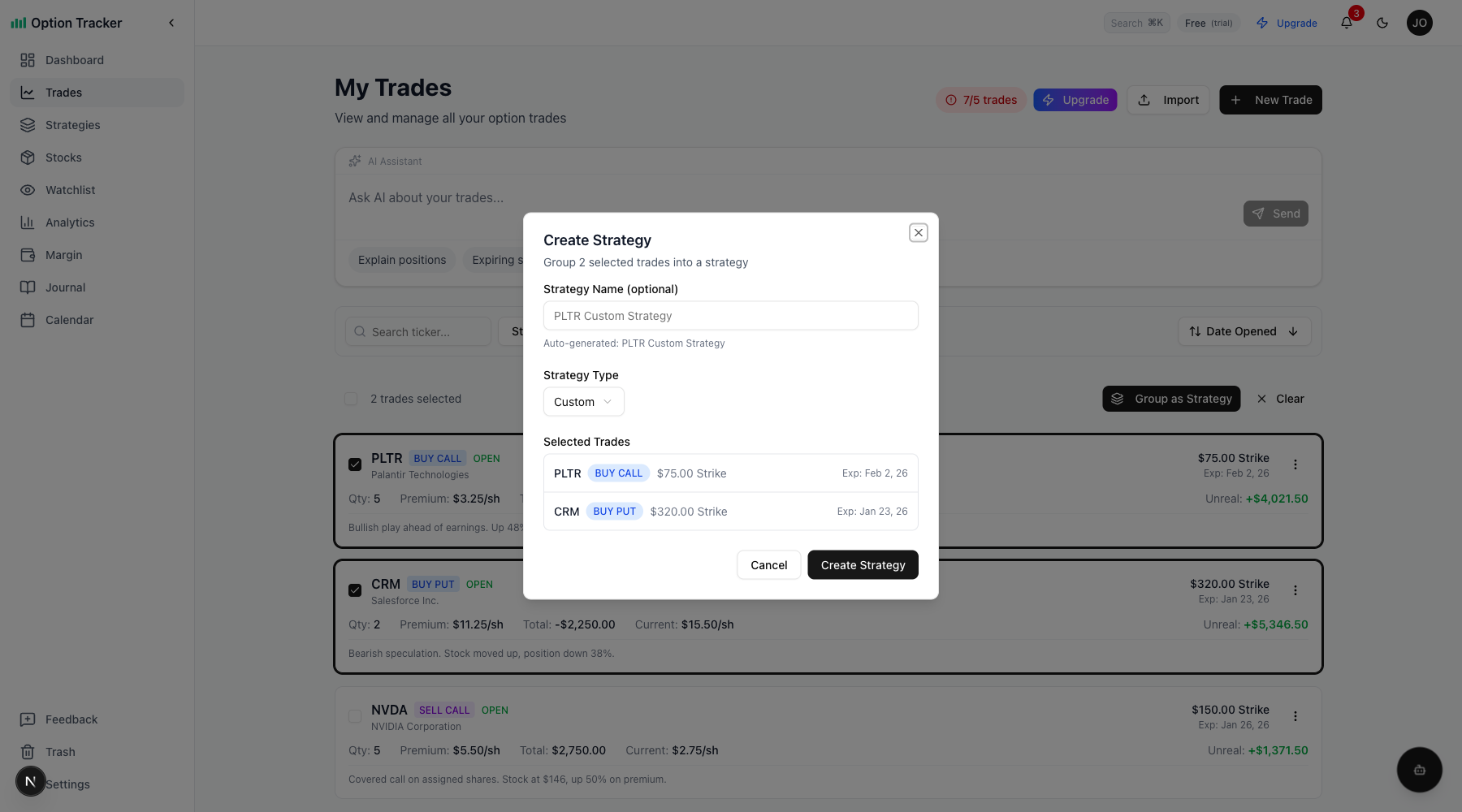
- Review the auto-detected strategy type (you can override it)
- Optionally give your strategy a custom name
- Click Create Strategy
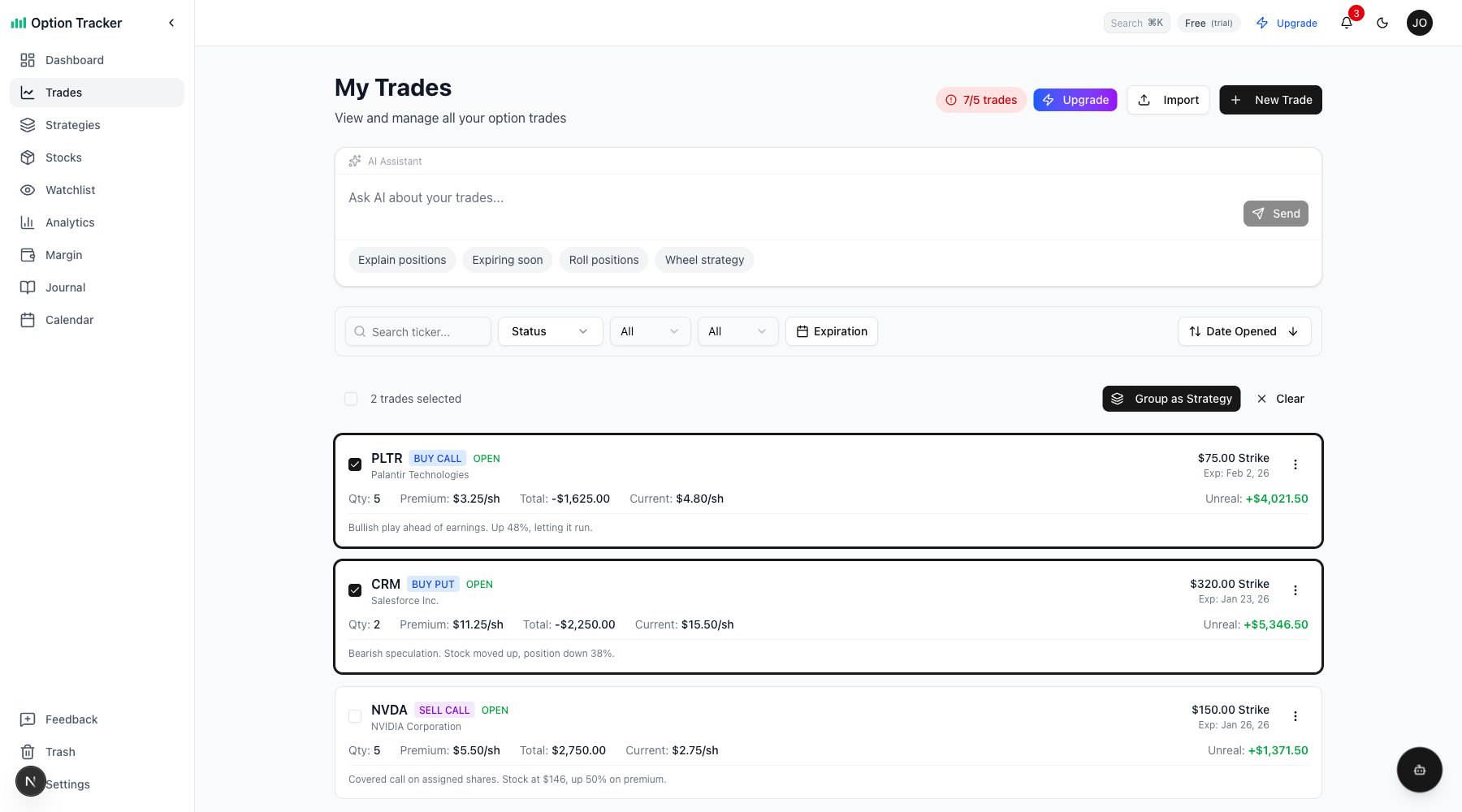
The system automatically detects your strategy type based on the trades you select. For example, selecting a call and put with the same expiry will be detected as a strangle.
Method 2: Create Strategy First
If you prefer, you can create an empty strategy and add trades to it later:
- Go to the Strategies page
- Click "New Strategy"
- Choose a strategy type and name
- Click Create
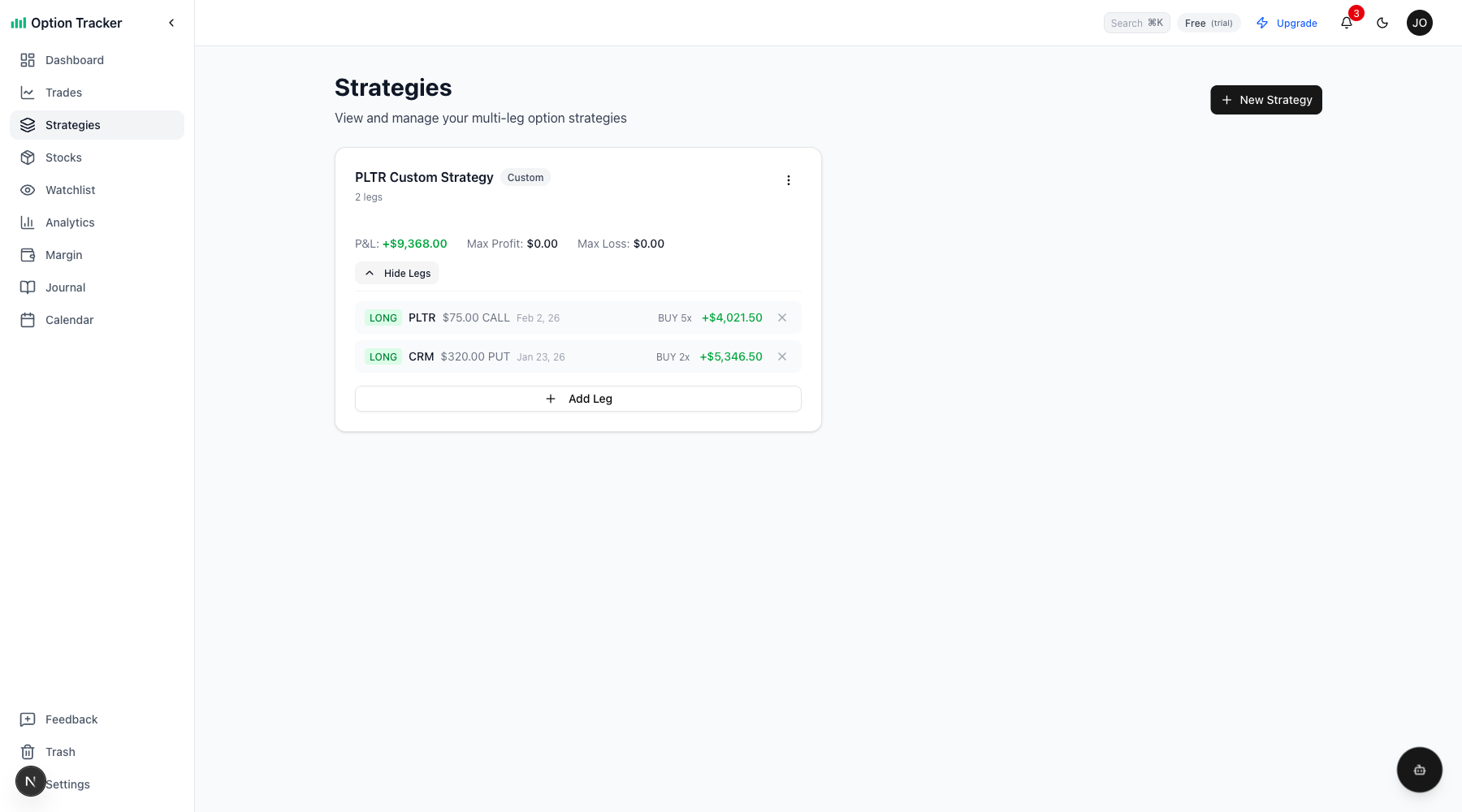
- Expand the strategy card and click "Add Leg" to add trades
Viewing Your Strategies
Navigate to Strategies in the sidebar to see all your multi-leg positions. Each strategy card shows:
- Strategy name: Custom name or auto-generated (e.g., "AAPL Vertical Spread")
- Strategy type badge: Vertical Spread, Strangle, Straddle, Calendar, or Custom
- Combined P&L: Total profit/loss across all legs
- Max Profit: Maximum possible profit (or "Unlimited" with warning icon)
- Max Loss: Maximum possible loss (or "Unlimited" with warning icon)
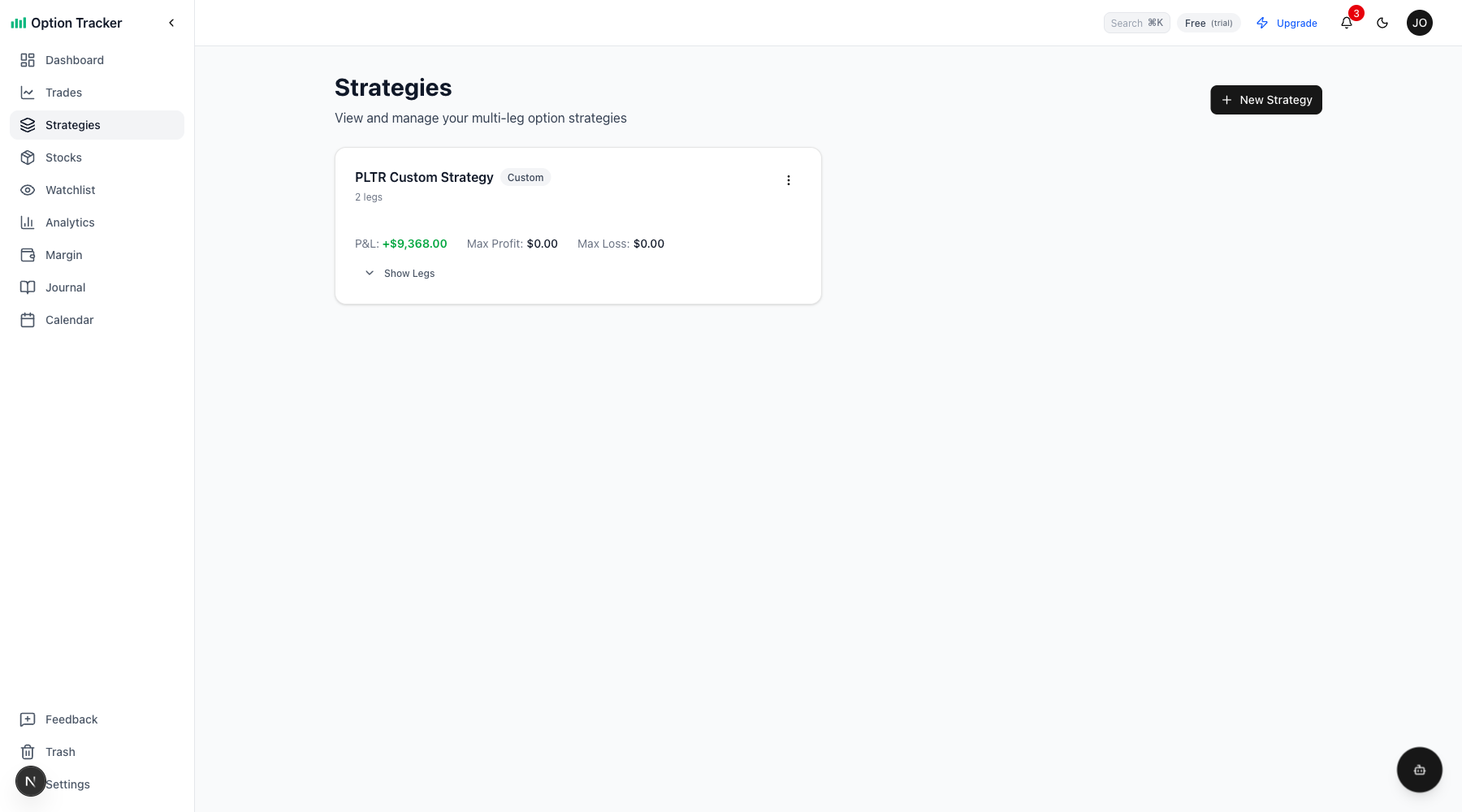
Click "Show Legs" to expand and see individual trade details with per-leg P&L.
Combined P&L Calculations
Your strategy's P&L is calculated as the sum of all leg P&Ls:
- Realized P&L: From closed legs (assignments, expirations, manual closes)
- Unrealized P&L: From open legs based on current market prices
- Total P&L: Realized + Unrealized
This gives you an accurate picture of how your entire position is performing, not just individual legs.
Max Profit and Max Loss
For defined-risk strategies like vertical spreads, Option Tracker calculates:
- Max Profit: The best-case scenario for your position
- Max Loss: The worst-case scenario
When either is theoretically unlimited (e.g., a naked call), you'll see "Unlimited" with a warning icon to remind you of the additional risk.
Managing Strategy Legs
Adding a Leg
- On the Strategies page, find your strategy
- Click "Show Legs" to expand
- Click "Add Leg"
- Select from available trades (only trades not already in a strategy are shown)
- Click Add Leg
Removing a Leg
- Expand your strategy to show legs
- Click the X button next to any leg
- Confirm removal
The trade remains in your trades list - only the strategy grouping is removed.
Legging Out Warnings
When you try to close a trade that's part of a multi-leg strategy, you'll see a warning:
"This trade is part of [Strategy Name]. Closing one leg changes the strategy risk profile."
This reminds you that closing just one leg may leave you with an unbalanced position or increased risk. You can proceed with the close or cancel to reconsider.
Closed Strategies
When all legs of a strategy are closed (expired, assigned, or manually closed), the strategy automatically shows a "Closed" badge. Closed strategies:
- Show final realized P&L only
- Cannot have new legs added
- Cannot be edited
- Can still be deleted (for cleanup)
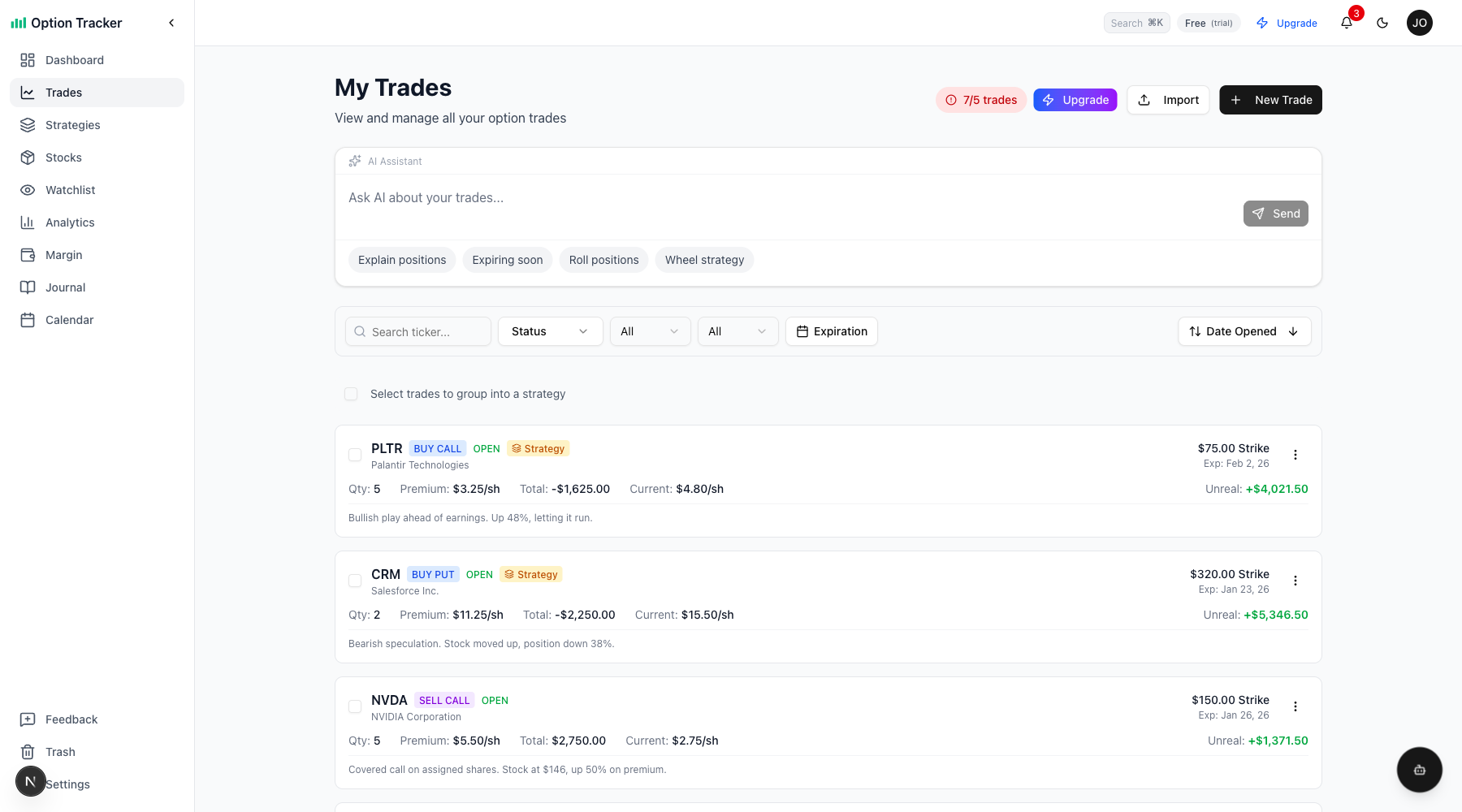
Strategy Indicator on Trades
On the Trades page, trades that are part of a strategy show a strategy badge with the strategy name. Hover over the badge to see which strategy the trade belongs to.
Strategy Templates
Template Browser
Click Browse Templates on the Strategies page to explore common multi-leg option strategies. The browser shows:
- Strategy categories: Spreads, Straddles, Strangles, Condors, Butterflies, Calendars
- Market outlook filters: Bullish, Bearish, Neutral, or Volatile
- Leg structure: Expandable view showing buy/sell actions and strike relationships
- Risk profile: Whether risk is defined or unlimited, max profit/loss characteristics
This is a great educational resource when planning new positions or learning about different strategy types.
Template Suggestions
When grouping trades into a strategy, Option Tracker automatically matches your selections against known templates. You'll see:
- Template name: e.g., "Iron Condor", "Bull Call Spread"
- Confidence score: How well your trades match the template (higher is better)
- Match details: Hover over the info icon for an explanation
This helps confirm you've set up your position correctly and can identify patterns you might not have recognized.
AI-Powered Suggestions
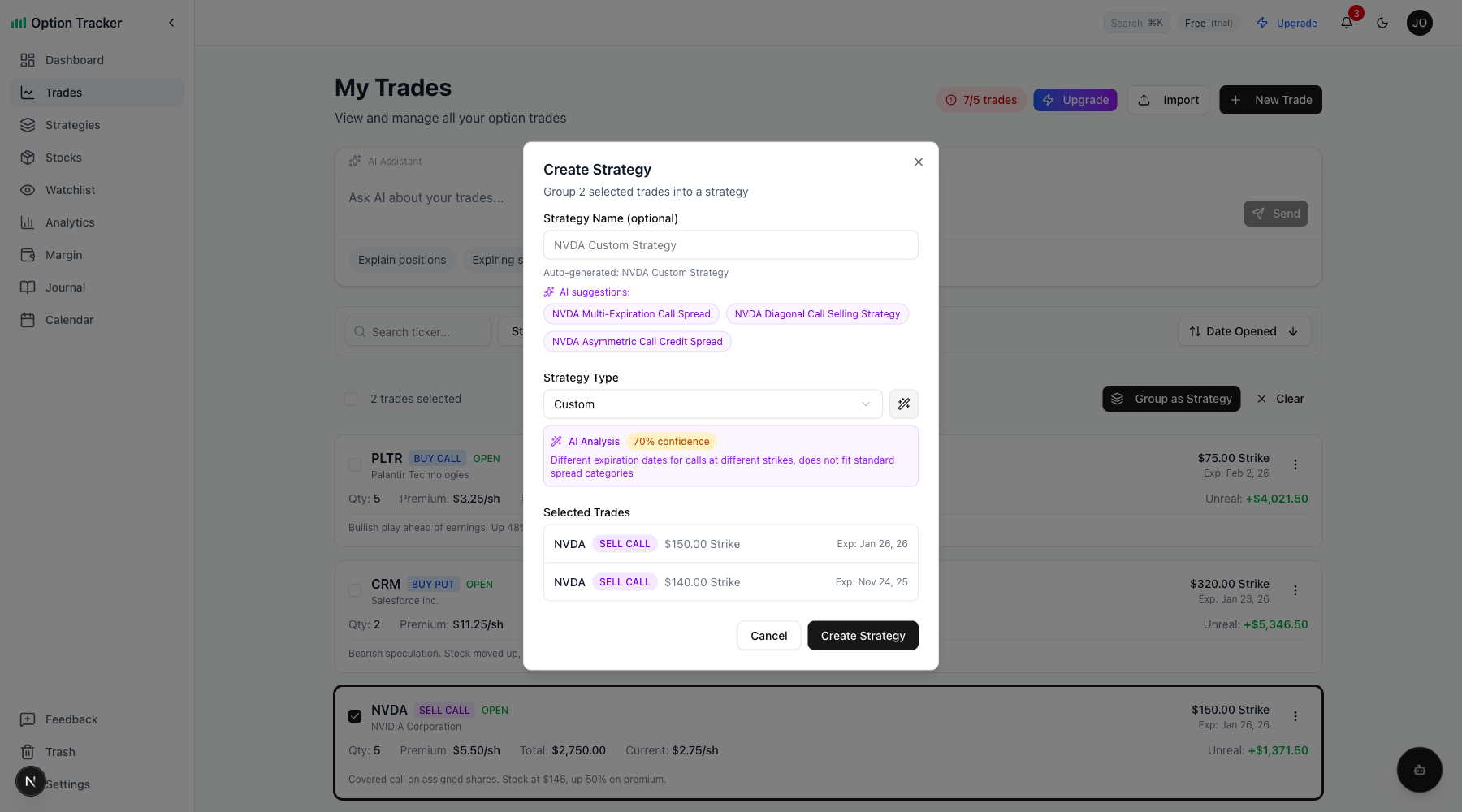
When grouping trades into a strategy, you can use AI to help identify the strategy type and suggest meaningful names.
Getting AI Suggestions
- Select trades and click "Group as Strategy"
- Click the sparkle/wand icon next to the Strategy Type dropdown
- AI analyzes your selected trades and provides:
- Strategy type detection with confidence score
- Suggested names as clickable chips
- Reasoning explaining why the strategy was identified
Using AI Suggestions
- Click any suggested name chip to use it as your strategy name
- Review the confidence percentage (higher = more certain match)
- Read the AI's reasoning to understand the analysis
- You can still override the strategy type manually if needed
Ticker Mismatch Warnings
When grouping trades with different tickers, Option Tracker shows a warning:
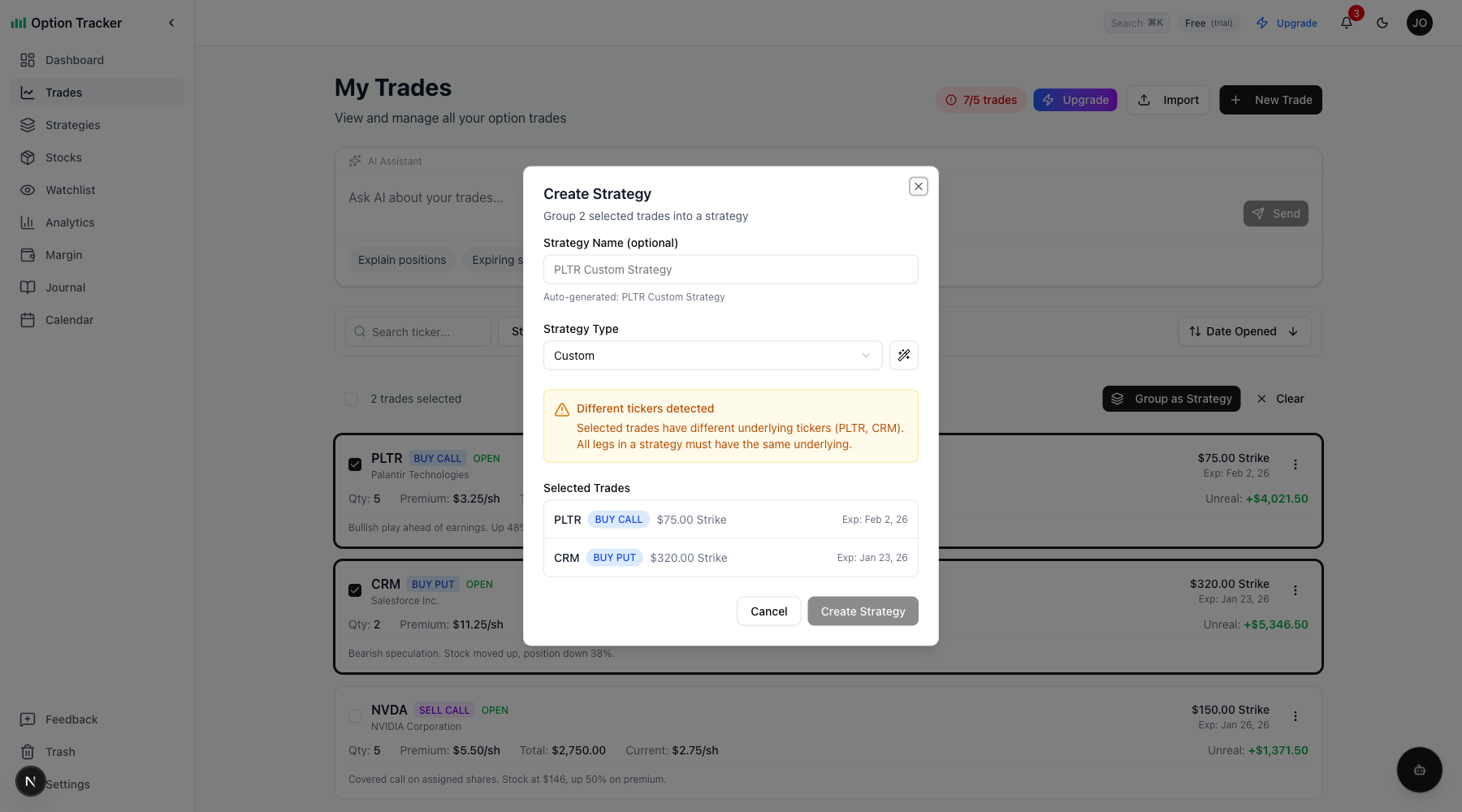
This helps you avoid accidentally grouping unrelated trades. Multi-leg strategies typically consist of options on the same underlying.
Strategy Alerts
Set profit targets and max loss alerts to get notified when your strategies hit key thresholds.
Setting an Alert
- On a strategy card, click the ... menu
- Select Set Alert
- Choose alert type:
- Profit Target: Triggers when P&L exceeds a value (e.g., $500 or 50%)
- Max Loss: Triggers when loss exceeds a value
- Enter threshold amount or percentage
- Click Save Alert
Managing Alerts
- Active alerts show a bell icon on the strategy card with the count
- Click the bell or menu to view/edit existing alerts
- Delete alerts you no longer need
- Alerts trigger automatically when prices update and create notifications
Leg Management
Removed Legs History
When you remove a leg from a strategy, it's soft-deleted rather than permanently removed. This preserves your strategy history.
- Show Removed toggle: Enable this in the expanded strategy view to see previously removed legs
- Removed legs appear grayed out with a "Removed" badge and timestamp
- View when each leg was removed and their final P&L
- This is useful for tracking rolls and adjustments over time
Adding and Removing Legs
- Add Leg: Available on open strategies via the expanded card view
- Remove Leg: Click X on any leg - you'll see a confirmation with details
- Removing a leg doesn't delete the underlying trade, just unlinks it from the strategy
Strategy Organization
Tags
Organize strategies with custom tags for quick filtering:
- Click ... menu → Add Tag
- Select from suggested tags or type custom ones
- Tags appear on strategy cards and can be filtered in the sidebar
- Common tags: income, hedge, earnings, speculative, directional, neutral
Folders
Create folders to group related strategies:
- Click + in the folder sidebar
- Enter a folder name
- Move strategies to folders via ... menu → Move to Folder
- Click a folder to filter the view
- "All Strategies" shows everything
Archive
Archive strategies you want to keep but hide from the main view:
- Click ... menu → Archive
- Archived strategies are hidden by default
- Toggle Show Archived to see them
- Archived strategies appear faded with an "Archived" badge
- Unarchive via ... menu → Unarchive
Strategy Indicators
Strategy cards show several key metrics at a glance:
Days to Expiration (DTE)
- Shows days until earliest expiring leg
- Color-coded: fewer than 7 days shows warning colors
- Strategies expiring this week are highlighted
Net Premium
- Net Collected: Total premium received (credit strategies) - shown in green
- Net Paid: Total premium paid (debit strategies) - shown in red
- Helps track your cost basis and breakeven
Tested Side
For defined-risk strategies like iron condors:
- Shows which side (put/call) is currently being tested
- Updates based on current underlying price relative to short strikes
- Helps you monitor when to adjust
Underlying Price Movement
- Shows price change since strategy entry
- Displays percentage move with trend indicator
- Tracks how the underlying has moved relative to your position
Notes and Adjustments
Strategy Notes
Add notes to document your thesis, market conditions, or management plan:
- Click ... menu → Add/Edit Notes
- Write your notes (supports multi-line text)
- Notes appear as a preview on the strategy card
- Click the note preview to edit
Adjustment Tracking
Record adjustments when you roll, add, or close legs:
- Click ... menu → Record Adjustment
- Select adjustment type: Roll, Add Leg, or Close Leg
- Enter credit/debit amount (positive = credit, negative = debit)
- Add optional notes describing the adjustment
- View adjustment history in the dialog
This creates a timeline of your strategy management and calculates net P&L including all adjustments.
Expiration Grouping
Toggle Group by Expiration to organize strategies by when they expire:
- Expiring This Week: Highlighted with warning colors for urgent attention
- Expiring Next Week: Strategies expiring in the next 7-14 days
- 2+ Weeks Out: Medium-term positions
- LEAPS: Long-dated positions (60+ DTE)
This helps prioritize which positions need attention based on time remaining.
Cloning Strategies
Quickly duplicate a strategy structure:
- Click ... menu → Clone
- Enter name for the new strategy
- View what will be copied (type, tags, notes)
- Click Clone Strategy
Note: Cloning creates a new strategy with the same structure, but trades must be available (not already in another strategy).
Tips for Multi-leg Strategies
- Plan your full position first: Enter all legs before checking P&L to avoid confusion
- Use auto-detection: Let Option Tracker detect your strategy type - it's usually right
- Name complex strategies: Give custom names to strategies you'll reference often
- Watch unlimited risk: Pay attention to the warning icons on max profit/loss
- Consider rolling as a unit: When rolling, you may want to roll all legs together
- Use tags and folders: Organize strategies by type (income, hedge) or underlying
- Set alerts early: Configure profit targets when opening positions
- Track adjustments: Record every roll or modification to maintain accurate P&L history
- Review expirations regularly: Use expiration grouping to prioritize near-term positions
Search and Navigation
Multi-leg strategies are fully integrated with search:
- Use Cmd+K (or Ctrl+K on Windows) to open the command palette
- Type your strategy name to find it quickly
- Click to navigate directly to the strategies page
You can also navigate to Strategies using the keyboard shortcut G E.