Multi-Account Management
Learn how to organize your trades by brokerage account or strategy using multiple accounts in Option Tracker.
Option Tracker allows you to organize your trades across multiple accounts. Whether you trade with different brokerages (like Schwab, Fidelity, or TD Ameritrade) or want to separate trades by strategy (like Wheel Strategy vs. Speculative), multi-account management helps you stay organized.
Creating Accounts
By default, every user has a "Primary" account. You can create up to 5 active accounts to organize your trades.
Account Settings Page
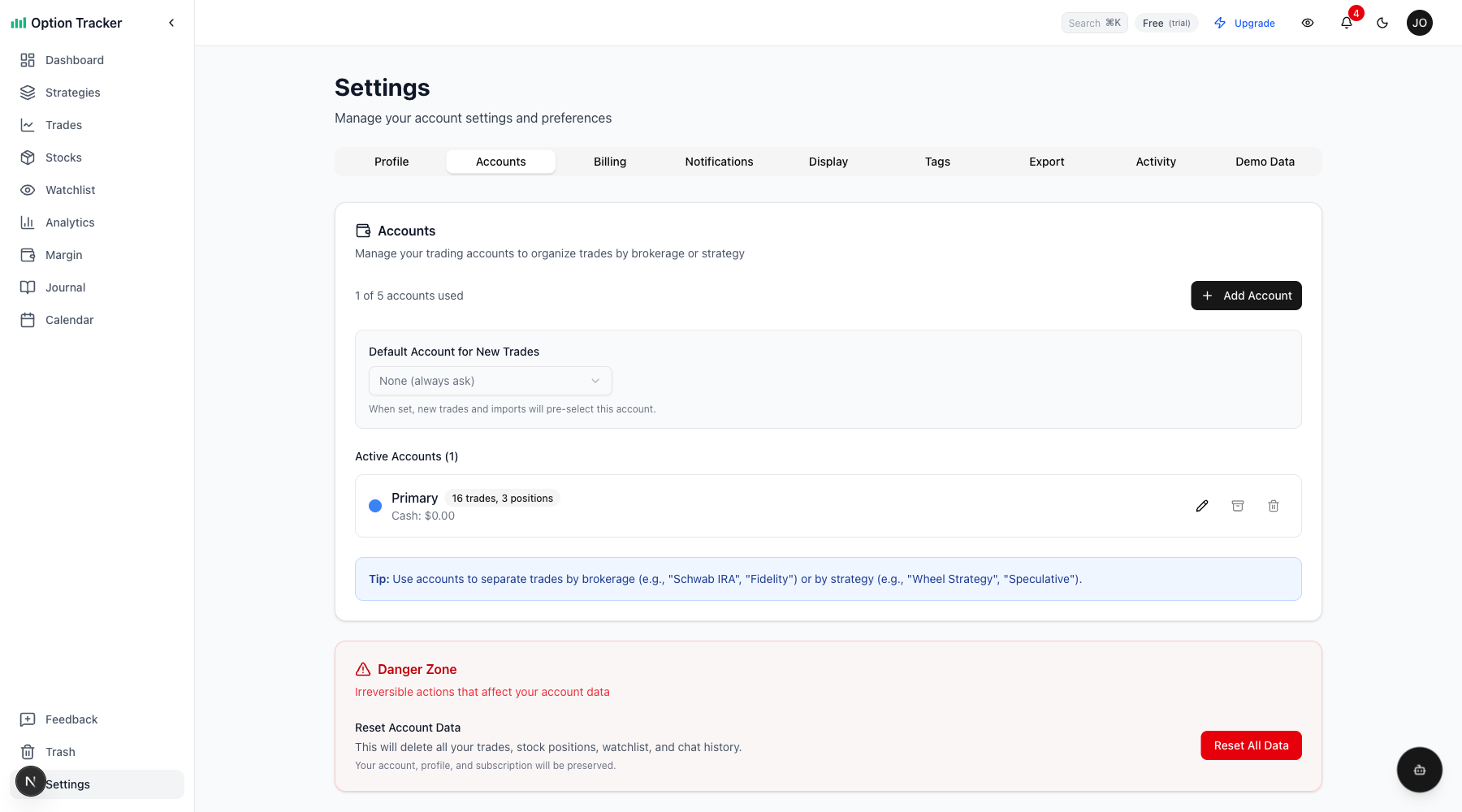
Navigate to Settings > Accounts to manage your accounts. Here you'll see:
- Your current accounts with trade counts and cash balances
- The "Add Account" button to create new accounts
- A default account selector for new trades
Creating a New Account
Click Add Account to open the create account dialog:
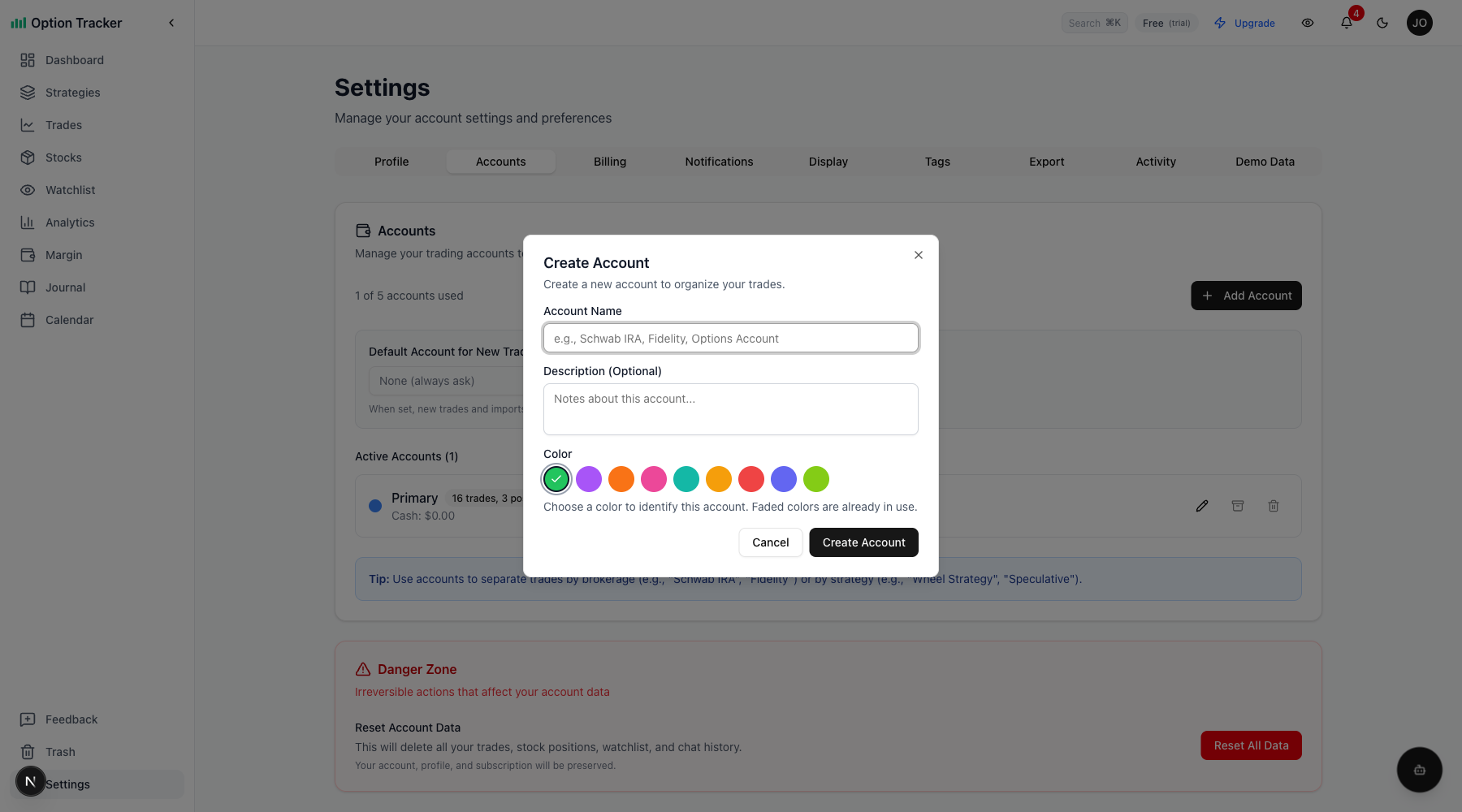
Fill in:
- Account Name - A descriptive name (e.g., "Schwab IRA", "Fidelity Brokerage")
- Description (optional) - Notes about this account
- Color - Pick a color to visually identify this account throughout the app
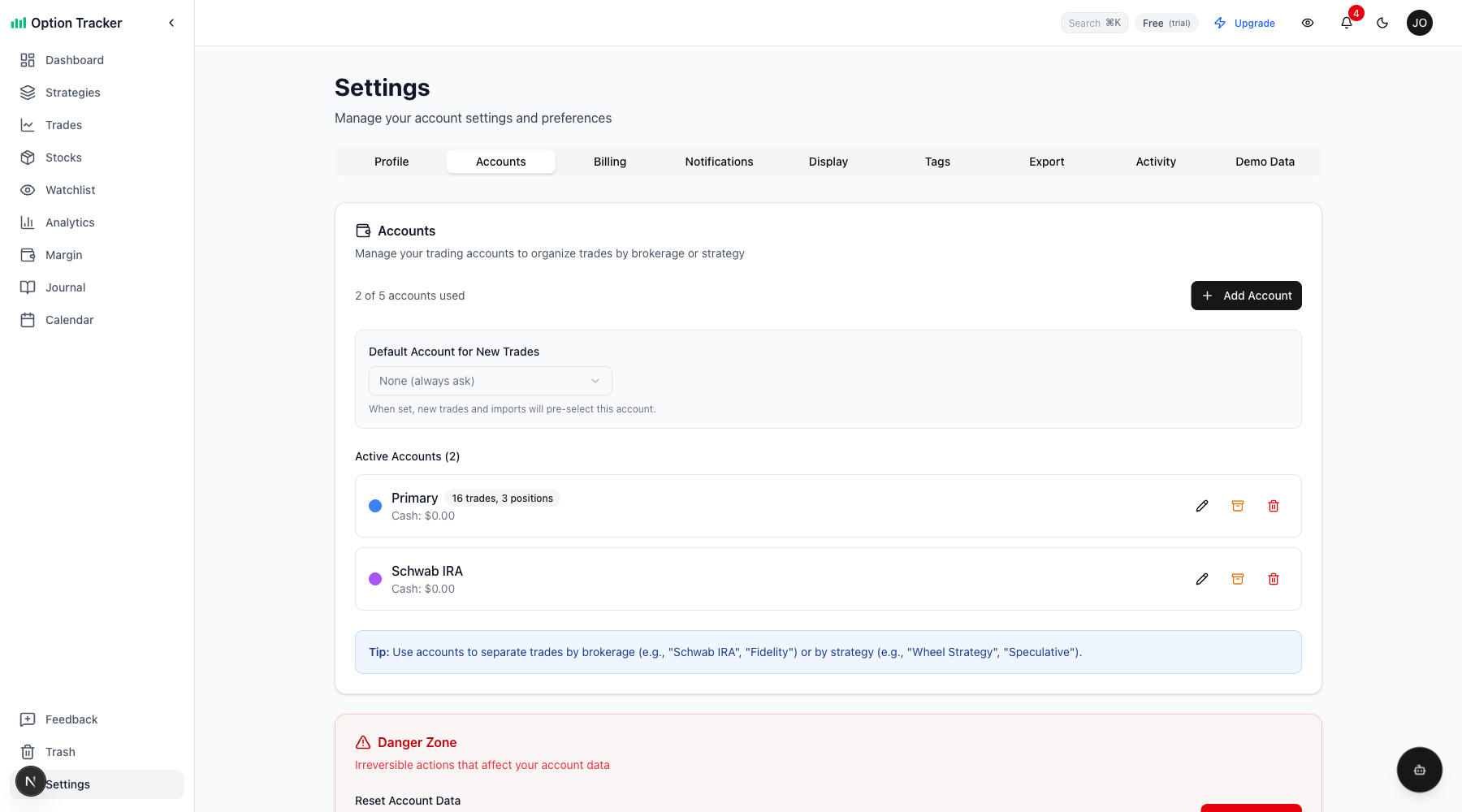
After creating accounts, your settings page will show all your accounts:
Assigning Trades to Accounts
When you create a new trade, you'll select which account to assign it to.
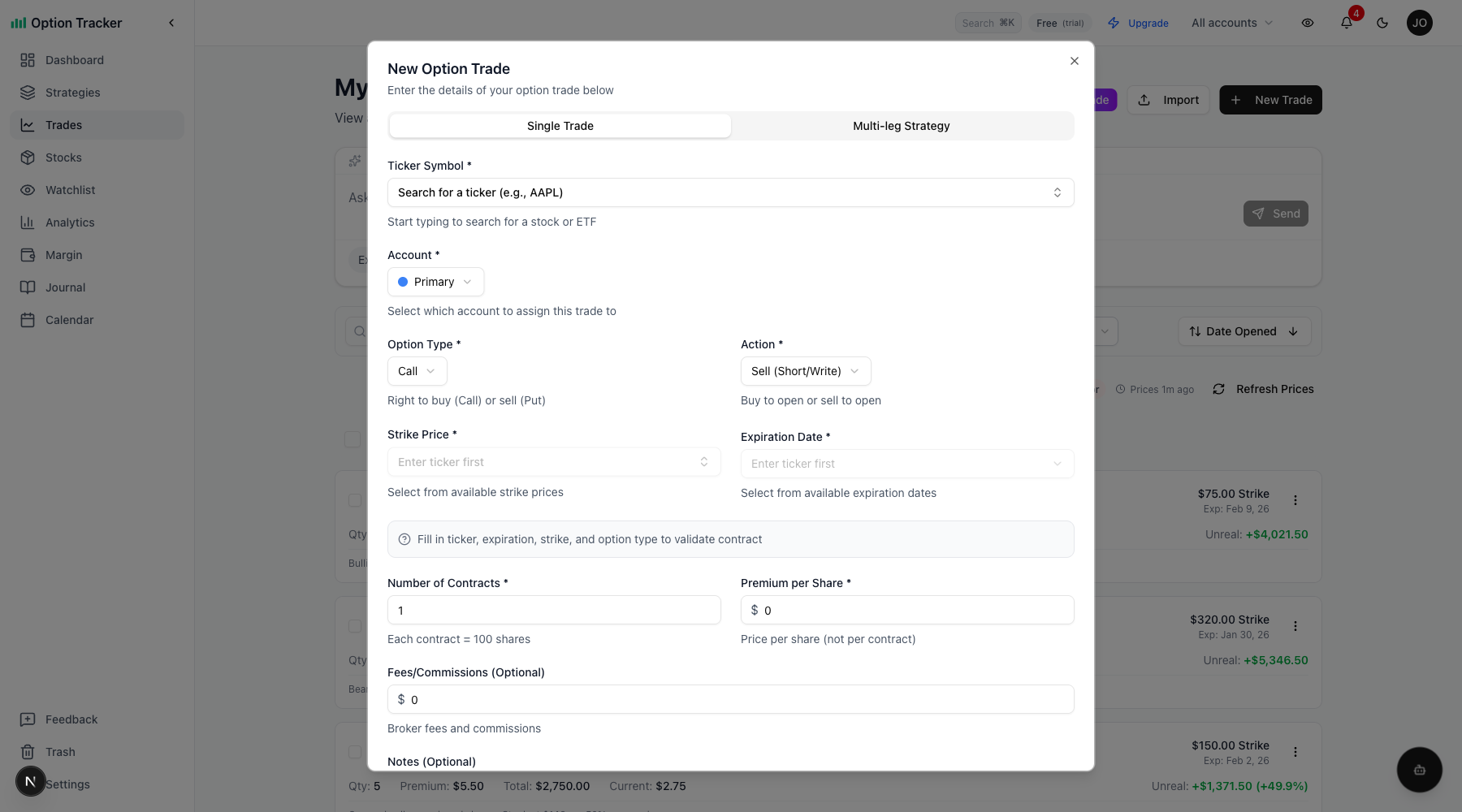
New Trade Form
The new trade form includes an Account dropdown where you can choose the target account:
Default Account
You can set a default account in Settings that will be pre-selected for new trades and imports. This saves time if most of your trading activity happens in one account.
Filtering by Account
One of the most powerful features is the ability to filter your view by account.
Header Account Selector
The global account selector in the header lets you quickly filter the entire app by account:
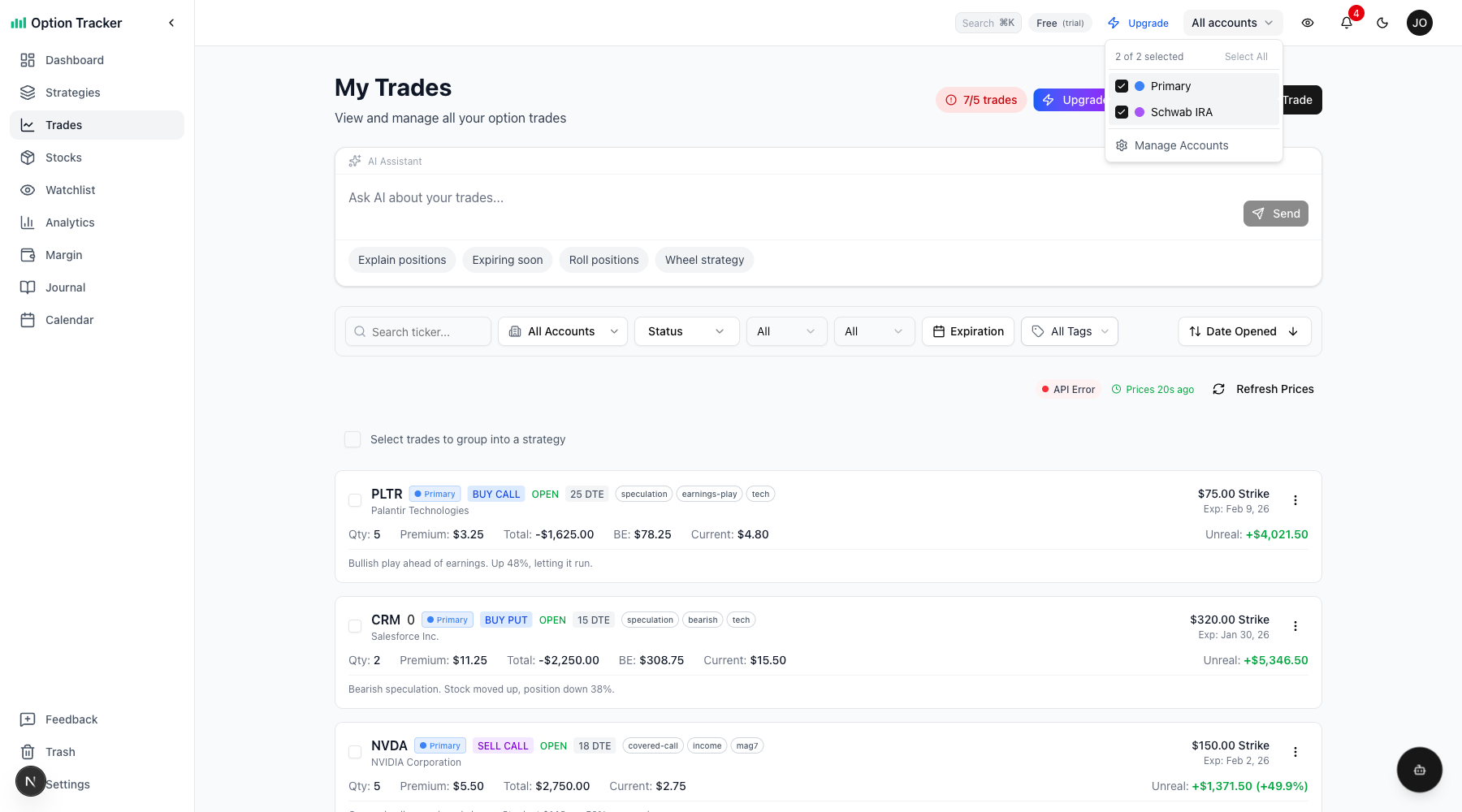
- Select one account to focus on just that account's trades
- Select multiple accounts to see combined data
- Select all accounts to see everything
Account Badges on Trades
When viewing trades from multiple accounts, each trade shows an account badge with the account's color:
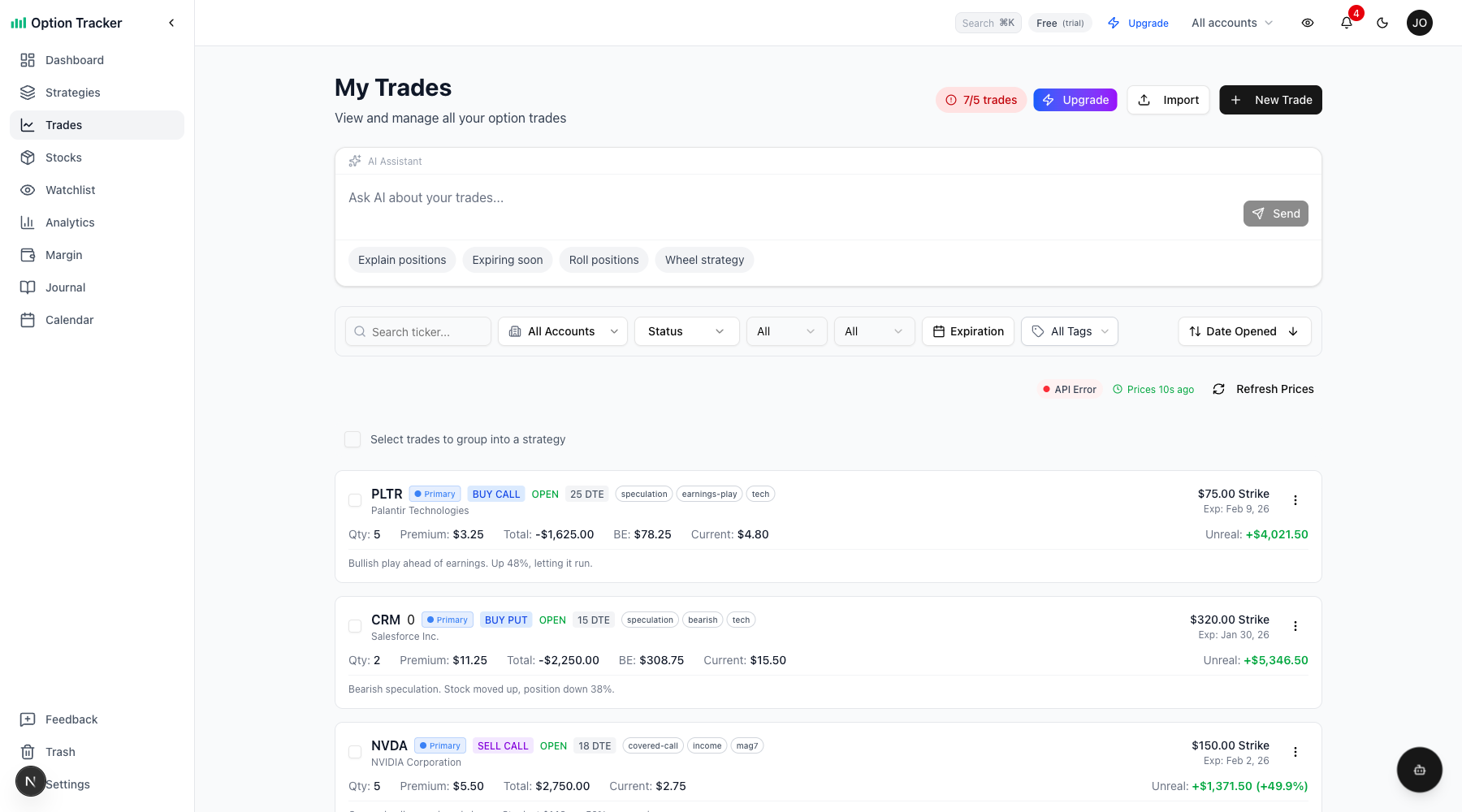
Click on an account badge to quickly filter to that account only.
Moving Trades Between Accounts
Need to reorganize? You can move trades between accounts:
- Go to the Trades page
- Select the trades you want to move using the checkboxes
- Choose Move to Account from the bulk actions menu
- Select the target account
Note: Trades that are part of a strategy (linked to stock positions or covered calls) cannot be moved to maintain strategy integrity.
Account-Aware Features
Many features respect your current account filter:
- Analytics - Charts and metrics update to show only selected accounts
- Dashboard - Summary cards show per-account performance
- Export - Only exports trades from selected accounts
- Search - Results filtered to selected accounts
- AI Assistant - Considers only trades in selected accounts
Best Practices
Organizing by Brokerage
Create one account per brokerage account:
- "Schwab IRA"
- "Fidelity Individual"
- "TD Ameritrade Margin"
This helps you track performance by broker and matches your actual statements.
Organizing by Strategy
Create accounts by trading strategy:
- "Wheel Strategy" - For CSP/covered call trades
- "Speculative" - For directional plays
- "Hedges" - For protective positions
This lets you compare performance across different approaches.
Setting a Default Account
If 80% of your trades go into one account, set it as the default to save time. You can always change it when creating individual trades.
Managing Accounts
Editing Accounts
Click the edit (pencil) icon on any account to:
- Rename the account
- Update the description
- Change the color
- Adjust the cash balance
Archiving Accounts
If you close a brokerage account or stop using a strategy, you can archive it:
- Click the archive icon on the account
- Confirm the action
Archived accounts:
- Are hidden from dropdowns and filters
- Preserve all historical trade data
- Can be restored later if needed
Deleting Accounts
To permanently delete an account:
- Click the delete (trash) icon
- If the account has trades, type "DELETE" to confirm
Warning: Deleting an account permanently removes all its trades. This cannot be undone.
Tips and Tricks
-
Use colors strategically - Pick distinct colors that mean something to you (green for growth accounts, blue for retirement, etc.)
-
Check the URL - Your filter selection is saved in the URL, so you can bookmark filtered views
-
Use keyboard shortcuts - Open the command palette (Cmd/Ctrl+K) and type an account name to quickly switch filters
-
Export per account - When exporting, only trades from selected accounts are included - great for tax reporting by brokerage