Importing Trades
Import your existing trades from CSV files, Excel spreadsheets, or screenshots using AI-powered parsing with approval workflow, trade matching, and undo support.
Option Tracker makes it easy to import your existing trades from any broker. Our AI-powered import system automatically recognizes and converts your data into the right format, with features like side-by-side preview, inline editing, and automatic trade matching.
Import Methods
You have three ways to import your trading data:
1. AI Import (Recommended)
The AI Import tab is now the primary import method. Paste any data format - natural language descriptions, CSV data, shorthand notation, or broker exports - and AI will parse it automatically.
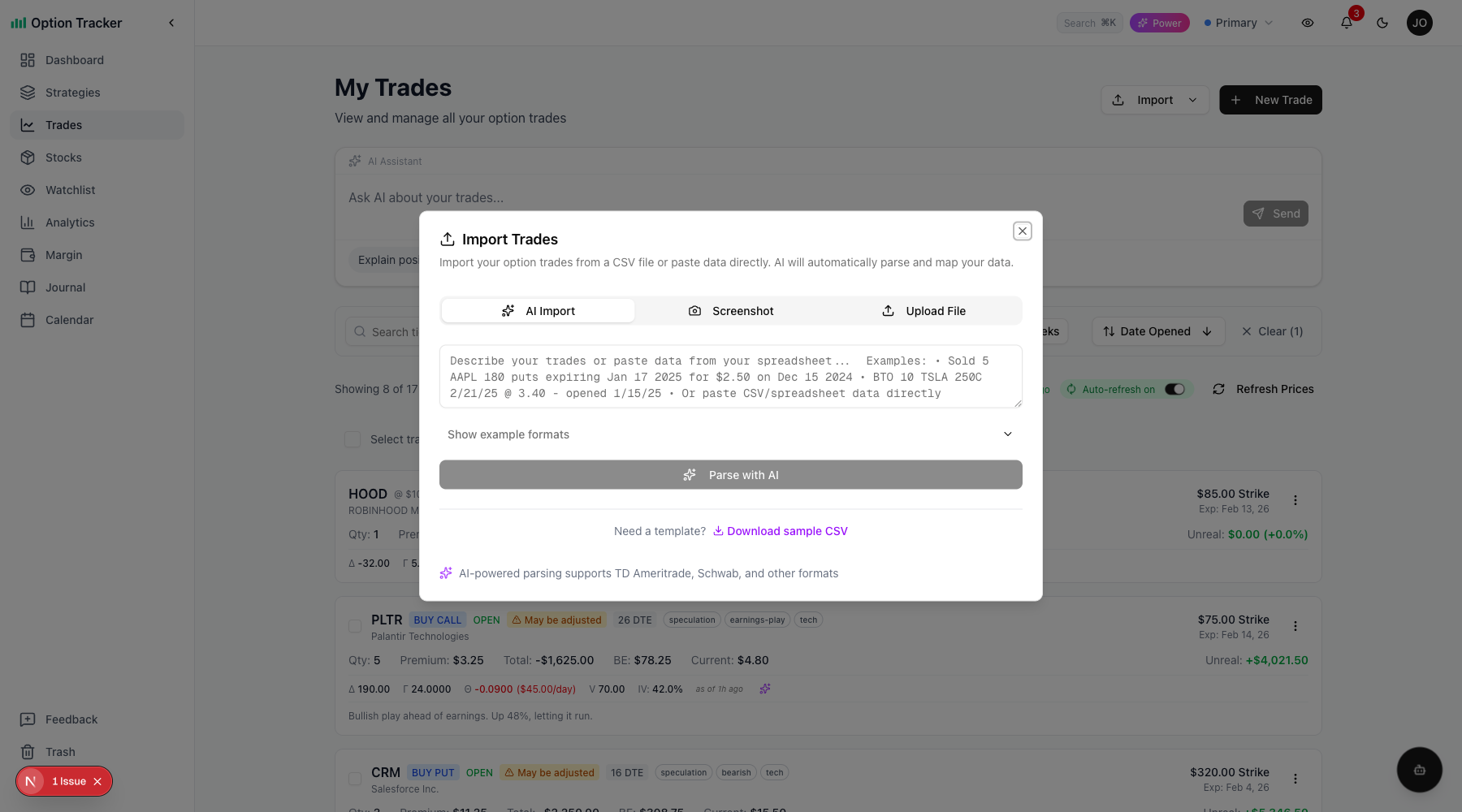
Supported input formats:
- Natural language: "Sold 5 AAPL 180 puts expiring Jan 17 2025 for $2.50"
- Shorthand notation: "STO 5 AAPL 190P 1/17/25 @ 5.25"
- CSV/spreadsheet data: Paste directly from Excel or your broker export
- Broker formats: TD Ameritrade, thinkorswim, Schwab, OptionStrat, and more
2. Screenshot Import
Take a screenshot of your trading positions and let AI extract the data automatically.
3. Upload File (CSV/Excel)
Upload a CSV or Excel (.xlsx) file exported from your broker.
Supported brokers include:
- TD Ameritrade / thinkorswim
- Charles Schwab
- OptionStrat
- Any broker that exports CSV data
How to Import
Step 1: Open the Import Dialog
Access the import feature from the Trades page by clicking the Import dropdown and selecting Import Trades.
Step 2: Paste or Upload Your Data
In the AI Import tab, paste your trade data. The system supports complex broker formats:
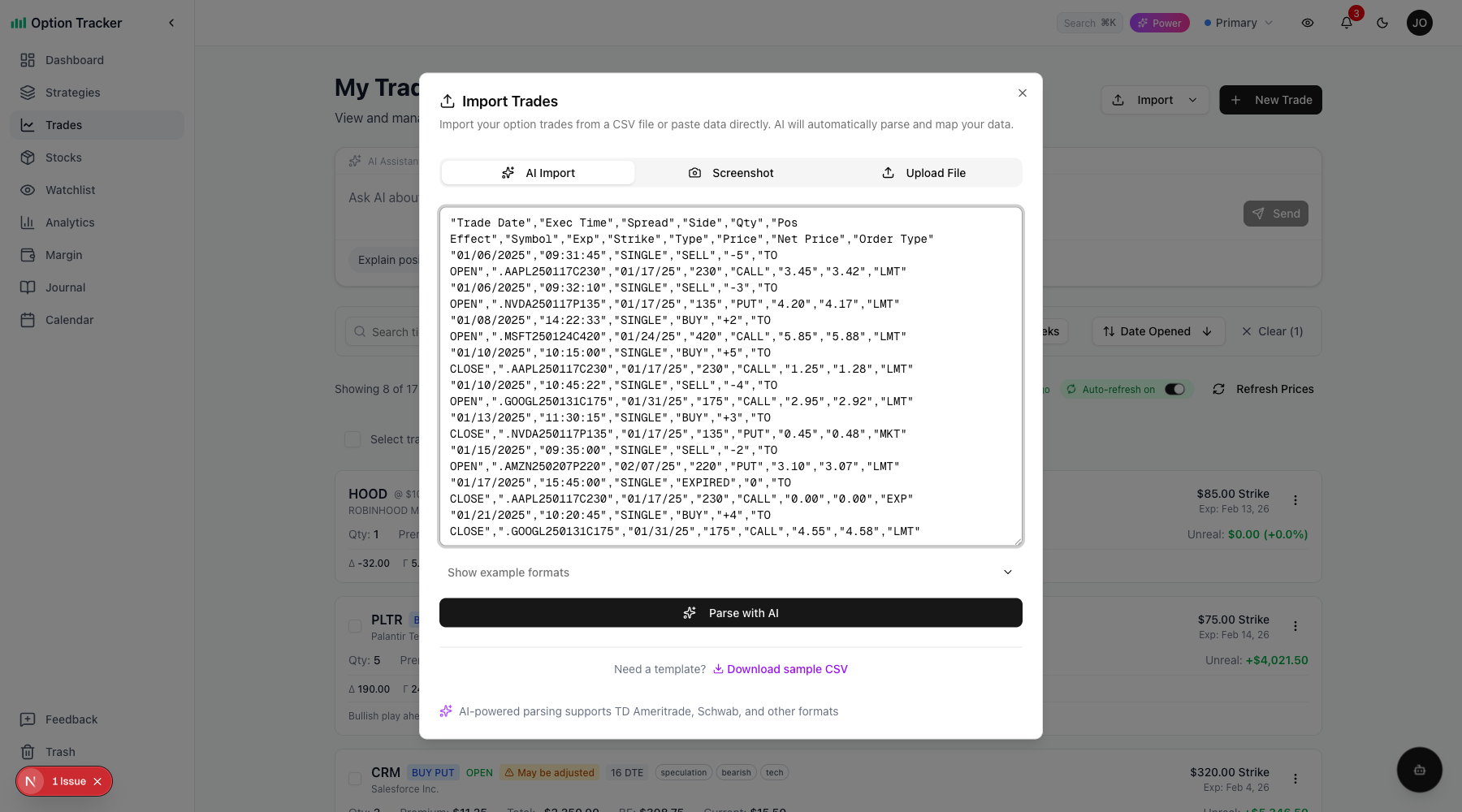
Click Parse with AI to analyze your data.
Step 3: Review the Dry Run Preview
After parsing, you'll see a Dry Run Preview showing all parsed trades before anything is imported.
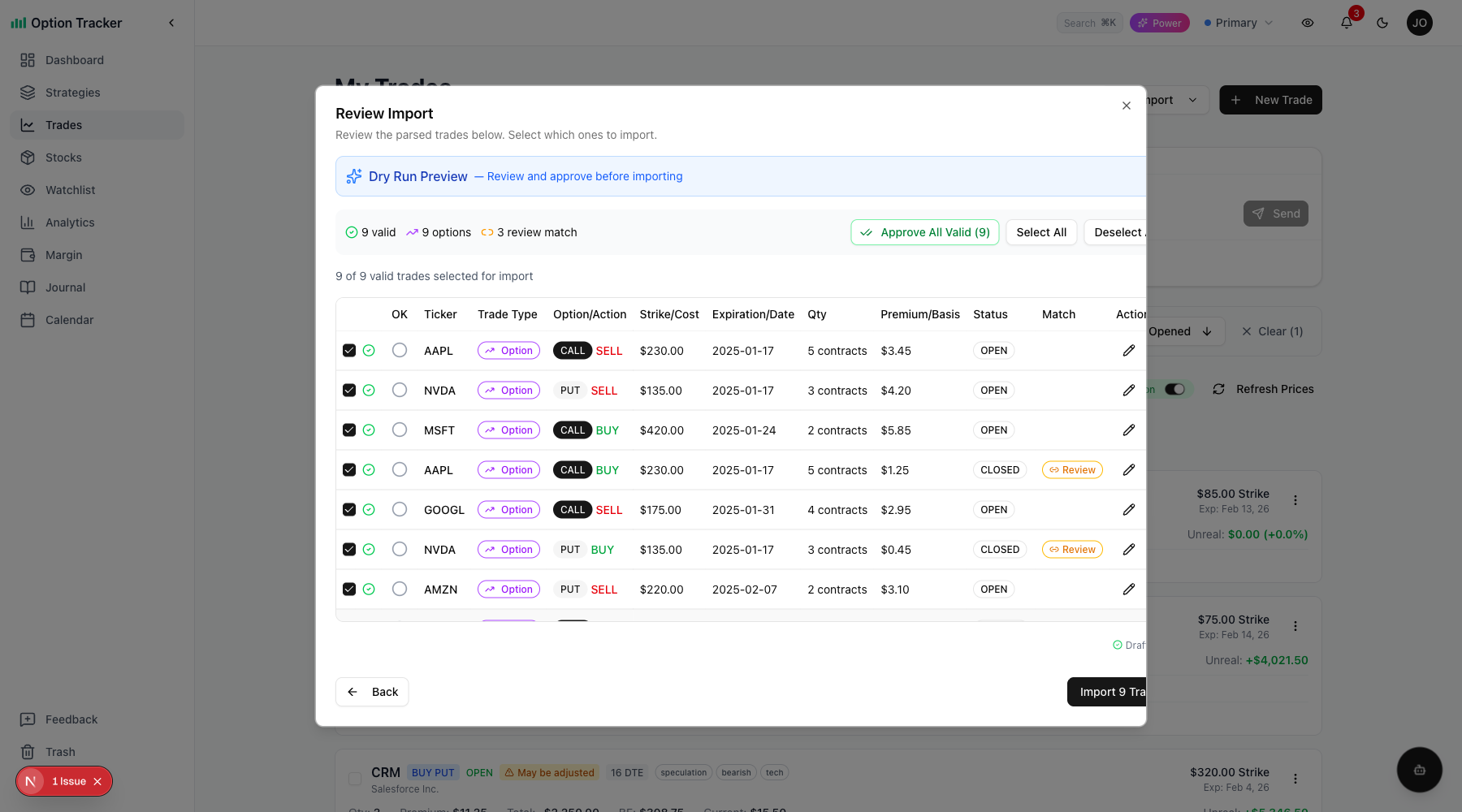
The preview includes:
- Summary stats: Valid trades, options count, stocks count, matched pairs
- Trade table with columns for OK (approval), Ticker, Trade Type, Option/Action, Strike, Expiration, Qty, Premium, Status, and Match
- Approve All Valid button for bulk approval
- Select/Deselect All controls
- Draft auto-save indicator showing your progress is saved
Step 4: Approve and Review Trades
Each trade can be individually approved with the green checkmark. Features include:
- Inline editing: Click the pencil icon to edit any trade field
- Match indicators: "Review" badges show potential open/close pairs
- Approval workflow: Click the circle to mark trades as reviewed
Step 5: Import Selected Trades
Click Import X Trades to add the selected trades to your account. After import:
- Greeks are automatically fetched for open trades
- Trades are linked to an import batch for undo capability
- A confirmation toast shows the import summary
New Features
Auto-Save Drafts
Your import progress is automatically saved as you work. If you close the dialog and return later, you'll see a prompt to resume your draft or start fresh.
Trade Matching
AI automatically detects related trades:
- Open/Close pairs: Matching buy and sell trades on the same contract
- Roll detection: Same-day close and open with different expiration
- Assignment linking: PUT assignments linked to resulting stock positions
Matches with 90%+ confidence are auto-linked. Lower confidence matches show a "Review" badge for manual verification.
Import History & Undo
Access your import history from the Import dropdown > Import History. Each batch shows:
- Import date and time
- Trade counts (options and stocks)
- Source type (CSV, screenshot, etc.)
- Undo button to delete all trades from that batch
Greeks Fetching
After importing open trades, Option Tracker automatically fetches current Greeks (Delta, Theta, Gamma, Vega, IV) for position analysis.
Handling Errors
Invalid Rows
Invalid rows (missing required fields) appear in a collapsible Needs Attention section at the top of the preview. Each row shows specific error badges:
- Missing ticker
- Missing strike price
- Missing expiration
- Invalid dates
Click Fix to open the inline editor and correct the issues. Once fixed, the row moves to the valid trades table.
Duplicate Detection
Option Tracker automatically detects potential duplicates by matching:
- Ticker symbol
- Strike price
- Expiration date
- Trade date
Duplicates are highlighted and deselected by default. A toast notification tells you how many duplicates were found.
Supported Data Formats
Natural Language
Describe your trades in plain English:
- "On Dec 2nd 2024, I sold 3 AAPL 185 puts expiring Jan 17 2025 for $4.25 each"
- "Bought 5 NVDA 145 calls on Dec 3rd 2024, exp Jan 17 2025, paid $9.80"
Shorthand Notation
Use common trading abbreviations:
- "STO 5 AAPL 190P 1/17/25 @ 5.25" (Sell to Open)
- "BTC 2 TSLA 270P @ 1.50" (Buy to Close)
- "BTO 3 NVDA 150C 1/17/25 @ 11.50" (Buy to Open)
Broker CSV Formats
Standard CSV with headers. Common column names recognized:
- Symbol, Ticker, Underlying
- Date, Trade Date, Execution Date
- Type, Option Type, Call/Put
- Strike, Strike Price
- Expiration, Exp Date, Expiry
- Quantity, Qty, Contracts
- Price, Premium, Cost
Index Options
Full support for index options with automatic symbol handling:
- SPX, SPXW (S&P 500)
- NDX (Nasdaq 100)
- VIX (Volatility Index)
- RUT (Russell 2000)
Tips for Successful Imports
- Start with a small batch - Test with a few trades first to verify parsing
- Use the preview - Review all trades before clicking Import
- Approve as you go - Use the checkmarks to track which trades you've verified
- Check matched trades - Review "Review" badges to confirm open/close pairs are correct
- Use undo if needed - Import history lets you remove an entire batch if something went wrong
After Import
Once imported, your trades will appear in:
- Trades page - All option trades with full details and Greeks
- Stocks page - Any imported stock positions
- Dashboard - Updated P&L and position counts
- Analytics - Performance metrics including imported data
- Import History - Batch record for future reference
You can edit any imported trade by clicking on it and selecting "Edit" from the menu.