Trade Entry with Live Validation
Step-by-step guide for entering options trades with automatic contract matching and validation.
This guide walks you through entering a new options trade with automatic contract validation. The app matches your trade to real market contracts so you get live pricing from the start.
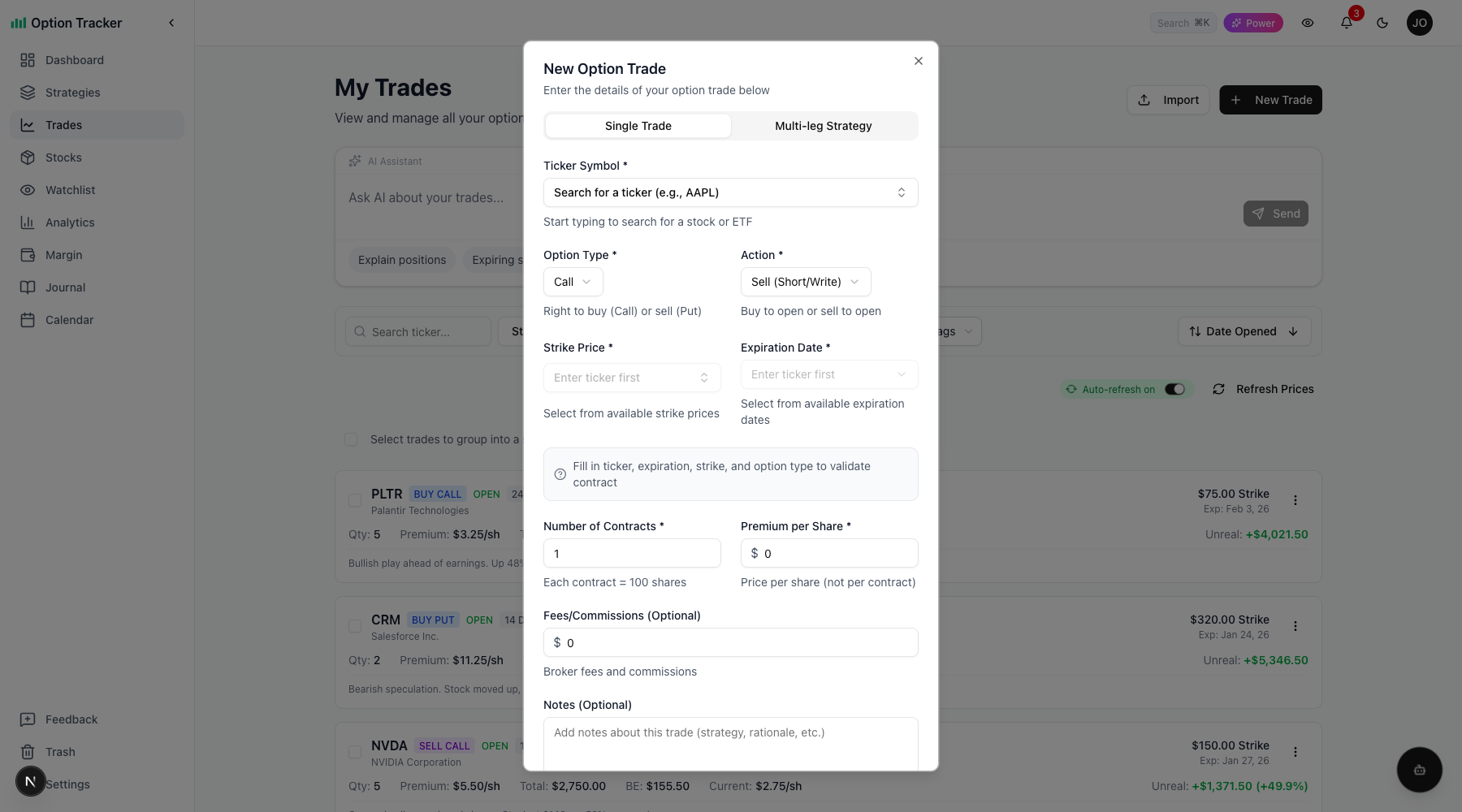
Opening the Trade Form
- Go to the Trades page
- Click the New Trade button
- The trade entry form opens as a dialog
Step 1: Select Ticker
Start by entering the stock symbol:
- Type in the Ticker field (e.g., "AAPL")
- As you type, matching tickers appear below
- Click the ticker or press Enter to select it
The company name fills in automatically.
Step 2: Choose Expiration
After selecting a ticker, the expiration dropdown populates with available dates:
- Click the Expiration dropdown
- Available expiration dates appear, sorted nearest first
- Each date shows its type: (Monthly), (Weekly), or (Quarterly)
- Click to select your expiration date
LEAPS (Long-Term Options)
By default, the dropdown shows the next 12 months of expirations. For longer-dated options:
- Scroll to the bottom of the dropdown
- Click Load X more expirations (LEAPS)
- Additional expirations up to 2+ years out appear
Step 3: Select Strike
Once you have a ticker and expiration, the strike dropdown becomes active:
- Click the Strike dropdown
- Available strikes appear, centered on the current stock price (ATM)
- Type a number to filter (e.g., "185" jumps to $185 strikes)
- Click to select your strike price
The strikes are sorted with ATM (at-the-money) options near the middle, making it easy to find common targets.
Step 4: Option Type and Action
Select the option details:
- Option Type: CALL or PUT
- Action: BUY or SELL
Common combinations:
- SELL PUT - Cash-secured put (wheel strategy start)
- SELL CALL - Covered call (income on shares you own)
- BUY CALL - Bullish speculation
- BUY PUT - Bearish speculation or hedge
Step 5: Contract Validation
As you complete the form, the app validates your contract in real-time:
Successful Match
When your trade matches a live contract:
- Green checkmark appears
- "Contract matched" or "Exact match" message
- The OCC symbol displays (e.g., AAPL250117C00185000)
No Match Found
If no matching contract exists:
- Amber warning appears
- "No matching contract found" message
- The app may suggest similar contracts
This can happen if:
- The strike doesn't exist for that expiration
- The expiration date isn't valid
- The ticker doesn't have options
Tip: Select from the dropdowns rather than typing to ensure valid selections.
Step 6: Enter Trade Details
Complete the remaining fields:
| Field | Description | |-------|-------------| | Contracts | Number of contracts (each = 100 shares) | | Premium | Price per share you paid or received | | Fees | Broker commission (optional) | | Notes | Any notes about the trade (optional) | | Tags | Labels for organization (optional) |
Step 7: Review and Confirm
When you click Save, a confirmation dialog appears showing:
- Trade summary (ticker, strike, expiration, type)
- Number of contracts and shares equivalent
- Premium per share and total premium
- Net cost or credit (after fees)
- Break-even price
- Contract match status
Review the details, then:
- Click Confirm to create the trade
- Click Edit to go back and make changes
Tips for Successful Contract Matching
-
Use the dropdowns - Selecting from dropdowns ensures valid expirations and strikes
-
Check the stock has options - Some smaller stocks don't have options chains
-
Watch for adjusted strikes - After splits, some strikes may not exist exactly
-
Weekly vs Monthly - Weekly options may have fewer available strikes
-
Enter trades promptly - Contracts can be delisted after expiration
What Happens After You Save
Once your trade is saved:
- It appears on your Trades page with live pricing (if matched)
- P&L updates as the option price changes
- DTE (days to expiration) badge appears
- Break-even tracking begins
- Expiration notifications are scheduled
If the contract wasn't matched, you'll see a "No live data" badge. You can still track the trade manually or try re-matching later.
Editing Trades
If you need to change a trade after creation:
- Click the three-dot menu on the trade card
- Select Edit
- Update the fields as needed
- Save to re-validate the contract
When you change the strike, expiration, or option type, the app automatically re-matches the contract.